
Unboxing a new smart watch feels exciting and a little overwhelming. There’s the sleek device, the charger, maybe a few bands, and suddenly you’re holding something that’s part timepiece, part fitness coach, part mini-phone. If this is your first time stepping into wearables, don’t worry—the learning curve flattens quickly once you get past the initial setup. In 2026, smartwatches like the Apple Watch Series 11, Samsung Galaxy Watch 8, Google Pixel Watch 4, and others have become incredibly polished, with better battery life, more accurate sensors, and features that actually feel useful day to day.
This guide walks you through everything a beginner needs: choosing the right model, unboxing and setup, essential first-week adjustments, core features to explore, common pitfalls to avoid, and tips to make the watch feel like a natural extension of your routine. Whether you’re coming from a basic fitness band or jumping straight from a traditional watch, these steps will help you get the most out of your new wrist companion without frustration.
Step 1: Before You Even Open the Box – Choosing the Right Watch
The biggest mistake new users make is buying on impulse without thinking about compatibility and priorities. In 2026, the ecosystem lock-in is stronger than ever.
If you have an iPhone (iOS 18 or later), the Apple Watch Series 11 or SE 3 remains the smoothest choice. It offers seamless pairing, the largest app library, and features like sleep apnea detection, hypertension notifications, and 24-hour battery life on recent models. Android users should lean toward Wear OS devices: the Google Pixel Watch 4 for clean Google integration and repairability, or the Samsung Galaxy Watch 8 for deeper health tools and longer promised software support.
Consider your main goals:
- Fitness and serious training? Garmin Vivoactive 6 or Fenix series excel at multi-sport tracking and recovery insights.
- Everyday notifications, payments, and calls? Apple or Samsung lead.
- Budget under $200? Look at Amazfit Active 2, Fitbit Charge 6, or Samsung Galaxy Watch FE.
- Long battery life? OnePlus Watch 3 or Huawei GT series often hit 5–10 days.
Check water resistance if you swim, and make sure the size fits your wrist—most brands offer 40–46mm ranges. Read recent reviews for 2026-specific updates like improved always-on displays or AI coaching.
Once you’ve decided, charge the watch fully before setup (most ship at 30–50%). This avoids interruptions during pairing.
Step 2: Unboxing and First Power-On
Take it slow. Remove the plastic films carefully—many people accidentally peel off protective screen layers. Plug in the charger (magnetic for Apple/Samsung/Pixel, pogo pins for some others) and let it reach 100%. This can take 1–2 hours.
Power on by pressing and holding the side button or crown until the logo appears. The watch will greet you in your language—swipe or rotate to select.
Step 3: Pairing with Your Phone – The Critical Step
Pairing is where most beginners hit snags, but it’s straightforward when done right.
For Apple Watch:
- Open the Watch app on your iPhone (it auto-installs if needed).
- Tap “Start Pairing” and hold the watch face over the iPhone camera to scan the animation (or pair manually).
- Sign in with your Apple ID, set a passcode, choose wrist orientation, and decide on cellular setup if your model supports it.
- The watch downloads watchOS updates and your settings—expect 10–30 minutes. Keep both devices close and charging.
For Samsung Galaxy Watch:
- Download Galaxy Wearable from Google Play.
- Open the app, tap “Start the journey,” and follow prompts to pair via Bluetooth.
- Sign into Samsung account for full features like Samsung Health and Pay.
- Choose watch face, restore from backup if upgrading, and enable notifications.
For Google Pixel Watch:
- Use the Pixel Watch app (or Fitbit app for health sync).
- Pair via Bluetooth, sign into Google account.
- Set up Fitbit integration for advanced metrics like Daily Readiness.
- Allow location and notifications for full functionality.
After pairing, the watch restarts a few times. This is normal—it’s syncing contacts, calendars, health permissions, and apps.
Step 4: First-Day Essentials – Make It Yours Quickly
Spend the first hour customizing so it doesn’t feel like a stranger on your wrist.
Watch faces: Swipe left/right or long-press to browse. Apple offers modular faces with complications (weather, activity rings, shortcuts). Samsung and Wear OS have thousands via the store—pick one with always-on support. Set favorite complications for quick glances: battery, steps, heart rate.
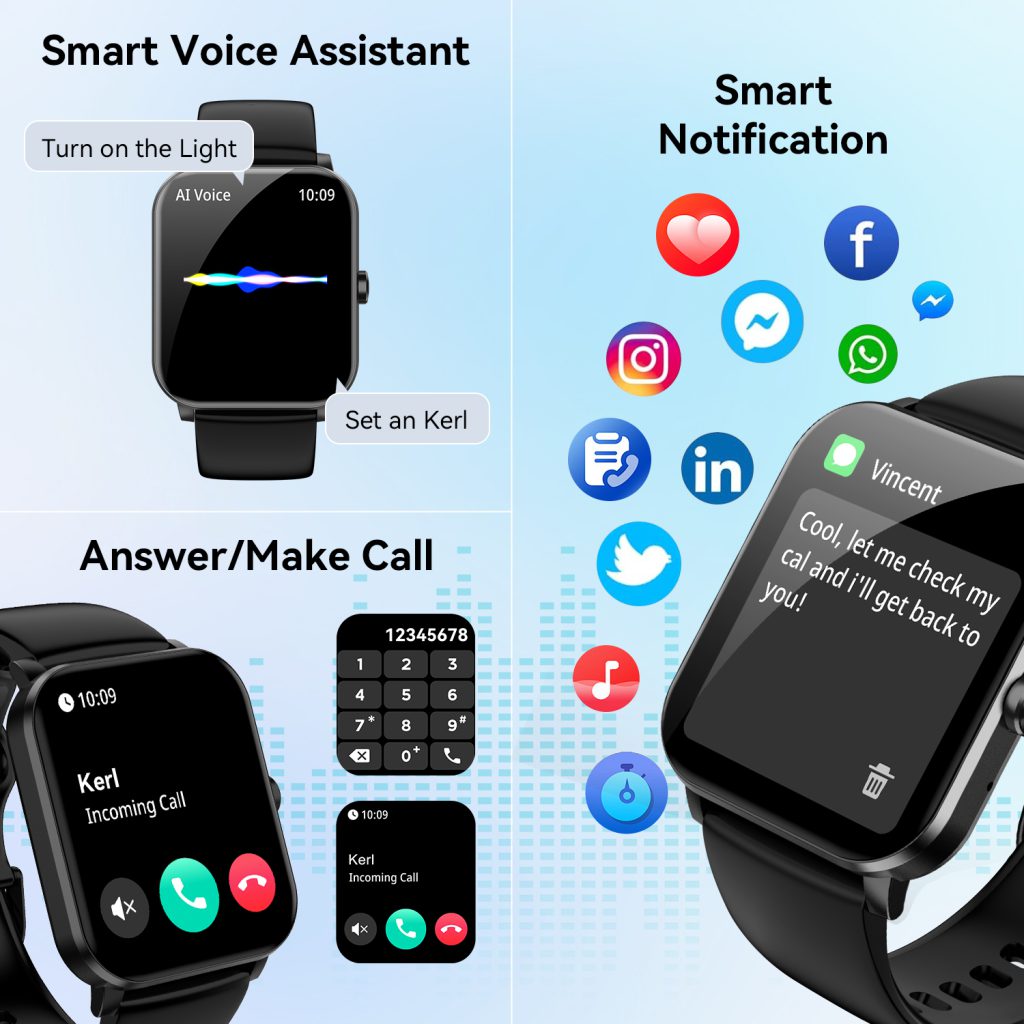
Notifications: Go to settings → Notifications. Mirror iPhone/Android alerts but disable low-priority ones (social spam) to avoid buzz overload. Enable quick replies for texts/calls.
Bands and fit: The watch should sit snug but not tight—one finger should slide under. Swap bands if needed (quick-release on most). Wear on non-dominant wrist for comfort during typing/exercise.
Permissions: Grant heart rate, location, microphone, contacts. This unlocks fitness tracking, maps, calls, and Find My.
Step 5: Core Features to Explore in Week One
Don’t overwhelm yourself—focus on these building blocks.
Activity and rings/goals: Apple’s rings (move, exercise, stand) motivate without nagging. Samsung/ Wear OS use steps + active minutes. Set realistic daily targets—start at 8,000 steps if you’re sedentary.
Heart rate monitoring: Enable continuous tracking. Check resting rate in morning—lower over time signals better fitness. During walks, compare watch data to perceived effort.
Sleep tracking: Wear to bed (comfortable bands help). Most 2026 models detect stages, SpO2, and breathing disturbances. Review in the morning—aim for consistent 7–9 hours.
Workouts: Start simple—outdoor walk/run with GPS. Auto-detect kicks in on many models. Post-workout, check heart zones and recovery advice.
Payments: Add cards to Apple Pay/Samsung Pay/Google Wallet. Double-click side button or gesture to pay—test at a store.
Notifications and calls: Reply with voice, scribble, or canned responses. Take calls on wrist if Bluetooth-connected.
Battery tips: First 2–3 days drain faster due to indexing/syncing. Normal life: 24–36 hours for Apple/Pixel, 40+ for Samsung, longer for others. Charge nightly or during shower.
Step 6: Useful Tweaks and Settings for Beginners
Always-on display: Enable if battery allows—glanceable time without raising wrist.
Theater/Silent mode: Swipe up control center → theater icon dims screen and silences haptics.
Do Not Disturb/Focus modes: Sync with phone or set watch-specific schedules.
Widgets/Stacks: Apple Smart Stack (rotate crown), Wear OS Tiles—add weather, calendar, shortcuts.
App installation: Browse watch app store or phone companion—start with weather, calculator, timers, music controls.
Privacy: Review health data sharing. Disable unnecessary location for apps.
Updates: Enable auto-updates for watchOS/Wear OS—new features like better AI insights roll out regularly.
Step 7: Common Beginner Mistakes and Fixes
- Too tight/loose: Adjust band for accurate sensors.
- Ignoring software updates: Miss bug fixes and features.
- Overloading notifications: Mute apps aggressively.
- Expecting phone-level battery: Wearables prioritize features over multi-day life.
- Not restarting weekly: Clears glitches.
- Skipping passcode: Risk if lost (but inconvenient for quick access).
- Wearing 24/7 from day one: Skin needs breaks—remove occasionally.
Step 8: Building Habits – Making the Watch Work for You
Track one new thing weekly: week 1 steps, week 2 sleep, week 3 workouts. Use insights to adjust—earlier bedtime if REM low, more walks if sedentary hours high.
Explore third-party apps: Strava for cycling, Calm for mindfulness, WaterMinder for hydration reminders.
Customize complications/faces seasonally—motivational quotes in winter, UV index in summer.
Join communities: Reddit (r/AppleWatch, r/GalaxyWatch, r/PixelWatch) for tips and troubleshooting.
Your Watch, Your Way
A smart watch isn’t about having every feature—it’s about the few that quietly improve your day. In 2026, these devices are mature enough that setup takes under an hour, and real value emerges over weeks as you tweak and discover.
Give yourself grace the first month. Experiment, disable what annoys, enable what helps. Soon it’ll feel weird without the gentle tap of a notification or the satisfaction of closing activity rings. Welcome to the club—your wrist just got a lot smarter.
Leave a Comment
Your email address will not be published. Required fields are marked *