User Privacy Protection Policies for Smart Watches
The Hidden Privacy Risks Behind Your Smart Watch
In 2026, smart watches have evolved from simple timekeeping devices to indispensable personal companions, seamlessly integrating into our daily lives. They track our steps, monitor our heart rate, remind us of appointments, and even enable contactless payments. With the global smart watch market size exceeding $500 billion and user penetration in China reaching 30%, these devices have become a ubiquitous part of modern life. However, as we embrace the convenience and functionality they offer, we often overlook a critical issue: the privacy of the data they collect. Every time you wear your smart watch, it is quietly gathering a wealth of sensitive information. This data, if not properly protected, can fall into the wrong hands, leading to privacy breaches, identity theft, and even threats to personal safety. User Privacy Protection Policies (UPPPs) are the cornerstone of safeguarding this data, yet many users are either unaware of their existence or do not fully understand what they entail.
What Exactly Is a User Privacy Protection Policy for Smart Watches?
A User Privacy Protection Policy for smart watches is a formal document issued by the device manufacturer or service provider that outlines how the company collects, uses, stores, shares, and disposes of the personal data generated by your smart watch. Unlike generic privacy policies for smartphones or computers, smart watch UPPPs are specifically tailored to the unique nature of wearable devices—devices that are worn on the body, collect real-time physiological and location data, and often operate continuously throughout the day. These policies are not just legal formalities; they are a commitment from the company to protect your privacy and a tool for you to understand your rights as a user. At their core, smart watch UPPPs should answer three key questions: What data is being collected? How is that data being used? And what measures are in place to keep that data safe? Unfortunately, many UPPPs are buried in fine print, filled with technical jargon, and designed to be overlooked. This lack of transparency is a major concern, as it leaves users in the dark about how their most sensitive information is being handled. To truly protect your privacy, it is essential to take the time to read and understand these policies, even if they seem lengthy or complex.
Key Data Collected by Smart Watches: What You’re Sharing Without Realizing It
To understand UPPPs, you first need to know what data your smart watch is collecting. The scope of data collection is far broader than most users realize, and it goes well beyond basic fitness metrics. Here’s a detailed breakdown of the most common types of data collected by modern smart watches, along with examples of how this data can be used—and misused:
1. Physiological and Health Data: This is the most sensitive and personal type of data collected by smart watches. Most devices are equipped with sensors that track heart rate, blood oxygen levels, body temperature, sleep patterns, stress levels, and even ECG (electrocardiogram) readings. Some high-end models can also monitor blood glucose trends and respiratory rates. This data provides a detailed picture of your health, including chronic conditions, sleep quality, and even emotional states. For example, a smart watch might collect your heart rate variability to determine if you’re stressed, or track your sleep cycles to identify patterns of insomnia. While this data is often used to provide health insights and alerts, it can also be valuable to third parties like insurance companies, which might use it to adjust premiums or deny coverage. In 2025, a major insurance provider was found to be using smart watch health data to increase rates for users with irregular heart rhythms, sparking a public outcry and raising questions about data ethics.
2. Location Data: Smart watches use GPS, Wi-Fi, and Bluetooth to track your real-time location and movement. This data is used to provide navigation, track exercise routes, and enable location-based reminders. However, it also creates a detailed record of your daily movements—where you live, work, exercise, and socialize. Over time, this data can be used to build a comprehensive profile of your habits and routines. For instance, if your smart watch tracks your commute every day, it can reveal your workplace and home address. If it tracks your weekend activities, it can show which restaurants, gyms, or shopping centers you frequent. This data is particularly vulnerable to misuse, as it can be used by stalkers, thieves, or even malicious actors to target you. In 2024, a security breach at a popular smart watch brand exposed the location data of over 1 million users, leading to several cases of theft and harassment.
3. Behavioral and Usage Data: Smart watches collect data on how you use the device, including which apps you open, how often you use certain features, and how long you wear the watch each day. This data is used to improve the user experience—for example, to prioritize frequently used apps or adjust battery life based on usage patterns. However, it can also be used to build a profile of your interests and habits. For example, if you frequently use a meditation app on your smart watch, the manufacturer might infer that you’re interested in mental health products and share that information with advertisers. This type of data collection is often hidden from users, who may not realize that their daily habits are being monitored and analyzed.
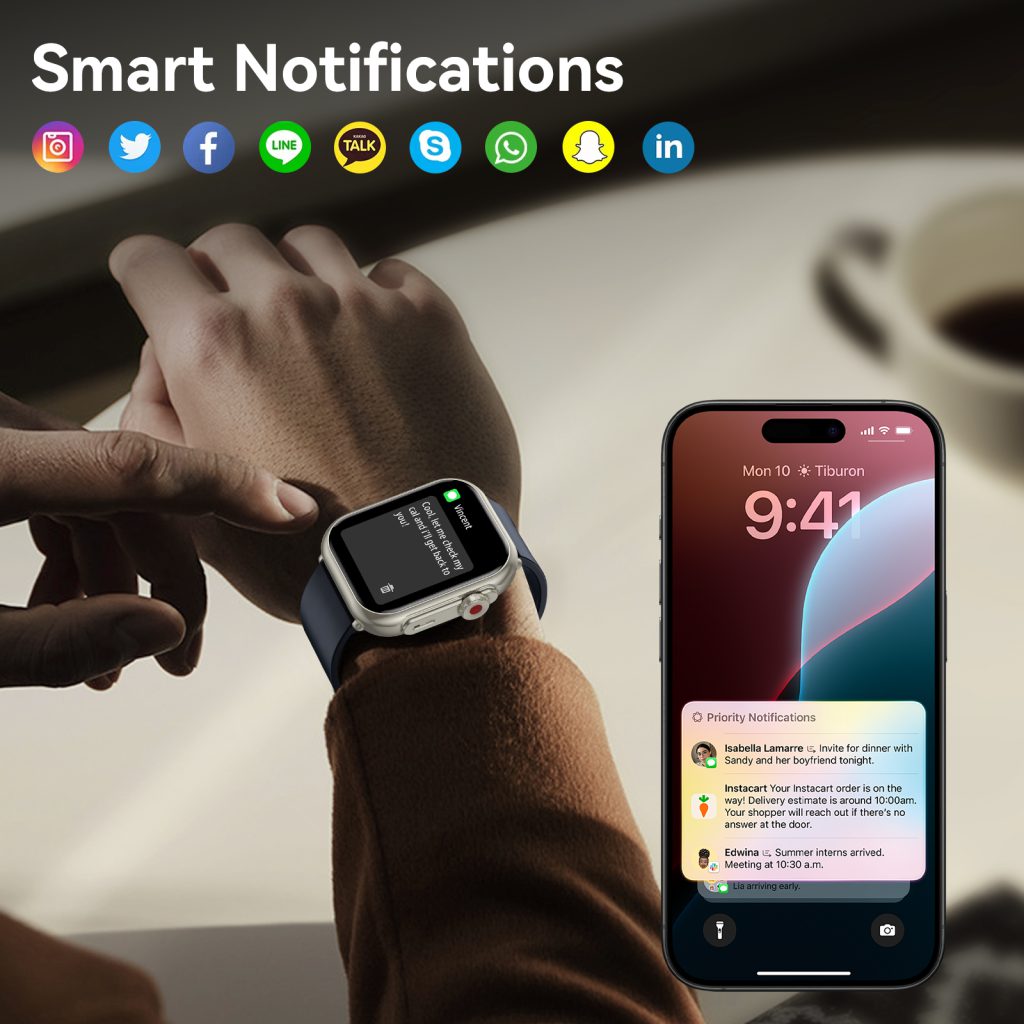
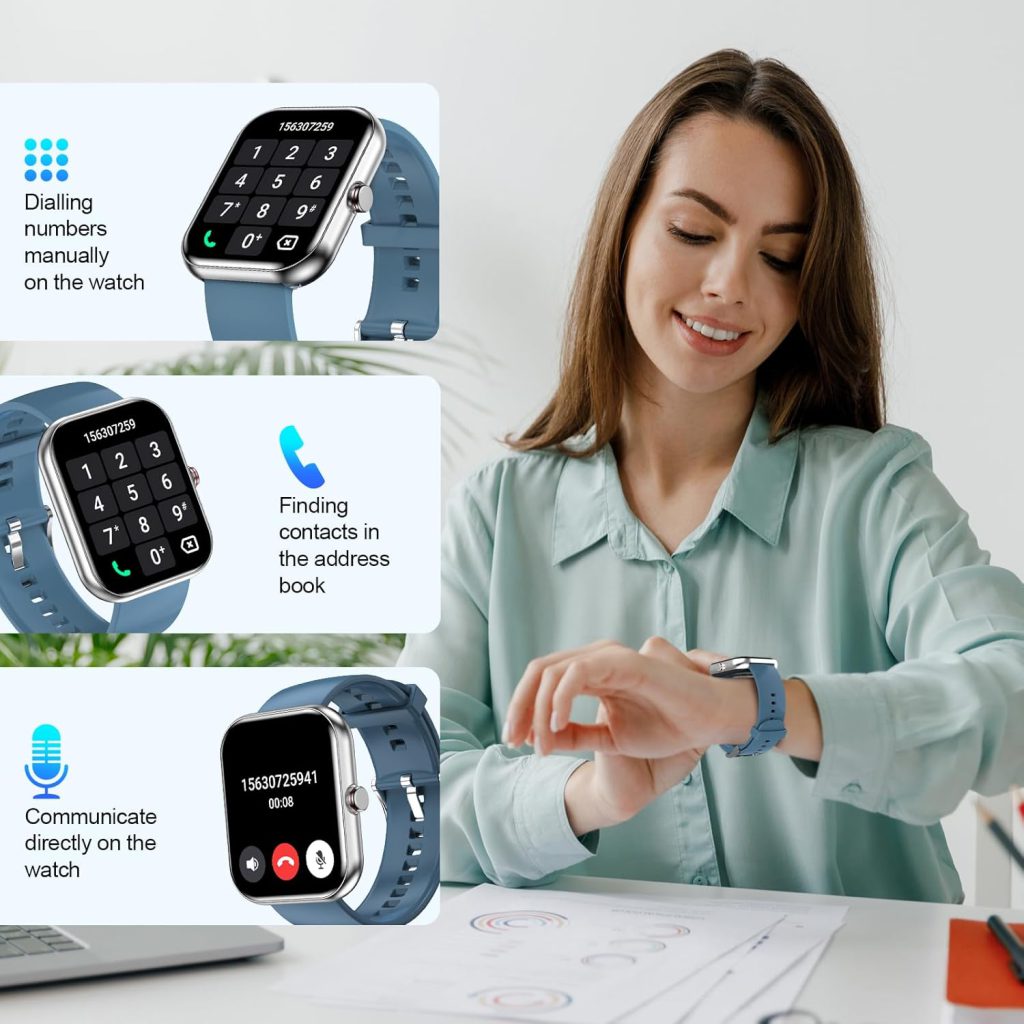
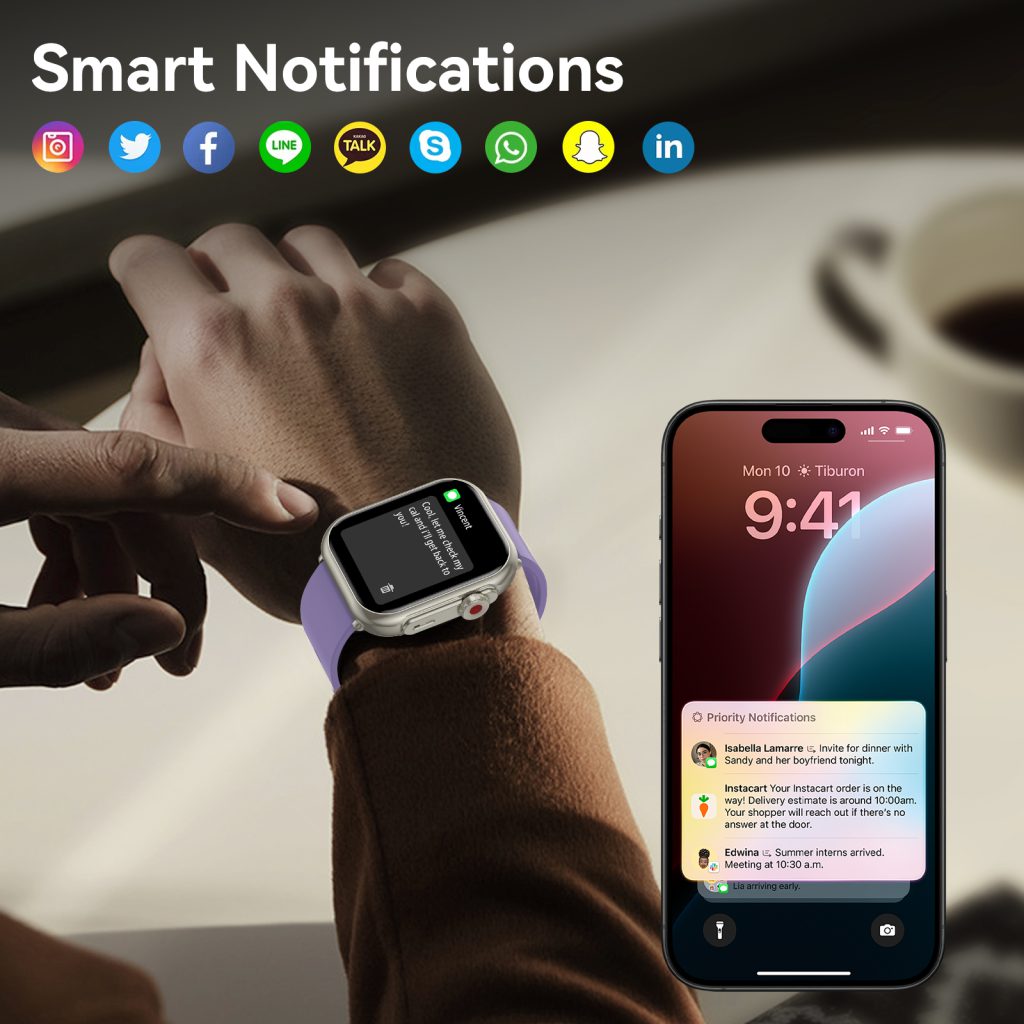
4. Personal and Social Data: Many smart watches are connected to your smartphone, allowing them to sync contacts, messages, call logs, and even social media notifications. This means that your smart watch may have access to sensitive personal information, such as your family’s contact details, private messages, and social media activity. Some devices also allow you to make calls or send messages directly from the watch, which means that call logs and message content are stored on the device or in the cloud. If this data is not properly encrypted, it can be accessed by unauthorized parties, leading to privacy breaches and identity theft.
5. Biometric Data: An increasing number of smart watches now include biometric features, such as fingerprint scanners or facial recognition, to unlock the device or authenticate payments. This biometric data is unique to you and cannot be changed, making it particularly valuable to malicious actors. If biometric data is stolen, it can be used to gain access to your other devices, bank accounts, or personal accounts. Unlike passwords, which can be reset, biometric data is permanent—once it’s compromised, it’s compromised forever.
Key Components of a Strong Smart Watch User Privacy Protection Policy
Not all UPPPs are created equal. A strong policy should be transparent, comprehensive, and user-friendly, with clear explanations of how data is collected and protected. Here are the key components that every smart watch UPPP should include, along with what to look for when reviewing a policy:
1. Clear Data Collection Disclosure: The policy should explicitly list all types of data collected by the smart watch, including physiological, location, behavioral, personal, and biometric data. It should also explain how each type of data is collected—for example, through sensors, GPS, or smartphone syncing. Avoid policies that use vague language like “we may collect certain data” or “we collect data to improve our services.” Instead, look for specific, detailed descriptions of what data is collected and why.
2. Explicit Purpose for Data Use: The policy should clearly state how the collected data will be used. For example, physiological data might be used to provide health insights, location data might be used for navigation, and behavioral data might be used to improve the device’s functionality. It should also specify whether the data will be used for internal purposes only or shared with third parties. Avoid policies that allow data to be used for “any purpose” or “other purposes as needed.”
3. Transparent Data Sharing Practices: If the company shares data with third parties (such as advertisers, app developers, or research institutions), the policy should list the types of third parties, the types of data shared, and the purpose of the sharing. It should also explain whether the user has the right to opt out of data sharing. For example, some policies allow users to opt out of sharing data with advertisers but not with research institutions. Look for policies that give users control over their data and require explicit consent before sharing.
4. Robust Data Security Measures: The policy should outline the security measures in place to protect user data, both during storage and transmission. This includes encryption (for data stored on the device, in the cloud, and during transmission), access controls (to ensure only authorized personnel can access data), and regular security audits. It should also explain how the company responds to data breaches, including how users will be notified and what steps will be taken to mitigate the damage. Look for policies that use industry-standard encryption methods, such as AES-256, and have a clear breach notification process.
5. User Rights and Control: A strong UPPP should outline the rights users have over their data, including the right to access their data, correct inaccuracies, delete their data, and opt out of certain data collection or sharing practices. It should also explain how users can exercise these rights—for example, through a user portal, customer service, or device settings. Avoid policies that make it difficult for users to exercise their rights, such as requiring multiple steps or long response times.
6. Data Retention and Disposal: The policy should specify how long user data will be retained and how it will be disposed of when it is no longer needed. For example, some companies retain data for a set period (such as 2 years) after the user stops using the device, while others retain data indefinitely. Look for policies that minimize data retention and use secure disposal methods (such as permanent deletion or encryption) to ensure data cannot be recovered.
7. Compliance with Privacy Regulations: The policy should state that the company complies with relevant privacy regulations, such as the EU’s General Data Protection Regulation (GDPR), the U.S. California Consumer Privacy Act (CCPA), and China’s Personal Information Protection Law (PIPL). Compliance with these regulations ensures that the company follows strict standards for data protection and user rights. Look for policies that reference specific regulations and explain how the company adheres to them.
Common Pitfalls in Smart Watch UPPPs: What to Watch Out For
While many smart watch manufacturers claim to prioritize user privacy, their UPPPs often contain hidden pitfalls that can put your data at risk. Here are some of the most common red flags to watch out for when reviewing a UPPP:
1. Vague or Ambiguous Language: Many UPPPs use vague language to avoid disclosing specific details about data collection and use. For example, a policy might state that the company collects “personal information” without defining what that includes, or that data is used “to improve services” without explaining how. This lack of clarity makes it impossible for users to understand what data is being collected and how it’s being used.
2. Hidden Data Sharing: Some policies bury information about data sharing in the fine print, making it easy for users to miss. For example, a policy might mention in a single sentence that data is shared with “affiliates and partners” without listing who those partners are or what data is shared. This can lead to users unknowingly giving consent for their data to be shared with third parties.
3. Forced Consent: Many smart watches require users to agree to the UPPP before they can use the device. While this is standard practice, some policies use “take-it-or-leave-it” consent—meaning users have no choice but to agree to all terms, even if they disagree with certain parts. This violates the principle of informed consent, as users cannot choose which data collection practices they want to opt into or out of.
4. Lack of User Control: Some UPPPs claim to give users control over their data but make it difficult to exercise those rights. For example, a policy might state that users can delete their data, but require them to send a written request to customer service and wait weeks for a response. This effectively negates the user’s right to control their data.
5. Outdated Policies: Privacy regulations and technology are constantly evolving, but many UPPPs are not updated regularly. An outdated policy may not address new data collection practices (such as biometric data collection) or comply with new regulations, leaving users’ data unprotected. Always check the last updated date of the policy—if it’s more than a year old, it may not be up to date.
6. No Breach Notification Process: A UPPP that does not include a clear breach notification process is a major red flag. If a data breach occurs, users have the right to be notified promptly so they can take steps to protect themselves (such as changing passwords or monitoring their bank accounts). Policies that do not outline how and when users will be notified leave users in the dark in the event of a breach.
How to Protect Your Privacy When Using a Smart Watch: Practical Tips
Understanding UPPPs is the first step to protecting your privacy, but there are also practical steps you can take to minimize data collection and reduce the risk of privacy breaches. Here are some actionable tips to help you take control of your data:
1. Read the UPPP Before Using the Device: This may seem obvious, but many users skip reading the UPPP and simply click “agree” to start using their smart watch. Take the time to read the policy carefully, paying attention to sections on data collection, sharing, and security. If the policy is too vague or contains red flags, consider choosing a different brand.
2. Adjust Your Device Settings: Most smart watches allow you to customize data collection settings. For example, you can turn off GPS tracking when you’re not using it, disable unnecessary sensors (such as the microphone or camera), and limit app permissions. Take the time to review your settings and turn off any features that collect data you don’t want to share. For example, if you don’t use the sleep tracking feature, you can turn it off to prevent the watch from collecting your sleep data.
3. Limit Third-Party App Access: Many smart watches allow you to download third-party apps, but these apps may collect additional data. Before downloading an app, review its privacy policy and only grant it the permissions it needs to function. For example, a fitness app may need access to your heart rate data, but it doesn’t need access to your location or contacts. Avoid granting unnecessary permissions to third-party apps.
4. Use Strong Security Features: Enable biometric authentication (such as fingerprint or facial recognition) to unlock your smart watch, and set a strong passcode as a backup. This will prevent unauthorized access to your device and the data stored on it. Also, make sure to keep your device’s software up to date—manufacturers often release updates that fix security vulnerabilities.
5. Be Cautious with Cloud Syncing: Many smart watches sync data to the cloud, which can make it easier to access your data across devices but also increases the risk of data breaches. If you use cloud syncing, make sure the cloud service uses strong encryption and that you have a strong password for your account. You can also choose to disable cloud syncing entirely if you don’t need it.
6. Regularly Review and Delete Your Data: Most smart watch manufacturers allow you to access and delete your data through a user portal or device settings. Take the time to review your data regularly and delete any information you don’t need. For example, you can delete old location data or sleep records that are no longer relevant.
7. Choose Brands with a Strong Privacy Reputation: Not all smart watch brands prioritize privacy equally. Do your research before purchasing a device—look for brands that have transparent UPPPs, strong security measures, and a good track record of protecting user data. Avoid brands that have been involved in data breaches or have received complaints about privacy practices.
The Future of Smart Watch Privacy: Trends and Challenges
As smart watch technology continues to evolve, so too will the privacy challenges it presents. Here are some key trends and challenges that will shape the future of smart watch privacy:
1. Advancements in Biometric and Health Data Collection: As smart watches become more advanced, they will collect even more detailed biometric and health data, such as blood glucose levels, blood pressure, and even early signs of diseases. While this data can provide valuable health insights, it also increases the risk of privacy breaches and misuse. The challenge will be to balance the benefits of this data with the need to protect user privacy.
2. Increased Regulation: Governments around the world are cracking down on data privacy, with new regulations being introduced to protect user data. For example, the EU’s GDPR and China’s PIPL have set strict standards for data collection and use, and more countries are likely to follow suit. This will force smart watch manufacturers to improve their UPPPs and security measures, but it will also create challenges for companies operating in multiple regions with different regulatory requirements.
3. The Rise of AI and Machine Learning: Smart watches are increasingly using AI and machine learning to analyze user data and provide personalized insights. While this can improve the user experience, it also means that more data is being processed and stored, increasing the risk of privacy breaches. Additionally, AI algorithms can infer sensitive information about users (such as their mental health or financial status) from seemingly harmless data, raising ethical concerns.
4. Growing Consumer Awareness: As privacy breaches become more common, consumers are becoming more aware of the importance of data privacy. This will drive demand for more transparent UPPPs and stronger privacy features, forcing manufacturers to prioritize privacy in their product design. However, there is still a long way to go—many users still do not fully understand the privacy risks associated with smart watches.
5. The Internet of Things (IoT) Connection: Smart watches are part of the larger IoT ecosystem, which includes smartphones, smart home devices, and other wearables. This connectivity means that data collected by your smart watch can be shared with other devices, creating a larger attack surface for malicious actors. The challenge will be to ensure that data is protected across the entire IoT ecosystem, not just on individual devices.
Smart watches have revolutionized the way we live, offering convenience, health insights, and connectivity that were once unimaginable. However, this convenience comes at a cost—our privacy. User Privacy Protection Policies are the first line of defense against data breaches and misuse, but they are only effective if we take the time to read and understand them. By being aware of what data your smart watch collects, how it’s being used, and what steps you can take to protect it, you can enjoy the benefits of wearable technology without sacrificing your privacy.