
Your smart watch is frozen. The screen is stuck on a single image. The buttons do nothing. The touchscreen might as well be a sticker. You tap, you swipe, you press harder—nothing happens. It stares back at you, a sleek, expensive brick on your wrist.
Panic sets in. Is it dead? Do you need a new one? Did you just lose months of health data?
Stop. Take a breath. Your watch is almost certainly not dead. It is simply in a state of digital arrest, and you are about to learn how to be its get-out-of-jail-free card.
The ability to restart or reset a smartwatch is the most fundamental, yet most misunderstood, skill in the wearable owner’s toolkit. It’s the difference between throwing away a perfectly good device and having it run for another two years. But here’s where most people get it wrong: they think restarting and resetting are the same thing. They are not.
One is a gentle nudge. The other is a wrecking ball.
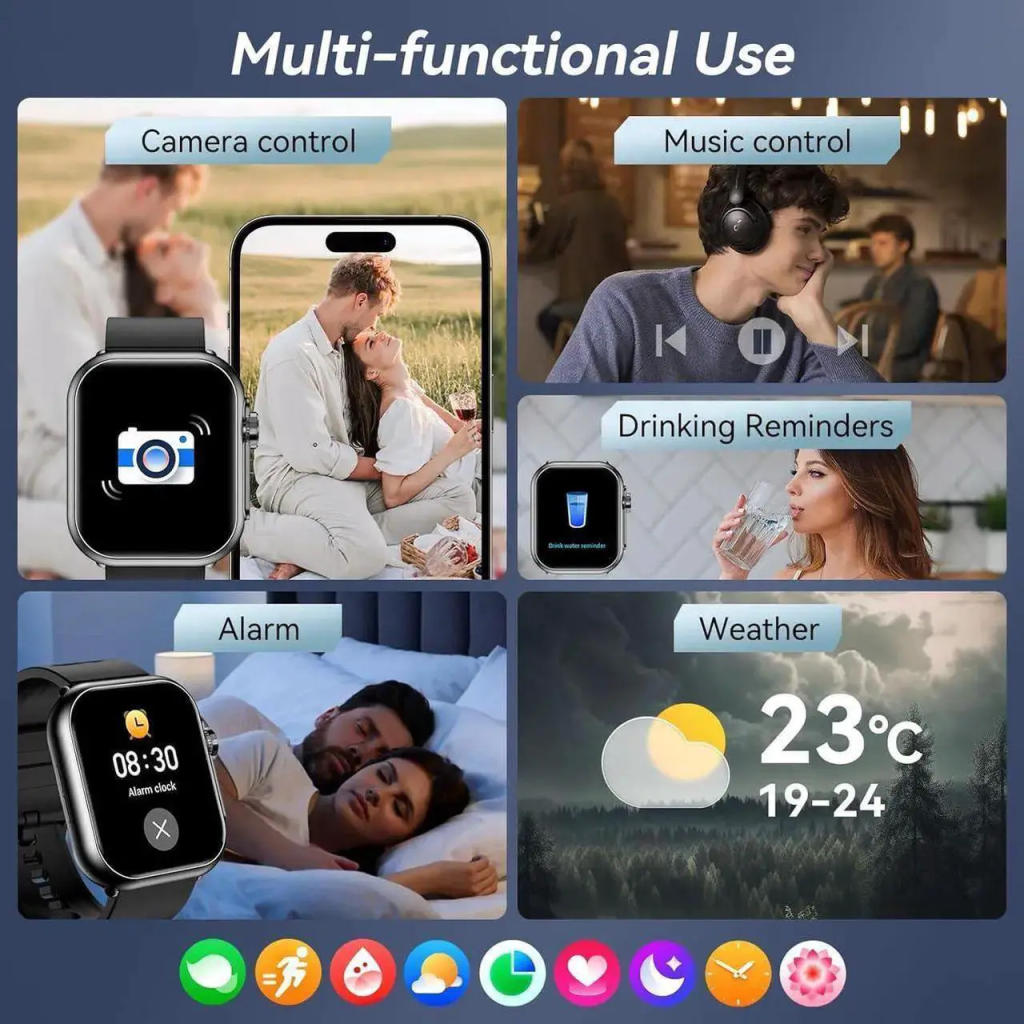
This guide will walk you through the entire spectrum of smartwatch revival. We’ll cover the simple restart that clears the cobwebs, the force restart for when your watch is playing dead, the full factory reset for a fresh start, and the dreaded recovery mode for when nothing else works. By the end, you’ll know exactly what button to press, and when, to bring your wrist computer back from the brink.
Restart First, Reset Last
Before we dive into button combinations and menu dives, we need to establish a universal law of troubleshooting. It applies to phones, computers, and yes, smartwatches.
A restart is for problems. A reset is for people.
What does that mean? It means you restart the device to fix a glitch. You reset the device when you’re about to sell it, give it away, or when the glitches are so deep that the operating system itself is corrupted. A restart preserves your life. A reset erases it and starts a new one.
Think of your watch as a room. A restart is like opening the windows, sweeping the floor, and making the bed. The room feels fresh again, but all your furniture and photos are still there. A reset is like hiring a demolition crew. They haul everything out, strip the wallpaper, and leave you with an empty concrete box. You can then move back in and redecorate, but it’s a lot of work.
Always, always start with the restart.
Chapter 1: The Simple Restart (The Digital Spring Cleaning)
This is the equivalent of turning it off and on again. It’s almost insulting how often this works. But people skip it because they think it’s too simple. Don’t be that person.
A simple restart closes all running apps, clears temporary system memory (RAM), and reloads the operating system fresh. It fixes lag, unresponsive apps, Bluetooth sync issues, and minor notification bugs .
For Apple Watch:
The method changed with watchOS 10 and remains the same in newer versions .
- Press and hold the side button (the one below the Digital Crown) until you see the power options. This usually takes a couple of seconds.
- Tap the power icon in the top-right corner of the screen.
- Drag the “Power Off” slider to the right. The screen will go dark.
- Wait a few seconds, then press and hold the side button again until the Apple logo appears .
For Samsung Galaxy Watch:
Samsung makes this straightforward.
- Press and hold the Home/Power button.
- Tap “Restart” or “Power off” from the on-screen menu.
- If you turned it off, press and hold the Home button again to power back on .
For Google Pixel Watch / Wear OS:
Google offers two easy paths .
- Method A (Button): Press and hold the crown for about three seconds. Scroll down and tap “Restart.”
- Method B (Touch): Swipe down from the top of the watch face to open Quick Settings. Tap the Settings gear icon, scroll to “System,” and then tap “Restart” .
For Garmin:
Garmin devices are built for reliability, but they still need a restart occasionally.
- Press and hold the Light/Power button until the screen goes black and the device vibrates. Release, then press the button once to turn it back on .
For Fitbit:
Fitbit trackers and watches often need a restart to clear syncing issues.
- For most models: Hold the side button for 10 seconds until you feel a vibration or see the Fitbit logo. If that doesn’t work, connect it to the charger and try again .
For COROS:
COROS watches have a dedicated restart function.
If your watch is responsive enough to navigate menus, always use the software-based restart. It’s safer and allows the system to shut down gracefully.
Chapter 2: The Force Restart (When Your Watch Is Playing Dead)
Sometimes, your watch isn’t just slow—it’s completely unresponsive. The screen is frozen, or it’s black, and holding the power button does nothing. This is when you need to escalate to the “force restart.”
A force restart bypasses the operating system and cuts power to the hardware directly. It’s like pulling the plug on a frozen computer. It does not delete your data, but it should only be used when the normal method fails .
The beauty of the force restart is that it often works even with a broken screen . Because it relies on hardware button combinations, you don’t need to see what you’re doing.
For Apple Watch (The Unfreeze):
- Press and hold both the side button and the Digital Crown simultaneously.
- Keep holding them for at least 10 seconds. Don’t let go when the screen goes dark—keep holding.
- Continue holding until the Apple logo appears, then release .
- Pro Tip: If it doesn’t work the first time, place the watch on its charger and try again while it’s charging .
For Samsung Galaxy Watch (The Vibration Trick):
- Press and hold the Home button and the Back button at the same time.
- Hold them for at least 7-10 seconds. You might feel a vibration.
- When the Samsung logo appears, you can release the buttons .
For Google Pixel Watch / Wear OS (The Long Hold):
The Pixel Watch requires patience.
- Press and hold the crown and the side button above it simultaneously.
- Keep holding for a full 30 seconds or more. Don’t stop.
- Continue until you see the “G” logo appear on screen .
For Garmin (The Light Button Savior):
- Hold the Light/Power button for a full 15 seconds.
- The device should shut down and restart. If it doesn’t, release and press the button once to power it on .
For General Wear OS Devices (Fossil, TicWatch, etc.):
The universal fallback is a 10-20 second hold of the power button. If that fails, connect it to the charger and try again. The power cycle from the charger can sometimes jolt the system awake .
Chapter 3: The Factory Reset (The Nuclear Option)
If a restart didn’t fix the problem, or if you’re selling your watch, you need a factory reset. This returns the device to exactly the state it was in when you unboxed it.
WARNING: A factory reset erases everything. Your apps, your settings, your watch faces, and crucially, your locally stored health data will be deleted .
Before you do this, check that your health data is backed up somewhere. For Apple Watch, ensure you have an encrypted iPhone backup or iCloud Health sync enabled. For Samsung, open the Galaxy Wearable app, go to “Account and backup,” and back up your data . For others, check the companion app to ensure data has synced to the cloud.
When to Reset:
- You’re selling or trading in the watch.
- The watch is experiencing persistent crashes, boot loops, or errors that restarts won’t fix .
- You’ve forgotten the screen lock password and need to regain access .
- You’re pairing the watch with a new phone and want a completely clean slate .
Resetting Through the Watch (If It Still Works)
This is the cleanest method.
Apple Watch:
- On the watch, go to Settings > General > Transfer or Reset > Erase All Content and Settings.
- You may be asked to enter your passcode.
- If you have an Apple Watch with cellular, you’ll have the option to keep or remove your cellular plan. Choose based on your needs.
- Confirm. The watch will wipe itself and restart as a new device .
Samsung Galaxy Watch:
- On the watch, go to Settings > General > Reset .
- Tap “Reset.” You might need to enter your PIN.
- Confirm. The watch will erase and reboot .
Google Pixel Watch / Wear OS:
- Swipe down and tap Settings > System > Disconnect & reset .
- Read the warning, then confirm. The watch will unpair from your phone and reset itself.
COROS:
- Go to the main watch face, then System > More Settings > Reset All .
- Note: COROS reassures users that resetting the watch won’t affect data already synced to the COROS app, which is a nice touch .
ASUS VivoWatch:
- Enter the “About” option in the “Settings” page of the watch.
- Select “Restore to default settings” and press “OK” .
Resetting Through the Phone App (If It’s Easier)
Sometimes, it’s easier to use the companion app, especially if the watch screen is hard to navigate.
Samsung (Galaxy Wearable app):
- Open the Galaxy Wearable app on your phone.
- Tap Watch settings > General > Reset.
- Tap “Reset” to confirm .
- Note: Samsung recommends this method because it ensures a cleaner disconnect than resetting from the watch alone .
Apple Watch (Watch app on iPhone):
- Open the Watch app on your iPhone.
- Go to General > Transfer or Reset > Erase Apple Watch Content and Settings.
Other Brands:
Most major brands (Garmin, Fitbit, etc.) offer a “Remove device” or “Factory reset” option within their mobile apps. This is often the most reliable way to ensure the watch is fully unpaired and reset.
Chapter 4: The Recovery Mode Hack (The Hidden Button Dance)
What happens when the watch won’t even boot up? When it’s stuck on the logo screen or in a continuous restart loop? This is where you need “Recovery Mode” or “Bootloader Mode.”
This is a special menu hidden deep in the watch’s firmware. It runs independently of the main operating system, which means you can access it even if the main OS is corrupted. From here, you can force a factory reset or wipe the system cache .
Warning: Entering recovery mode varies wildly by brand and model. You may need to try a few different button combinations. This method is safe, but it requires precision.
For Samsung Galaxy Watch (Cache Wipe & Reset):
This is the most common recovery mode procedure .
- Force shut down the watch by holding both the Home and Back buttons until the screen goes black.
- As soon as the screen goes black, immediately start pressing the Home button repeatedly (or hold it) until you see the bootloader menu (usually a screen with some text and an Android robot).
- Use the buttons to navigate. The top button usually moves the selection, and the bottom button (Back) confirms.
- Scroll to “Recovery mode” and select it.
- When you see the Android robot with “No command,” press and hold the Home button, then press the Back button once, then release both. (This trick varies, but it’s common).
- You should now see a recovery menu. Use the buttons to scroll to “Wipe data/factory reset” and select it.
- Confirm, wait for the wipe to complete, then select “Reboot system now.”
For General Wear OS / Android Watches:
The general principle is:
- Power off the watch.
- Press and hold Power + Back or Power + Volume Up (if volume buttons exist).
- Keep holding until a menu appears.
- Navigate to “Factory reset” using the buttons .
For Apple Watch:
Apple does not offer a user-accessible recovery mode like Android. If your Apple Watch is stuck in a boot loop and a force restart doesn’t work, it usually requires a trip to the Apple Store or a specialized repair tool.
Chapter 5: The Password Problem (Resetting When You’re Locked Out)
Forgetting your watch passcode is a special kind of frustration. You have a perfectly good watch, but you can’t use it because of four digits you can’t remember.
The good news: you can still reset it. The bad news: it will wipe the watch, and you might still need the original owner’s account info afterward .
If you’re locked out and can’t get past the passcode screen, your only option is a hardware-based factory reset using the methods described in Chapter 4 (Recovery Mode). This bypasses the lock screen because it operates below the OS level .
The Activation Lock Trap:
Here’s the catch that trips up second-hand buyers. Many modern smartwatches have “Activation Lock” or “Factory Reset Protection” (FRP). This ties the watch to the owner’s account (Apple ID, Google Account, Samsung Account) .
If you buy a used watch and the previous owner didn’t remove it from their account, you might reset the watch successfully, only to be greeted by a screen asking for the previous owner’s email and password .
A factory reset will not remove this account lock. It’s a security feature to prevent theft. If you encounter this, you must contact the original owner and ask them to remove the device from their account remotely.
The Aftermath: What to Do After a Reset
So you’ve pressed the buttons, confirmed the wipe, and your watch is now blinking at you like a newborn baby. What now?
Step 1: Initial Setup
You’ll go through the same setup process you did when you first got the watch. Choose your language, connect to Wi-Fi (if applicable), and agree to the terms.
Step 2: Re-pairing
Open the companion app on your phone. The app should detect the reset watch and prompt you to pair it. Follow the on-screen instructions. You’ll likely need to confirm a code that appears on both screens.
Step 3: Restore Your Data
- Apple: During setup, you’ll be asked if you want to restore from a backup. Choose the most recent one.
- Samsung: If you backed up through the Galaxy Wearable app, you’ll have the option to restore during the pairing process .
- Others: Check the app settings for a “Restore” or “Sync” option. Most cloud-connected watches will automatically sync your health history once you log in.
Step 4: Reinstall Apps and Customize
Your apps are gone. You’ll need to reinstall them from the watch’s app store. Take this opportunity to only install the ones you actually use. Then, rebuild your watch face. Think of it as a chance to declutter.
You Are Now the Master of Your Watch’s Fate
A frozen screen is not a death sentence. A forgotten password is not the end of the world. Your smartwatch, for all its sophisticated technology, is ultimately a machine that follows commands. And now, you know the commands.
You know that a simple restart clears the daily digital dust. You know that a force restart is the emergency override when the system stops listening. And you know that a factory reset is the powerful, final tool to wipe the slate clean—but only after you’ve saved what matters.
The next time your watch freezes mid-workout or stares back at you with a blank screen, you won’t panic. You’ll smile, press the right buttons, and bring it back to life. You’re not just a user anymore. You’re the operator.
Leave a Comment
Your email address will not be published. Required fields are marked *