
Few things are more frustrating than finishing a solid workout, checking your phone, and seeing “No data synced” or “Last sync: 3 days ago.” In 2026, smartwatches generate an enormous amount of data—every heartbeat, every step, every sleep stage, GPS tracks, readiness scores, blood oxygen readings, training load, menstrual cycle predictions—and all of it is supposed to flow seamlessly from wrist to phone to cloud and back. When that flow breaks, you lose visibility into trends, recovery advice becomes inaccurate, and the whole point of wearing a health-tracking computer on your wrist feels pointless.
The good news is that 95% of sync errors in 2026 are caused by the same handful of common issues: Bluetooth hiccups, outdated apps/firmware, storage full on the phone or watch, background restrictions, network problems, or corrupted caches. The other 5% are usually quick fixes once you know where to look.
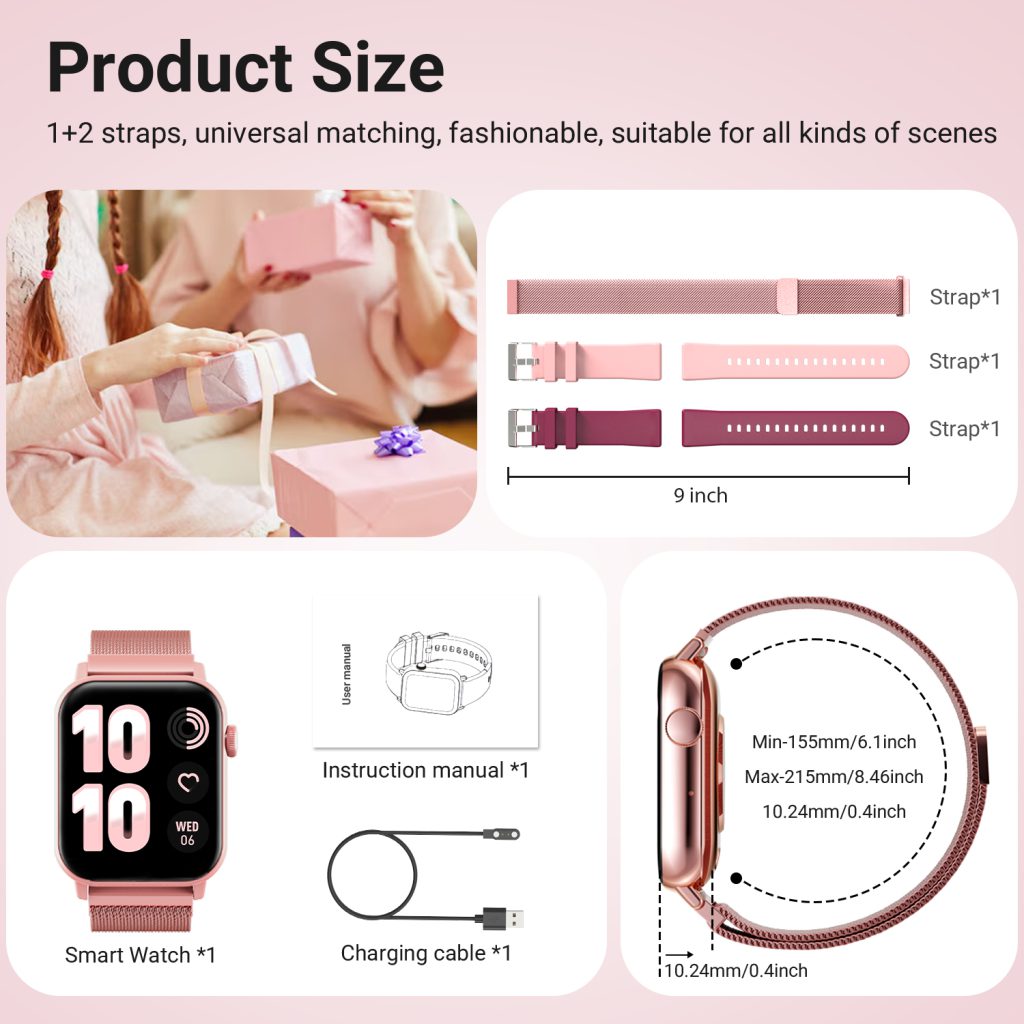
This guide is built from real user reports, support ticket patterns, beta tester experiences, and official troubleshooting flows across every major platform in 2026: Apple Watch Series 11 & Ultra 3, Samsung Galaxy Watch 8 & Ultra, Google Pixel Watch 3 & other Wear OS devices, Garmin Fenix 8 / Epix Pro / Venu 3 / Enduro 3, Fitbit Sense 2 / Charge 6 / Versa 4, Huawei Watch GT 5 Pro & Ultimate, Amazfit GTR 5 / GTS 5 series, Xiaomi Watch S4, and others. Follow the steps in order, and you’ll get your data flowing again in minutes instead of hours (or days).
Why Sync Breaks So Often in 2026
Modern watches sync far more data than ever before:
- Continuous biometric streams (HRV, SpO2, wrist temperature, respiratory rate)
- High-resolution GPS tracks with 1-second intervals
- AI-derived metrics (readiness, training status, sleep need, Body Battery)
- Offline music, maps, voice notes
- Third-party app data (Strava uploads, TrainingPeaks workouts)
All this travels over Bluetooth Low Energy (BLE), which is power-efficient but sensitive to distance, interference (Wi-Fi routers, microwaves, crowded 2.4 GHz bands), low battery, software bugs, and OS-level restrictions (battery optimization killing background sync). Add cloud sync delays during peak hours or spotty mobile data, and small glitches cascade into “sync failed” loops.
Quick Diagnostic Checklist Before Diving In
Run through these in 60 seconds to narrow the problem:
- Is the watch connected via Bluetooth? (Check companion app → device status)
- Is Bluetooth on and not in airplane mode on both phone and watch?
- Is the watch within ~10 meters and not blocked by thick clothing/walls?
- Is the companion app open in the foreground? (Many syncs only happen when app is active)
- Is the phone on Wi-Fi or strong cellular? (Some watches require internet for cloud push)
- Does the watch have >10–15% battery? (Low battery pauses sync on most models)
- Has the watch been restarted in the last 24 hours?
- Is the companion app updated to the latest version?
If any answer is “no,” fix that first—80% of sync issues resolve here.
Platform-by-Platform Troubleshooting Flows
Apple Watch (watchOS 12+)
Apple’s sync is usually rock-solid, but when it fails it tends to be dramatic.
Fast fixes (try in order):
- Force close Watch app on iPhone (double-tap Home or swipe up from bottom → swipe away app card) → reopen.
- On watch: Settings → General → Reset → Reset Sync Data (does not erase anything, just clears sync queue).
- Toggle Bluetooth off/on on iPhone (Control Center → long-press Bluetooth icon → toggle).
- Restart both devices: watch (side button + Digital Crown 10 s), iPhone normal restart.
- Check iPhone Settings → Bluetooth → find Apple Watch → tap ⓘ → Forget This Device → re-pair (takes 2–3 min, preserves most data).
- Ensure iCloud is signed in and Health is syncing (Settings → [your name] → iCloud → Health → on).
- Open Health app → Sources → Apple Watch → make sure all data types are allowed.
Advanced / stubborn cases:
- Update watchOS & iOS to latest (watchOS updates often fix sync bugs).
- Settings → Privacy & Security → Motion & Fitness → ensure Fitness Tracking is on.
- Settings → Bluetooth → ensure watch is not set to “Disconnect” or low-power mode.
- If Health data still missing: Health app → Browse → search for missing metric → Data Access & Devices → re-enable.
Samsung Galaxy Watch (Wear OS 5 / One UI Watch 7+)
Samsung sync is generally fast but can get stuck on Wear OS background restrictions.
Quick sequence:
- Galaxy Wearable app → force close & reopen.
- Wearable → Watch settings → Connections → Bluetooth → toggle off/on.
- On watch: swipe down → Settings → Connections → Bluetooth → toggle.
- Wearable → Account → Sync now (manual trigger).
- Phone Settings → Apps → Galaxy Wearable → Battery → Allow background usage / Unrestricted.
- Phone Settings → Apps → Galaxy Wearable → Storage → Clear cache (not data).
- Restart both devices.
- If still stuck: Wearable → Watch settings → General → Reset → Reset sync data.
Wear OS-specific gotchas:
- Settings → System → Gestures → Double-tap to wake → disable if sync hangs on wake.
- Settings → Apps → See all apps → Wear OS Services → Battery → Unrestricted.
- Google Play Services → clear cache if sync errors mention “Google.”
Google Pixel Watch 3 / Wear OS
Similar to Samsung but with Google-specific quirks.
Steps:
- Wear OS app → force close & reopen.
- Phone Settings → Connected devices → your watch → Forget → re-pair (quick, data usually preserved).
- Phone Settings → Apps → Wear OS → Battery → Unrestricted.
- On watch: Settings → System → About → tap Build number 7× → Developer options → Default USB configuration → File Transfer (sometimes fixes sync).
- Clear Wear OS cache: phone Settings → Apps → Wear OS → Storage → Clear cache.
- Google Play Services → clear cache & restart phone.
Garmin (Fenix 8, Epix Pro, Venu 3, Enduro 3, etc.)
Garmin sync is usually bulletproof but can choke on large activity files or map downloads.
Fast path:
- Garmin Connect app → force close & reopen.
- App → More → Garmin Devices → your watch → Device Settings → Sync Now.
- Phone Bluetooth → toggle off/on.
- Watch → hold Light button → Power Off → wait 10 s → power on.
- Connect app → More → Settings → User Settings → ensure account is logged in.
- If large files stuck: Connect → Activities → delete oldest unsynced activities (rarely needed).
- Clear Connect app cache: phone Settings → Apps → Garmin Connect → Storage → Clear cache.
Advanced:
- Connect website (connect.garmin.com) → Devices → your watch → Force sync.
- If maps stuck: Connect → More → Garmin Devices → Maps → Manage offline maps → delete & re-download.
Fitbit (Sense 2, Versa 4, Charge 6)
Fitbit sync is simple but sensitive to app background killing.
Steps:
- Fitbit app → force close & reopen.
- Phone Settings → Apps → Fitbit → Battery → Unrestricted / Allow background.
- App → Today tab → tap profile → your device → Sync Now.
- Restart phone & tracker.
- If persistent: Fitbit app → Account → Set Up a Device → re-pair (data usually preserved in cloud).
Huawei / Zepp (Amazfit, Xiaomi)
Huawei Health / Zepp app:
- Force close & reopen app.
- App → Devices → your watch → Sync.
- Phone Bluetooth → toggle.
- Phone Settings → Apps → Huawei Health / Zepp → Battery → No restrictions.
- Restart both devices.
- If stuck: app → Devices → your watch → Unbind device → re-bind (cloud data preserved).
General Hard Reset & Nuclear Options (Last Resort)
If nothing works:
- Restart both phone and watch.
- Forget Bluetooth pairing on phone → re-pair.
- Clear companion app cache (not data).
- Update companion app & watch firmware.
- Factory reset watch (erases local data but cloud sync usually recovers most):
- Apple: Watch app → General → Reset → Erase All Content and Settings.
- Samsung: Settings → General → Reset.
- Garmin: hold Light + Start 20–30 s or Connect app reset.
- Fitbit: Settings → About → Factory Reset.
- Re-pair and let full sync complete (can take 10–30 min).
Prevention Tips to Avoid Future Sync Headaches
- Keep companion app updated (auto-updates often fix sync bugs).
- Restart phone & watch weekly.
- Avoid letting watch battery drop below 10% (pauses sync).
- Turn off aggressive battery optimization for companion app.
- Use 5 GHz Wi-Fi when possible for faster cloud sync.
- Sync manually after big activities (long runs, swims).
- Keep >20% free storage on phone (low space slows everything).
Real-World User Stories from 2026
- Ultrarunner on Garmin Fenix 8: “After 50 km trail race, sync hung for 3 days. Cleared Connect cache + force sync from website = all 8 hours of data appeared.”
- Office worker on Apple Watch Ultra 3: “Health data stopped syncing. Reset Sync Data in Watch app + restart iPhone = fixed in 2 minutes.”
- Triathlete on Galaxy Watch Ultra: “Wear OS killed background sync. Set Wearable to unrestricted battery = no more missed workouts.”
- Casual Fitbit user: “Sync failed every morning. Set Fitbit app to unrestricted + daily manual sync = perfect streak tracking again.”
Sync Should Be Invisible
In a perfect world, data flows from wrist to phone to cloud without you ever thinking about it. When it doesn’t, follow this sequence:
- Check Bluetooth & battery
- Force close/reopen companion app
- Manual sync trigger
- Restart both devices
- Clear cache
- Forget & re-pair Bluetooth
- Update everything
- Reset sync data / factory reset as last resort
Spend 5 minutes on these steps the next time you see “sync pending,” and you’ll save hours of frustration and keep your training log, sleep trends, and readiness scores accurate and up to date.
Leave a Comment
Your email address will not be published. Required fields are marked *