
Notifications are the heartbeat of a smart watch. They deliver texts, calls, calendar alerts, workout reminders, payment confirmations, news headlines, and app pings directly to your wrist so you can stay connected without constantly reaching for your phone. In 2026, with always-on displays brighter than ever, haptic engines more precise, and AI filtering smarter, notifications can be incredibly useful—or incredibly overwhelming.
Too many pings and your watch becomes a buzzing distraction that drains battery and interrupts focus. Too few and you miss important messages. The difference between a helpful companion and an annoying gadget lies almost entirely in how you configure notification settings.
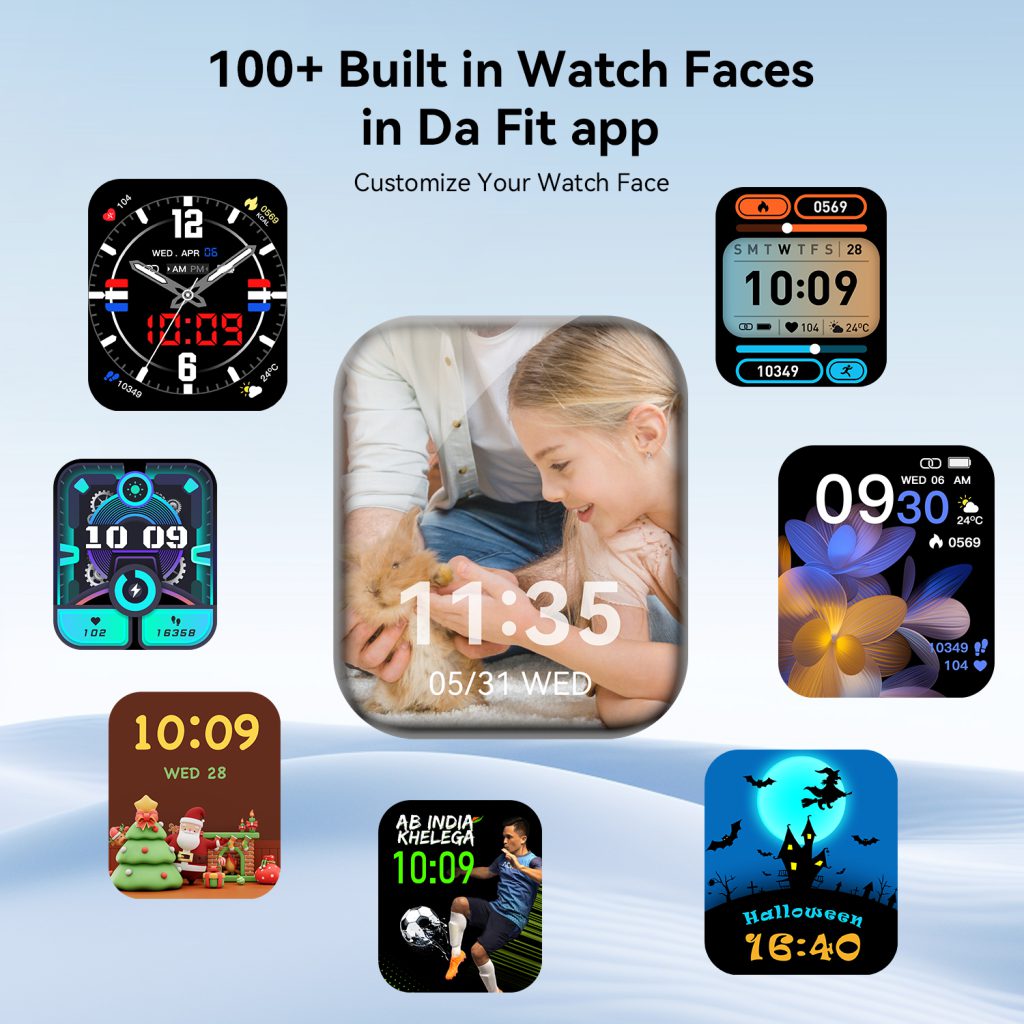
This in-depth guide walks you through every major smartwatch platform available in 2026—Apple Watch Series 11 & Ultra 3, Samsung Galaxy Watch 8 & Ultra, Google Pixel Watch 3, Garmin Fenix 8 / Venu 3 series, Fitbit Sense 2 / Charge 6 / Versa 4, Huawei Watch GT 5 Pro, Amazfit GTR / GTS lines, and Xiaomi Watch S4—so you can fine-tune exactly which alerts reach your wrist, how they appear, how they feel, and when they’re silenced.
Why Notification Management Is a Game-Changer
Done right, smart notifications:
- Save time (quick replies without unlocking phone)
- Reduce phone checks (you glance at wrist instead)
- Protect focus (silence non-urgent apps during work or sleep)
- Preserve battery (fewer vibrations and screen wakes)
- Improve mental well-being (no constant buzzing)
Done poorly, they create:
- Phantom vibrations and anxiety
- Missed important alerts buried under junk
- 20–40% faster battery drain
- Frustration when the watch vibrates nonstop during meetings or workouts
The goal is balance: only the alerts you actually need, delivered in the least disruptive way possible.
Core Notification Settings You Should Adjust on Every Platform
Before diving into brand-specific steps, master these universal concepts:
- Mirror Phone Notifications vs Custom Watch Rules Most watches default to mirroring your phone’s notification settings. Override this for apps that behave differently on wrist (e.g., allow WhatsApp previews on watch but silent on phone).
- Delivery Style
- Banner (temporary pop-up)
- Persistent (stays until dismissed)
- Silent (vibrate or LED only)
- None (block completely)
- Haptics & Sound
- Vibration strength/pattern
- Custom haptic rhythms for different apps (e.g., long pulse for calls)
- Silent mode exceptions (allow VIP contacts to vibrate even in DND)
- Do Not Disturb / Focus Modes Schedule or trigger automatically (calendar events, sleep, workouts, location-based).
- Quick Replies & Actions Pre-set responses, emoji, voice dictation, scribble input.
- Group Notifications Bundle multiple messages from same app (e.g., Slack channel spam) into one alert.
Apple Watch (watchOS 12+)
Apple’s notification system is the most polished and flexible.
On iPhone (primary control):
- Open Watch app → Notifications.
- See list of all apps that can send to watch.
- For each app:
- Mirror iPhone → uses phone’s settings
- Custom → override with watch-specific rules
- Tap app → choose:
- Allow Notifications
- Show in Notification Center
- Show on Apple Watch
- Notification Grouping (Automatic, By App, Off)
- Sounds & Haptics (default, prominent, none)
- Private vs Public preview (hide content on wrist when locked)
On Watch itself:
- Settings → Notifications → scroll to app → toggle Allow, Sounds, Haptics, Prominent Delivery.
- For Focus modes: Settings → Focus → mirror iPhone or create watch-specific (e.g., Workout Focus silences all except timers and selected contacts).
Pro tip: Create a VIP list in Contacts → add important people → set to bypass DND/Focus for calls & messages.
Samsung Galaxy Watch (Wear OS 5 / One UI Watch 7+)
Samsung gives deep per-app control and excellent grouping.
Primary control via Galaxy Wearable app:
- Galaxy Wearable → Watch settings → Notifications.
- App notifications → see all synced apps.
- Toggle individual apps on/off.
- Tap app → Notification categories (if supported), sound/vibration style, preview visibility.
- Advanced: Set “Manage notifications” → turn on/off Do Not Disturb sync, block app categories.
On watch:
- Swipe down → Settings → Notifications → App notifications → toggle or customize.
- Do Not Disturb → set schedule, exceptions (favorite contacts, alarms).
- Modes & Routines integration → auto-silence during driving, sleep, meetings.
Galaxy’s strength: “Notification reminders” (repeat vibration if unread) and per-app vibration patterns.
Google Pixel Watch 3 / Wear OS
Wear OS offers Google’s clean interface with powerful grouping.
On phone (primary):
- Wear OS app → Notifications → App notifications.
- Toggle apps → tap for categories, sound, vibration, lock screen visibility.
- Notification channels (if app supports) → fine-tune per category (e.g., Slack mentions vs channel posts).
On watch:
- Settings → Notifications → App notifications → toggle.
- Interruptions → Do Not Disturb → schedule, allow priority conversations, alarms.
- Bedtime mode → auto DND + grayscale + no wake gestures.
Fitbit (Sense 2, Versa 4, Charge 6)
Fitbit keeps it simple but effective.
Fitbit app:
- Profile → your device → Notifications.
- Toggle phone calls, texts, calendar, apps.
- App notifications → select which phone apps mirror to watch.
- Do Not Disturb → manual or scheduled.
On device:
- Settings → Notifications → manage per type (calls, texts, apps).
- Silent alarms and timers always bypass DND.
Garmin (Fenix 8, Epix Pro, Venu 3, etc.)
Garmin focuses on minimal interruptions during activities.
Garmin Connect app:
- More → Garmin Devices → your watch → Device Settings → Notifications.
- Phone notifications → toggle during activity / all day.
- Smart Notifications → enable for calls, texts, apps.
- Alerts → custom vibration patterns, tone, LED flash.
- Do Not Disturb → manual, scheduled, auto during sleep/workout.
On watch:
- Hold Up → Phone → Notifications → toggle types.
- During activity: auto DND unless critical (e.g., timer end).
Huawei Health / Zepp (Amazfit, Xiaomi)
Huawei Health / Zepp app:
- Devices → your watch → Notifications.
- Enable phone calls, messages, calendar, apps.
- App list → toggle individual apps.
- Do Not Disturb → schedule, exceptions for VIP contacts.
On watch:
- Settings → Notifications → manage categories, vibration intensity.
General Best Practices for Notification Sanity
- Start aggressive — Disable 80% of apps at first. Add back only what you actually need.
- Use VIP / Priority lists — Allow calls and messages from favorites to always notify, even in DND.
- Group aggressively — Turn on notification bundling for chat apps (WhatsApp, Slack, Teams).
- Schedule DND/Focus — Auto-silence during sleep (10 PM–7 AM), work hours, workouts.
- Location-based rules — If supported (Wear OS, Apple), silence at gym or office.
- Haptic customization — Stronger vibration for calls, lighter for reminders.
- Review weekly — Check battery usage → see which apps wake screen most → mute them.
Battery & Performance Impact of Notifications
- Each vibration + screen wake = ~1–3% drain per hour if frequent.
- 50+ daily notifications can cut runtime 20–40%.
- Turn off “Always show preview” for non-critical apps.
- Disable “Notification history” if you don’t use it.
Common Pitfalls & Fixes
- Phone DND not syncing → watch still buzzes. Force sync or set watch DND separately.
- Missing important alerts → check “Blocked” or “Silenced” list.
- Battery drains after enabling new app notifications → mute or uninstall the app.
- Vibration too weak → increase intensity or pattern in settings.
User Stories from 2026
- Triathletes on Garmin: DND during swim/run/bike, only timer & lap alerts vibrate.
- Office workers on Apple Watch: Focus mode “Work” allows only boss + family calls, mutes Slack/Teams.
- Parents on Galaxy Watch: VIP list for kids’ school + partner, everything else grouped or silent.
- Runners on Pixel Watch: Bedtime mode + workout auto-DND prevents mid-run buzz.
Quick-Start Notification Overhaul
- Today: Open companion app → Notifications → disable 70–80% of apps.
- Add back 5–10 must-have (calls, texts, calendar, one chat app, fitness reminders).
- Set DND schedule matching your day.
- Enable VIP exceptions for 3–5 key contacts.
- Test for a day → adjust vibration & grouping.
- Repeat monthly to keep it lean.
Your watch should serve you—not the other way around. A well-tuned notification system turns constant interruptions into meaningful, glanceable information.
Take 10 minutes right now. Open your settings. Silence the noise. Reclaim your focus—and your battery.
Leave a Comment
Your email address will not be published. Required fields are marked *