
Your smart watch face is the first thing you see every time you glance at your wrist. In 2026, watch faces have evolved far beyond simple time-telling. They now display live complications for heart rate zones, next calendar event, weather forecasts, daily readiness scores, battery percentage, world clocks, workout shortcuts, moon phase, tide charts, and even custom photo backgrounds or animated designs that react to your activity. A great face can make checking notifications feel effortless, motivate you during workouts, or match your outfit for the day.
The best part? Most modern smart watches let you download thousands of free and premium designs directly from official stores or third-party apps. Apple’s watchOS faces ecosystem, Samsung’s Galaxy Watch store, Garmin Connect IQ, Wear OS Play Store, Fitbit Gallery, Huawei Health, and Xiaomi’s community all offer rich selections. Swapping faces takes seconds once you know where to look and how to install them.
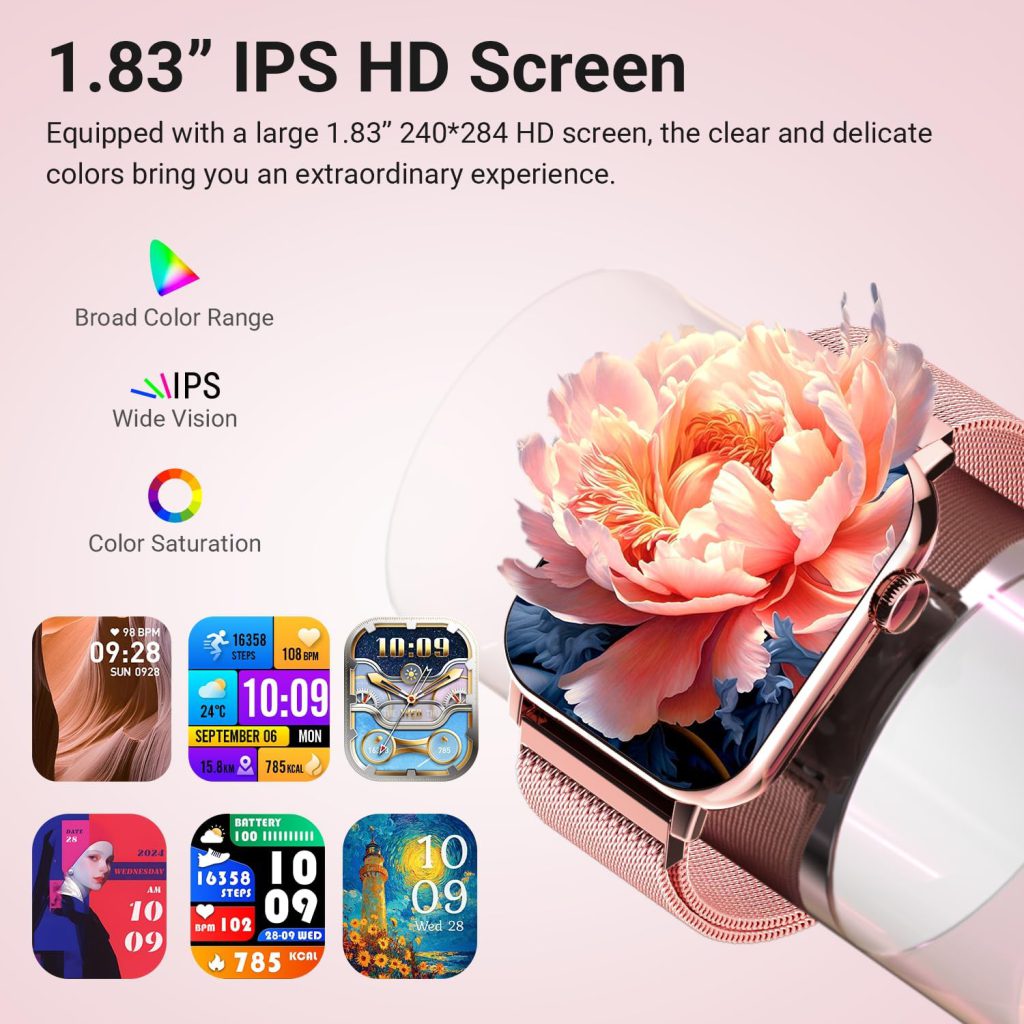
Why Watch Faces Matter More Than Ever
A well-chosen face does much more than tell time:
- Information at a glance — Complications show active calories, steps, next reminder, or live altitude without opening apps.
- Motivation & context — Animated progress rings, readiness scores, or training load visuals keep you engaged.
- Personal expression — Photo faces, modular layouts, or minimalist analog designs match your style.
- Battery & performance impact — Complex animated faces or always-updating complications drain more power than simple digital ones.
Many users stick with the stock face for months, missing out on better layouts or useful data. Learning to browse, download, and swap faces unlocks a huge part of the smartwatch experience.
Major Platforms & Where to Find Faces
- Apple Watch (watchOS 12+)
- Built-in faces: Modular, Modular Compact, Infograph, California, GMT, Astronomy, Photos, etc.
- Third-party: Limited to Apple’s strict guidelines; most come via the Watch app on iPhone → Face Gallery.
- No direct third-party store; developers submit through Apple.
- Samsung Galaxy Watch (Wear OS 5 / One UI Watch 7+)
- Galaxy Wearable app → Watch faces → Galaxy Store.
- Thousands of free & paid options, many with deep customization (color, complications, animations).
- Garmin (Connect IQ Store)
- Garmin Connect app or website → Connect IQ Store → Watch Faces.
- Highly data-rich faces (Body Battery, Training Status, VO2 max trends, solar intensity, etc.).
- Google Pixel Watch / Wear OS Watches
- Play Store on phone or directly on watch → Watch faces.
- Wide variety from Google and third-party developers.
- Fitbit (Sense 2, Versa 4, Charge 6)
- Fitbit app → Gallery → Clock Faces.
- Simple but functional; many free community designs.
- Huawei (Watch GT 5 Pro, Ultimate)
- Huawei Health app → Devices → Watch Faces.
- Official + community faces, many with AOD support.
- Xiaomi / Amazfit / Other Android Brands
- Zepp app or Mi Fitness → Watch Faces section.
- Growing library of free community faces.
How to Download & Install Faces – Step-by-Step by Platform
Apple Watch (watchOS)
- Open the Watch app on your paired iPhone.
- Tap Face Gallery (bottom tab).
- Browse built-in designs or scroll to see third-party additions (if any).
- Tap a face → Add → Customize complications (tap each slot to choose data).
- Tap Add — it syncs to your watch instantly.
- On watch: Force-press (long-press) current face → swipe left/right to select new one → tap to set.
To remove: long-press → Edit → red minus icon on unwanted faces.
Samsung Galaxy Watch
- Open Galaxy Wearable app on phone.
- Tap Watch faces → Galaxy Store.
- Browse or search (categories: Minimal, Sport, Photo, Animated, etc.).
- Tap a face → Install (free or paid).
- Once downloaded: in Wearable app → Watch faces → My page → select and apply.
- On watch: swipe left from home → tap face → Customize (drag complications, change colors, background).
Garmin (Connect IQ)
- Open Garmin Connect app → More (bottom right) → Connect IQ Store.
- Tap Watch Faces → search or browse (sort by Most Popular, Highest Rated).
- Tap desired face → Install (syncs to watch automatically if connected).
- On watch: hold Up button → Watch Face → scroll to new one → Apply.
- Customize: hold Up → Customize (add/remove data fields, colors).
Google Pixel Watch / Wear OS
- On phone: open Play Store → search “watch faces” or go to watch section.
- Or on watch: swipe down → Settings → Display → Change watch face → Play Store.
- Install → Apply.
- Customize complications directly on watch by long-pressing face.
Fitbit
- Open Fitbit app → Today tab → profile picture → your device → Gallery → Clock Faces.
- Browse free designs → Install.
- Syncs automatically → on watch it appears in list.
Huawei Health / Zepp (Amazfit/Xiaomi)
- Open app → Devices → your watch → Watch Faces.
- Browse official or community → Download → Apply.
- Many allow color, complication, and AOD customization.
Customization Tips That Make a Difference
- Prioritize key data — Put heart rate zone, next event, weather, or battery in the most visible spots.
- Balance information vs battery — Too many updating complications (live weather, stocks) can cut runtime 10–30%.
- AOD consideration — Choose faces with good grayscale/low-power versions for always-on use.
- Photo faces — Crop portraits tightly so face isn’t cut off; avoid busy backgrounds.
- Animations — Fun but costly—limit to short loops or disable on low battery.
- Color matching — Many faces let you match band color or outfit (especially Samsung & Huawei).
Performance & Battery Considerations
- Animated or heavily data-driven faces (live graphs, constant weather) drain 10–40% faster than static analog/digital.
- High-contrast black backgrounds on AMOLED save power (pixels off).
- If you notice sudden battery drop after installing a new face, remove it and test again—some poorly optimized designs leak power.
- Garmin users: data-rich Connect IQ faces can use more power than stock; check “Battery Impact” rating in store.
Common Mistakes & Fixes
- Installing incompatible face → won’t appear or crashes watch. Always check model compatibility.
- Forgetting to sync → face downloads but doesn’t show. Force sync in companion app.
- Over-customizing complications → slows interface or drains battery. Start minimal, add one by one.
- Ignoring update prompts → old faces may break after OS update. Update watch first.
- Third-party faces with ads → rare in 2026 but still exist; stick to official stores.
Real-User Favorites & Recommendations
- Runners love Garmin’s “Race Glance” or “Training Status” faces that show morning report + daily suggested workout.
- Office users on Apple: “Modular Duo” with calendar + weather + battery complications.
- Samsung fans: “Photo” faces with family pictures + colorful AOD versions.
- Casual trackers on Fitbit: “Flame” or “Geometric” for simple step rings.
- Huawei users: community “AOD World Clock” faces with multiple time zones.
Quick-Start Action Plan
- Open your companion app today.
- Browse the face store for 5–10 minutes.
- Download 2–3 free ones that look useful.
- Apply one → customize complications → wear it for a day.
- Swap to another tomorrow → find your favorites.
Your smartwatch is personal tech—make the face reflect your priorities and style. A quick swap can turn a functional tool into something you genuinely look forward to glancing at.
Grab your phone, open the app, and start browsing. Your perfect wrist view is waiting.
Leave a Comment
Your email address will not be published. Required fields are marked *