
Few things are more frustrating than unboxing a shiny new smart watch only to spend the next hour staring at a “Disconnected” or “Pairing Failed” message. In 2026, Bluetooth technology is mature, companion apps are smarter, and initial pairing usually takes under two minutes—yet connection problems remain one of the top support tickets for every major brand. The good news? Almost every failure falls into one of a handful of repeatable categories, and most can be fixed in under five minutes once you know where to look.
This article breaks down the twelve most common reasons smartwatches fail to connect (or stay connected) to phones in 2026, with real-world examples from Apple Watch, Galaxy Watch, Pixel Watch, Huawei GT series, Amazfit, and others. For each issue you’ll get clear symptoms, why it happens, and step-by-step fixes that work on both iOS and Android. By the end you’ll be able to diagnose almost any pairing or drop-out problem yourself—no factory resets required in 95% of cases.
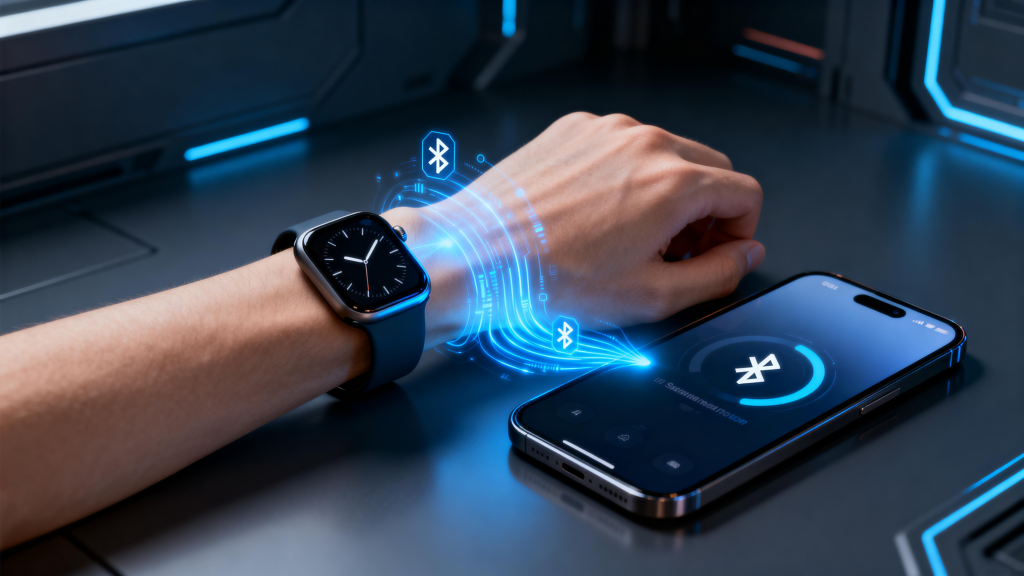
1. Bluetooth Is Turned Off or Not Discoverable
Symptoms Watch doesn’t appear in the pairing list at all, or phone says “No devices found”.
Why it happens The watch must be in active pairing/discovery mode (usually automatic on first boot), and the phone’s Bluetooth radio must be on and scanning.
Fixes
- On phone: Control Center / Quick Settings → toggle Bluetooth off → wait 5 seconds → toggle back on.
- On watch: Power cycle (hold power button 10–15 s until restart). Most models re-enter pairing mode on reboot.
- iPhone extra: Settings → Bluetooth → make sure “Bluetooth” is green and scanning.
- Android extra: Settings → Connected devices → Connection preferences → Bluetooth → ensure “Visible to nearby devices” or scanning is active.
Pro tip: Turn off nearby Bluetooth speakers/headphones—they can “steal” the discovery slot.
2. Location / GPS Permissions Are Denied or Set to “While Using”
Symptoms Pairing starts but fails at “Connecting…” or watch shows “Location required” prompt.
Why it happens Since watchOS 10 / Wear OS 4 (2023 onward), precise location is required during initial pairing for secure Bluetooth LE handshakes and to set time zone / regional features automatically.
Fixes
- iPhone: Settings → Privacy & Security → Location Services → Watch app (or Galaxy Wearable / Huawei Health / Zepp etc.) → set to “Always”.
- Android: Settings → Location → App permissions → [companion app] → Allow all the time + Precise location.
- After changing, force-close companion app, reopen, and retry pairing.
Many 2026 users miss this because older guides say “location optional”—it’s not anymore.
3. Companion App Lacks Background / Unrestricted Battery Permission
Symptoms Pairs successfully but disconnects the moment the phone screen turns off or after 5–10 minutes.
Why it happens Android 14–16 aggressive Doze mode and iOS background refresh restrictions kill the companion app when it’s not “foreground”. The watch relies on periodic pings to stay connected.
Fixes – Android Settings → Apps → [Galaxy Wearable / Pixel Watch / Huawei Health / Zepp / etc.] → Battery → set to “Unrestricted” or “Allow background activity”. Also: Settings → Battery → App battery usage → disable “Adaptive Battery” for the app.
Fixes – iOS Settings → General → Background App Refresh → set to Wi-Fi or Wi-Fi & Cellular. Settings → [Watch app] → allow Background App Refresh.
After changes, restart phone and watch.
4. Outdated Companion App or Watch Firmware
Symptoms Pairing freezes at 30–50%, error “Incompatible version”, or connects but features (notifications, calls) don’t work.
Why it happens New watches ship with firmware expecting the latest companion app; old apps don’t understand new Bluetooth profiles or security handshakes.
Fixes
- Update companion app via App Store / Google Play (force refresh by pulling down).
- If watch partially connects: open companion app → look for “Update watch” or “Firmware check” → install.
- No connection at all? Borrow a compatible phone to update watch firmware first, then re-pair to your device.
Rule of thumb in 2026: never try to pair a brand-new watch without updating the companion app first.
5. Previous Pairing / Activation Lock Remains
Symptoms “Activation Lock”, “This Apple Watch is linked to another Apple ID”, or “Device already paired” errors.
Why it happens Apple Watches especially remember the last owner’s iCloud; many Android watches remember the last Bluetooth MAC.
Fixes – Apple Watch Previous owner must: iCloud.com → Find My → Devices → remove the watch. If you own it: Watch app → My Watch → All Watches → tap “i” next to watch → “Unpair Apple Watch” (even if not connected).
Fixes – Android watches Watch settings → Connections / General → “Disconnect” or “Reset network settings”. Worst case: factory reset watch (hold power + lower button usually) → re-pair as new.
6. Interference from Other Bluetooth Devices
Symptoms Pairing starts but repeatedly fails, or connects but drops every 30–60 seconds.
Why it happens 2.4 GHz band overcrowding: Wi-Fi routers, wireless mice/keyboards, Bluetooth speakers, smart home hubs, Fitbit/older Garmin nearby.
Fixes
- Move phone and watch to a different room away from router/speakers.
- Temporarily turn off nearby Bluetooth devices (especially audio devices).
- On phone: Settings → Wi-Fi → choose 5 GHz band if available (reduces 2.4 GHz congestion).
- After pairing succeeds, most watches switch to dedicated LE channels and become more tolerant.
7. Airplane Mode or Low-Power Mode Left On
Symptoms Watch stuck on “Searching…” or phone never sees it.
Why it happens Airplane mode disables Bluetooth radio; Low Power Mode on iPhone or Extreme Battery Saver on Android severely limit scanning.
Fixes
- Turn off Airplane Mode on both devices.
- iPhone: Control Center → disable Low Power Mode (yellow battery icon).
- Android: Quick Settings → disable Battery Saver / Extreme Battery Saver.
8. Wrong Regional / Language Settings Mismatch
Symptoms Pairing succeeds but time zone wrong, notifications in wrong language, or certain features grayed out.
Why it happens Some 2026 watches (especially Huawei, Amazfit global versions) lock features by region during first sync.
Fixes
- Set phone region/language to match intended market before pairing.
- After pairing: watch settings → General / System → Language & region → match phone.
- Huawei extra: Huawei Health → Me → Region → change if needed (may require re-pair).
9. Insufficient Storage on Watch for Initial Sync
Symptoms Update or sync fails at 70–90% with “Not enough storage” or “Installation failed”.
Why it happens First sync downloads full watchOS/Wear OS/HarmonyOS + default apps (1–3 GB).
Fixes
- Companion app → watch storage → delete unused watch faces/apps.
- Factory reset as last resort (loses nothing if new).
- Pair with strong Wi-Fi—some watches can offload temp files better.
10. VPN, Firewall, or Security Apps Blocking
Symptoms Pairing never starts or drops instantly.
Why it happens VPNs route Bluetooth traffic oddly; some antivirus/firewall apps block local device discovery.
Fixes
- Disable VPN completely during pairing.
- Pause / uninstall third-party security apps (e.g., Avast, Norton, GlassWire) temporarily.
- After successful pairing, re-enable—most only interfere during discovery.
11. Corrupted Bluetooth Cache / Pairing Records
Symptoms Watch appears but pairing loops or “Failed to connect” every time.
Fixes – iPhone Settings → Bluetooth → tap “i” next to watch → Forget This Device → restart phone → re-pair.
Fixes – Android Settings → Connected devices → Previously connected → tap watch → Forget → restart Bluetooth → re-pair.
Also clear cache: Settings → Apps → [companion app] → Storage → Clear cache (not data—data clears settings).
12. Hardware / Manufacturing Defects (Rare but Real)
Symptoms Every fix above fails; watch never enters pairing mode or Bluetooth icon grayed out.
Fixes
- Test watch on another phone (borrow family member’s). If works → problem is your phone.
- If fails on multiple phones → return / warranty claim (most brands offer 1-year hardware coverage in 2026).
- Apple extra: Genius Bar diagnostic can confirm Bluetooth radio failure.
Quick Diagnostic Flowchart (Memorize This)
- Bluetooth on both? → Yes → 2
- Location “Always” for companion app? → Yes → 3
- Battery ≥50% & not in Low Power / Airplane? → Yes → 4
- Companion app & firmware latest? → Yes → 5
- Forget device in Bluetooth settings & re-pair? → Yes → 6
- Disable VPN/security apps? → Yes → 7
- Try different room / turn off nearby Bluetooth devices? → Still fails → warranty / borrow another phone to test.
Connection failures in 2026 are rarely “the watch is broken.” They’re almost always permissions, background restrictions, outdated software, or environmental interference. The single biggest time-saver is doing the preparation checklist before you even power on the watch.
Next time you see “Disconnected” or “Pairing failed,” run through the list above instead of immediately resetting. Nine times out of ten you’ll be back online in minutes, with notifications buzzing reliably and health data flowing smoothly. A stable connection turns a good smartwatch into a great one—enjoy the upgrade.
Leave a Comment
Your email address will not be published. Required fields are marked *