
Getting a new smart watch is exciting—until the moment you realize it needs to talk to your phone to unlock its full potential. Notifications, health data sync, app installs, firmware updates, music controls, payments, and even standalone calls all depend on that initial (and sometimes ongoing) connection. In 2026, pairing has become smoother than ever with better Bluetooth 5.3/LE support, faster initial syncs, and companion apps that guide you almost automatically. But cross-platform quirks, Bluetooth gremlins, and model-specific steps still trip people up.
Whether you’re setting up an Apple Watch Series 11 with your iPhone 16, a Samsung Galaxy Watch 8 with a Pixel 10 Pro, a Huawei GT 5 Pro with an Android foldable, or trying to make an older Wear OS watch play nice with a new device.
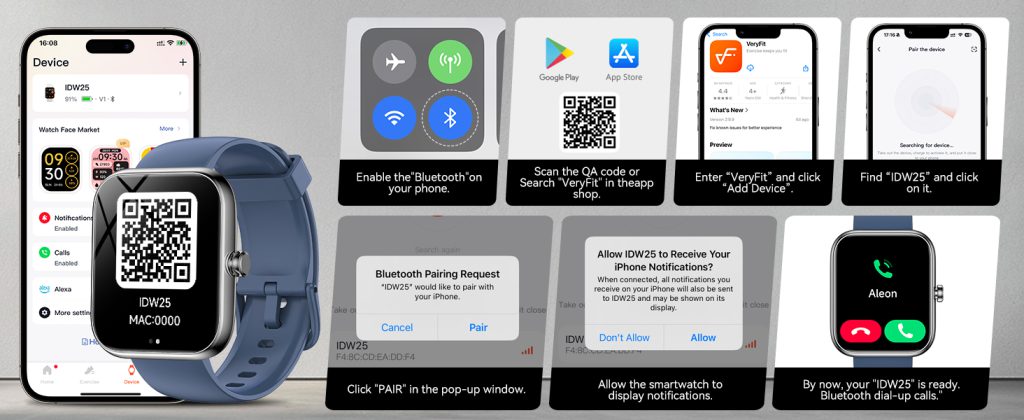
Why Pairing Is the Make-or-Break Step in 2026
Smartwatches are no longer standalone gadgets. They’re extensions of your phone:
- Notifications & replies flow over Bluetooth.
- Health & fitness data syncs to apps like Apple Health, Samsung Health, Google Fit, or Huawei Health for trends and insights.
- Firmware & app updates download through the phone.
- Payments & calls use phone credentials or eSIM bridging.
- Location & AI features (e.g., offline maps, workout coaching) rely on shared data.
A failed or unstable pairing means a dumb watch—time, basic steps, maybe heart rate, but no smarts. In 2026, most flagships use Bluetooth Low Energy (BLE) for efficiency and add Wi-Fi fallback for larger downloads, but the initial handshake is still Bluetooth. Range is typically 10–30 meters line-of-sight, but walls, interference from other devices, or low battery can kill it.
Before You Start: Prep Checklist
- Charge both devices to at least 50% (watch often ships low).
- Update phone OS: iOS 19+ for Apple Watch Series 11/Ultra 3/SE 3; Android 14+ (preferably 15) for Wear OS 6+ devices.
- Enable Bluetooth & Location on phone (Location needed for initial pairing on many models).
- Turn off any VPNs or battery optimizers that kill background processes.
- Have the companion app ready (download in advance if possible).
- Clear space: Watch needs ~500 MB–2 GB free for initial sync.
- Know your watch model—steps vary slightly between series.
Pairing an Apple Watch (Series 11, Ultra 3, SE 3) – iPhone Only (Native)
Apple keeps it locked to iPhone—no native Android support in 2026.
- Charge & power on the Apple Watch (press/hold side button until Apple logo).
- Open Watch app on iPhone (auto-installs if missing).
- Tap “All Watches” → “Add Watch” or “Pair New Watch” on fresh setup.
- Hold watch face to iPhone camera—align swirling animation in viewfinder (or tap “Pair Apple Watch Manually” if camera fails).
- Follow prompts: Set wrist preference (left/right), choose setup as new or restore backup, agree to terms.
- Sign in with Apple ID, set passcode (or skip for now), enable features (Siri, location, health permissions).
- Wait for sync—watch downloads watchOS (if update needed), apps, settings (10–30 min typical). Keep devices close and charging.
- Done—watch restarts, shows your watch face. Notifications start flowing.
Troubleshooting: Camera won’t scan? Use manual pairing. Stuck on “Updating”? Force restart watch (hold crown + side button until logo). No sync? Toggle Bluetooth, restart iPhone, ensure iCloud signed in.
Pairing Samsung Galaxy Watch (Watch 8 series, Ultra, FE) – Android (Best with Samsung Phones)
Works with most Android 11+ phones, but smoothest on Galaxy devices.
- Charge & power on watch (hold top button).
- Download Galaxy Wearable from Google Play (or Galaxy Store on Samsung phones).
- Open app → “Start the journey” or “Add new device”.
- Select Galaxy Watch → watch enters pairing mode (shows Bluetooth name).
- Confirm pairing code on both screens if shown.
- Sign in Samsung account (required for Health, Pay, full features).
- Grant permissions (notifications, contacts, location, storage).
- Choose backup/restore if upgrading, or set as new.
- Wait for initial sync—firmware update, watch faces, apps (can take 15–40 min).
- Customize—set wrist, notifications mirror, install apps via Play Store on watch.
To switch phones: On old watch → Settings → General → Connect to new phone (resets watch), then pair to new device.
Troubleshooting: Fails on Pixel 10 series? Known 2025–2026 bug—pair to any non-Pixel Android first (even borrow one), complete setup, then transfer to Pixel. App crashes? Clear cache/storage for Galaxy Wearable, update app.
Pairing Google Pixel Watch (4 or later) – Android
Uses Wear OS 6+ with Fitbit integration.
- Charge & power on watch.
- Download Pixel Watch app (or use Fitbit app for health setup) from Play Store.
- Open app → Set up or “Pair with watch”.
- Put watch in pairing mode (it prompts automatically).
- Confirm code on both.
- Sign in Google account.
- Set up Fitbit for advanced health (Daily Readiness, etc.)—grant permissions.
- Choose wrist, enable features (notifications, location, calls).
- Sync—downloads Wear OS update if needed, apps, settings (10–25 min).
- Customize—tiles, complications, Google Wallet.
Multiple watches? Pair as many as you want—one phone supports several, but only one active at a time per account.
Troubleshooting: Sync stuck? Restart both, toggle Bluetooth, ensure no VPN. Fitbit login fails? Check Google account sync.
Pairing Huawei Watches (GT 5 Pro, Watch 5 series) – Android (HarmonyOS)
- Charge & power on watch.
- Download Huawei Health from AppGallery or Play Store (global version).
- Open app → Devices → Add.
- Select watch model → watch shows pairing code/QR.
- Scan/confirm on phone.
- Grant permissions (Bluetooth, location, notifications, storage).
- Sign in Huawei ID (optional but unlocks cloud sync).
- Sync—firmware, watch faces, health data (fast on HarmonyOS).
- Customize—TruSeen settings, workout modes.
Global users: Some features delayed vs China version.
Troubleshooting: App not finding watch? Enable location precisely, restart Bluetooth.
Cross-Platform Pairing Workarounds (2026 Reality)
- Apple Watch on Android: No native way—requires initial iPhone setup for activation/eSIM. Workarounds like Merge app or hacks give partial function (notifications, basic tracking) via Bluetooth bridge, but no apps, updates, or full health sync. Not recommended long-term.
- Galaxy Watch / Pixel Watch on iPhone: Merge app (2026 version) bridges Wear OS to iOS—pair via Merge on iPhone + watch, get notifications, some health sync. Limited—no full Samsung Health or Google Fit depth.
- General tip: Stick to native ecosystem for best experience.
Keeping the Connection Stable Long-Term
- Keep Bluetooth on, location enabled (for initial reconnect).
- Avoid aggressive battery savers killing companion app.
- Update companion app & watch firmware regularly.
- Restart devices weekly if drops frequent.
- Forget & re-pair if persistent issues (backup first).
- Interference fixes: Move away from Wi-Fi routers, microwaves, other BLE devices.
Pairing takes 5–30 minutes the first time, but once done, it’s mostly set-and-forget. In 2026, reliable connections mean your watch becomes truly useful—real-time alerts, accurate tracking, seamless payments. Take it slow during setup, grant all requested permissions, and you’ll have a wrist companion that feels like part of your phone.
Leave a Comment
Your email address will not be published. Required fields are marked *