
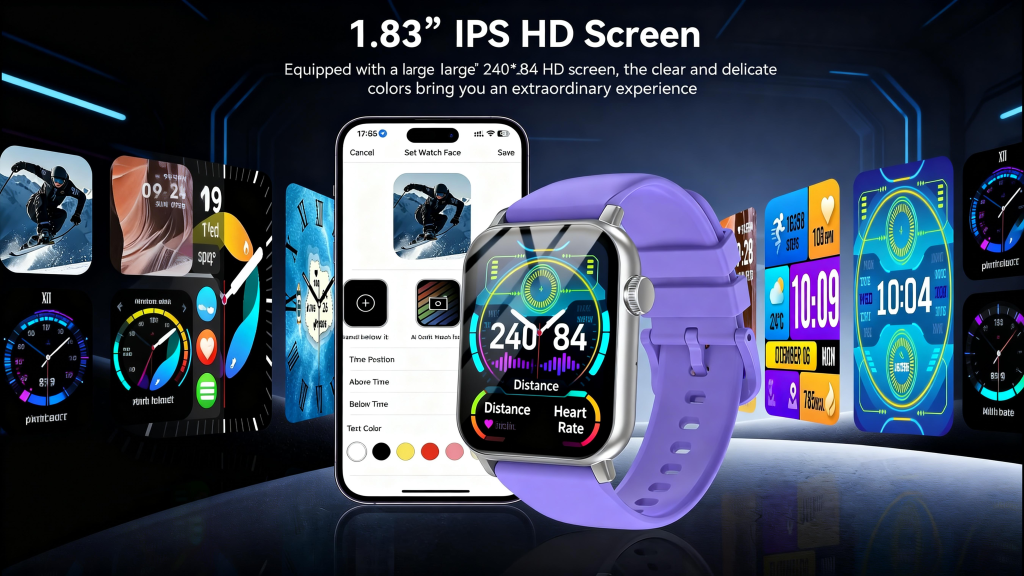
Modern smartwatches pack a surprising amount of functionality into a small screen. Whether you’re new to wearables or upgrading to a more advanced model, knowing the basic and advanced ways to operate them makes the experience smoother and more enjoyable. Below are the most common operation methods used across popular brands in 2026 — from simple taps to voice commands and gesture controls.
Touchscreen Controls: The Primary Way to Interact
The touchscreen is the main interface on nearly every smartwatch today.
- Tap — Open an app, select a menu item, or answer a call with a single press.
- Swipe — Swipe up from the bottom to open quick settings (brightness, theater mode, do-not-disturb), swipe down from the top for notifications, or swipe left/right to move between watch faces, widgets, or app pages.
- Long press — Usually brings up customization options (change watch face, edit complications, enter edit mode on some models), or opens a context menu.
- Double tap — On many watches, double-tapping the screen wakes the display, opens a specific app, or triggers a quick action (depending on model settings).
Most screens support pinch-to-zoom for maps or photos and two-finger scrolling for longer lists. Always-on displays let you glance at information without touching the watch, while raise-to-wake activates the screen when you lift your wrist.
Physical Buttons and Crowns
Buttons provide fast, reliable control even when the screen is wet, gloved, or unresponsive.
- Side button / Home button — Press once to return to the watch face or open the app launcher. Double-press often launches Apple Pay, Google Wallet, or a recent apps list. Long-press typically activates voice assistant (Siri, Google Assistant, Bixby).
- Digital Crown (Apple Watch) — Rotate to scroll through lists, zoom in/out on maps, or adjust volume. Press once to go back or return to the watch face. Press and hold to access Siri.
- Rotating bezel (some Samsung models) — Spin to scroll through apps, notifications, or menu items quickly and precisely.
- Action / Customizable button — Found on premium models (Apple Watch Ultra, some Garmin, Samsung). Can be set to start a workout, open a specific app, launch compass, or trigger an emergency SOS.
Voice Commands and Assistants
Speaking to your watch is often the fastest way to complete tasks hands-free.
- Raise your wrist and say “Hey Siri,” “Hey Google,” or “Hi Bixby” (depending on the model) to wake the assistant.
- Common commands include: set a timer, send a text, make a call, check weather, start a workout, navigate to an address, play music, or translate a phrase.
- Many watches also support offline voice commands for basic functions like timers and alarms when not connected to your phone.
Voice dictation works well for quick replies to messages — just speak naturally and the watch converts it to text.
Gesture and Motion Controls
Modern smartwatches recognize wrist movements for convenient operation.
- Raise to wake — Lift your wrist to turn on the display (can be disabled to save battery).
- Cover to mute — Place your palm over the screen to silence ringing calls or alarms.
- Double pinch / finger tap gestures — On some models (especially newer Apple Watches), pinching fingers together can answer calls, scroll content, or trigger custom actions.
- Shake to undo — A quick shake can undo the last text input or action on certain platforms.
These gestures feel natural once you get used to them and reduce how often you need to touch the screen.
Quick Settings and Shortcuts
Most watches have a dedicated quick settings panel (accessed by swiping down or pressing a button combination). Common toggles include:
- Airplane mode
- Do Not Disturb / Sleep / Theater mode
- Brightness adjustment
- Water lock (for swimming)
- Flashlight
- Battery saver
- Music playback controls
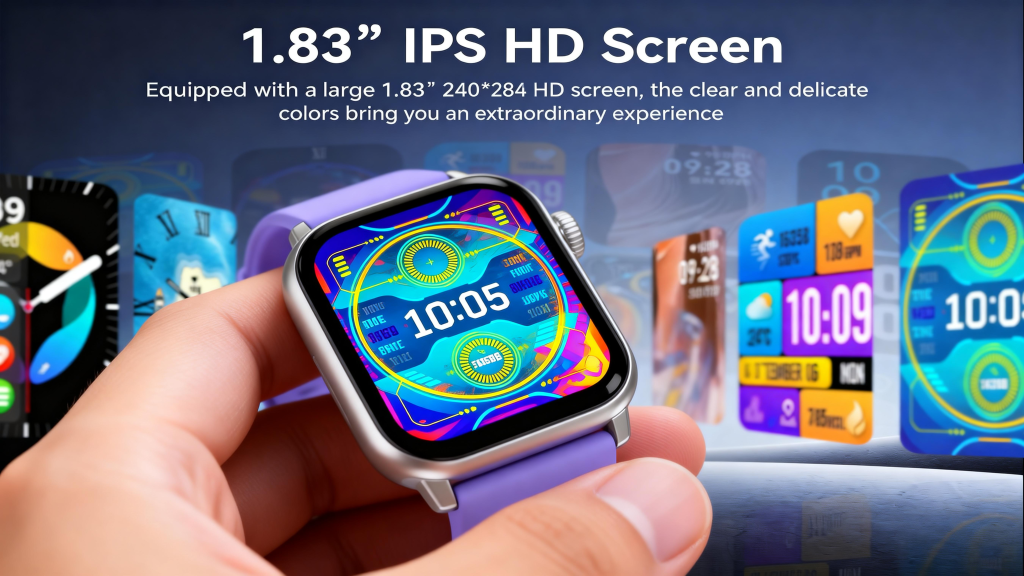
Customizable complications (small widgets on the watch face) let you see weather, calendar events, heart rate, battery level, or shortcuts to favorite apps at a glance.
Tips for Smoother Everyday Operation
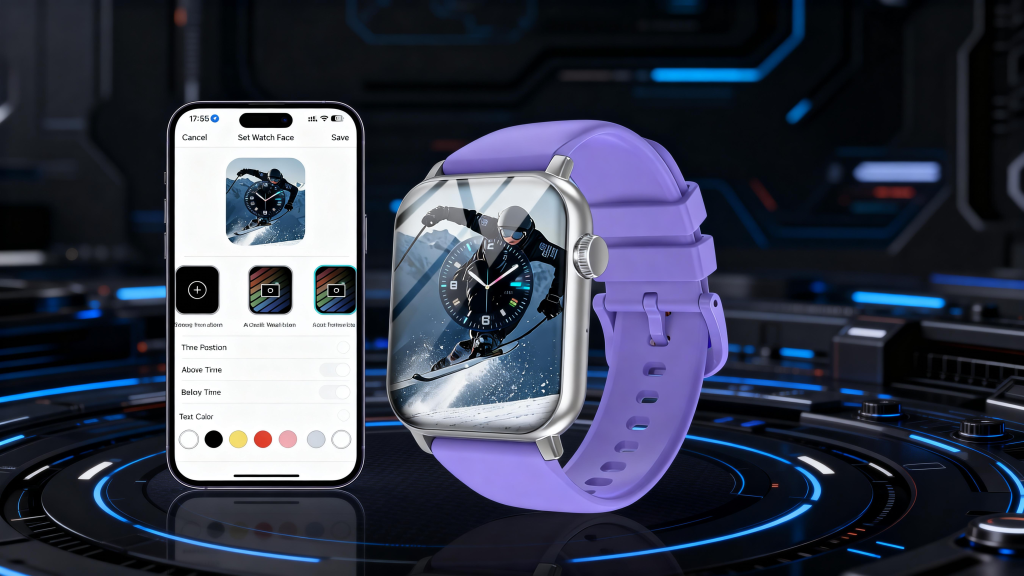
- Customize your watch face early — choose one with the complications and colors that suit your routine.
- Set up double-press and long-press shortcuts for the features you use most.
- Practice voice commands in a quiet place to improve recognition.
- Keep the watch snug (but not tight) for best gesture and sensor accuracy.
- Update software regularly — new operation methods and improvements are frequently added through updates.
Mastering these operation methods takes only a few days of regular use. Once the movements become automatic, the watch starts to feel like a natural extension of your hand rather than another device to learn.
Leave a Comment
Your email address will not be published. Required fields are marked *