Free Shipping On All Orders Over $10

When to Nuke Your Smart watch and How to Do It Without Regrets

There comes a moment in every smart watch owner’s life. It usually happens after months of faithful service. The screen starts stuttering. The battery drains by noon. An app crashes every time you open it. Or maybe you’ve just unboxed a new phone, and your old watch refuses to shake hands with it.

You stand at a crossroads. Do you live with the glitches? Do you smash the thing against the desk? Or do you reach for the digital equivalent of a restart button—the factory reset?

A factory reset is the most powerful tool in your troubleshooting arsenal. It’s also the most misunderstood. When used correctly, it can breathe years of new life into a sluggish device. When used carelessly, it can erase months of health data and leave you staring at a setup screen with the hollow realization that your step history just went to the great cloud in the sky.
What “Factory Reset” Actually Means

Let’s start with the basics, because this is where most people get lost. A factory reset is not the same as a restart. It’s not the same as turning it off and on again. It’s the digital equivalent of moving out of your house, selling all your furniture, and leaving the keys to an empty building for the next person.

When you perform a factory reset, your smartwatch erases everything that makes it yours. Every app you installed, every watch face you customized, every Bluetooth pairing with your headphones or phone, and crucially, all locally stored data is wiped clean . The operating system is restored to the exact state it was in when the watch left the factory.

This process serves two purposes:

  1. It fixes deep software problems that restarts can’t touch, by removing corrupted system files and conflicting settings.
  2. It protects your privacy when you sell or give away the device, ensuring the next person doesn’t have access to your heart rate history or your morning alarms.

But here’s the catch that trips up even experienced users: A factory reset does not always remove account locks .

This is critical. Modern smartwatches, especially those running Wear OS or watchOS, have anti-theft features called “Activation Lock” or “Factory Reset Protection” (FRP). If you reset a watch that’s still linked to a Google account or Apple ID, the watch will restart and immediately ask for that account’s password. It’s a brick until you provide it .

So before we talk about how to reset, you need to ask yourself: Why am I resetting?

Should You Reset?

Not every problem requires the nuclear option. Here’s a simple decision framework to help you choose the right path.

When to Try a Restart First

If your watch is experiencing these symptoms, a simple restart (press and hold the power button, tap “Restart”) will likely suffice :

  • General sluggishness or lag
  • Apps freezing occasionally
  • Bluetooth connection drops
  • Notifications not appearing

A restart clears temporary memory and closes background processes without deleting anything .

When to Consider a Factory Reset

Escalate to a full reset if you encounter any of these situations :

  • Selling or giving away the watch: This is non-negotiable. You must wipe your personal data.
  • Persistent crashes: The watch reboots randomly or apps crash constantly.
  • Boot loop: The watch gets stuck on the logo screen and never fully starts.
  • Forgotten password: You’re locked out and can’t access the device .
  • Pairing with a new phone after failed transfers: Sometimes a clean slate is the only way to convince a watch to connect to a new device.
  • Post-update chaos: A major OS update introduced bugs that won’t go away.

If you’re in any of these camps, read on. The reset is your friend.

Pre-Reset Rituals: The Steps You Must Take First

Before you press that final “Erase Everything” button, you have homework. Skipping these steps is how people lose years of health data.

Step 1: Back Up Your Health Data

Your watch stores a lot of information. Some of it is backed up automatically to the cloud. Some of it lives only on the device. Know the difference.

For Apple Watch:
Your health data is backed up as part of your iPhone backup, but only if that backup is encrypted . Unencrypted backups (like those saved to iCloud by default) do not include health data. Before resetting:

  1. Open the Watch app on your iPhone.
  2. Go to General > Transfer or Reset.
  3. Consider creating an encrypted backup of your iPhone to your computer via Finder or iTunes, ensuring “Encrypt local backup” is checked.

For Samsung Galaxy Watch:
Samsung provides a dedicated backup function .

  1. Open the Galaxy Wearable app on your phone.
  2. Go to Account and backup.
  3. Tap “Back up data” and ensure it completes successfully.
  4. Also check that your Samsung Cloud sync is active for watch data.

For Wear OS (Pixel, etc.):
Most Wear OS watches sync health data to Google Fit or Fitbit (depending on the device). Open the companion app and verify that your latest data appears in the cloud. If it’s there, you’re safe.

For Garmin, Fitbit, COROS, etc.:
Sync your watch with the mobile app and ensure all recent activities appear in the app’s history. These companies store your data primarily in the cloud, so a watch reset rarely loses data that has already synced.

Step 2: Remove Activation Lock (If Selling)

If you’re resetting because you’re selling or trading in the watch, you must remove the account lock before you reset. This prevents the new owner from being greeted by a “Hello” screen that demands your password.

For Apple Watch:
On your iPhone, open the Watch app, go to “All Watches,” tap the “i” icon next to your watch, and select “Unpair Apple Watch.” This triggers a backup and removes Activation Lock automatically .

For Samsung/Google Watches:
In the companion app, look for an option to “Remove device” or “Factory reset” that also unlinks the watch from your Google or Samsung account. This ensures the reset removes the FRP lock.

Step 3: Note Your Cellular Plan

If you have an LTE watch with a cellular plan, resetting may remove the eSIM profile. After the reset, you may need to contact your carrier or go through the cellular setup process again to reactivate service.

How to Factory Reset on Every Major Platform

Now that you’re backed up and prepared, let’s get to the mechanics. There are three primary ways to reset a smartwatch, and the right one depends on whether your watch is working, partially working, or completely dead.

Method A: Through the Watch Settings (The “Working Watch” Path)

This is the cleanest method. Use it if your screen is responsive and you can navigate menus.

Samsung Galaxy Watch (Wear OS) 

  1. Swipe up from the bottom of the screen to access the app drawer.
  2. Tap the Settings gear icon.
  3. Scroll down and tap “General.”
  4. Tap “Reset.”
  5. You’ll be prompted to confirm. Tap “Reset” again. And again. (Samsung is thorough about confirmation).
  6. The watch will wipe itself and reboot.

Apple Watch 

  1. On the watch, go to Settings > General > Transfer or Reset.
  2. Tap “Erase All Content and Settings.”
  3. Enter your passcode if prompted.
  4. If you have a cellular model, you’ll be asked whether to keep or remove your plan. Choose based on your needs.
  5. Confirm. The watch will restart as a new device.

CMF Watch Pro / Nothing Watch 

  1. Press the button to enter the function list.
  2. Select Settings > System menu.
  3. Select “Factory Reset settings option.”
  4. Tap “Factory Reset” to confirm. The watch will clear data and restart.
  5. Alternative method: Swipe down on the main watch face to access the shortcut menu, then follow the same path.

Withings ScanWatch 
This hybrid watch has a unique method due to its physical hands.

  1. Press and hold the button until you see the “Info” screen.
  2. Press the button four times quickly to navigate to the Factory Reset option.
  3. Press and hold the button to select it.
  4. The watch hands will move to confirm the reset.

Method B: Hardware Button Recovery (The “Frozen or Locked” Path)

If your watch is frozen, stuck in a boot loop, or you’ve forgotten the password, this is your escape hatch . It uses physical buttons to access the recovery menu, bypassing the operating system.

General Principle for Android/Wear OS Watches 

  1. If possible, power off the watch completely. If it’s frozen, skip this step and proceed.
  2. Press and hold a specific button combination. Common combinations include:
    • Power + Back button
    • Power + Volume Up
    • Power + Lower button
  3. Keep holding until the screen displays a menu (often with an Android robot or text options). This may take 10-15 seconds.
  4. Use the physical buttons to navigate. The top button usually moves the selection; the bottom button confirms.
  5. Scroll to “Recovery mode” and select it.
  6. When you see the Android robot with “No command,” try this trick: Press and hold the Power button, then press the Volume Up button once, then release both.
  7. A recovery menu should appear. Scroll to “Wipe data/factory reset” and select it.
  8. Confirm the action, wait for the wipe to complete, then select “Reboot system now.”

Samsung Galaxy Watch Active2 (Specific Example) 

  1. Press and hold the Power/Home button until “Rebooting” appears at the bottom of the screen, then release.
  2. Press the Power/Home button repeatedly until the “Select REBOOT MODE” screen appears.
  3. Press the Power button to cycle through options until “Recovery” is highlighted.
  4. Press and hold the Power/Home button until the device reboots into recovery.
  5. From there, navigate to wipe data.

Frederique Constant (Hybrid Watch) 
Some hybrid watches use crown presses for reset.

  1. Press the crown button (at 3 o’clock) 10 times.
  2. On the tenth press, keep the button pressed for at least 10 seconds.
  3. The watch hands will move to indicate the reset is complete.

Tip for Stubborn Watches: If the recovery menu won’t appear, try placing the watch on its charger and repeating the button combinations. Power from the charger can sometimes help initiate the boot process .

Method C: The Companion App (The “Remote Control” Path)

If your watch is still paired with your phone but you find menu navigation difficult, you can often reset remotely through the phone app.

Samsung Galaxy Watch 

  1. Open the Galaxy Wearable app on your phone.
  2. Tap “Watch settings” > “General” > “Reset.”
  3. Confirm. This method is often cleaner than resetting from the watch alone, as it ensures proper unpairing.

Apple Watch

  1. Open the Watch app on your iPhone.
  2. Go to “General” > “Transfer or Reset” > “Erase Apple Watch Content and Settings.”

Other Brands:
Most major manufacturers include a “Remove device” or “Factory reset” option within their mobile apps. This is often the most reliable way to ensure the watch is fully unpaired and reset, especially if you’re preparing to sell it .

Method D: The Battery Drain (The “Last Resort” Path)

For some older or simpler smartwatches, a full battery drain can act as a reset . This is unpredictable and should be your absolute last option.

  1. Let the watch sit until the battery is completely dead and the screen is black.
  2. Leave it dead for a few hours to ensure all residual power is gone.
  3. Charge it for 15-30 minutes.
  4. Attempt to power it on. Some watches will revert to a default state after a deep discharge.

Warning: This method is not reliable for modern smartwatches and may not actually perform a factory reset. It’s more likely to just force a shutdown.

Life After the Wipe

The screen goes black. The logo appears. Then, you’re greeted by the setup screen—the same one you saw on day one. What now?

Step 1: Initial Setup

Go through the language selection, terms of service, and Wi-Fi connection just like you did when the watch was new.

Step 2: Re-pair with Your Phone

Open the companion app on your phone. It should detect the reset watch and prompt you to pair. Follow the on-screen instructions. You’ll likely need to confirm a pairing code that appears on both devices.

Step 3: Restore Your Data

  • Apple: During setup, you’ll be asked if you want to restore from a backup. Choose the most recent one (assuming you had an encrypted backup) .
  • Samsung: If you backed up through the Galaxy Wearable app, you’ll see a “Restore” option during pairing .
  • Others: Once you log into your account (Google, Fitbit, Garmin, etc.), your health history should sync automatically from the cloud. Give it time.

Step 4: Reinstall Apps and Customize

Your apps are gone. Reinstall only the ones you actually use from the watch’s app store. Then, rebuild your watch face. Consider this a chance to declutter and simplify.

Step 5: Reactivate Cellular (If Applicable)

If you had an LTE plan, you may need to go through the cellular setup process again. On Apple Watch, this happens during the restore process. On Samsung, you may need to contact your carrier or use the Galaxy Wearable app to add a mobile plan.

When a Reset Isn’t Enough

Imagine this: You’ve just bought a used smartwatch at a great price. You get it home, charge it up, and perform a factory reset to make it yours. The watch restarts, and instead of a setup screen, you see a message: “This watch is locked to the previous owner’s account. Please enter their email and password.”

Your heart sinks. You’ve just encountered Factory Reset Protection (FRP) .

This security feature is designed to make stolen watches useless. If the previous owner didn’t remove the watch from their account before selling it, you’re stuck. A factory reset will not remove this lock .

What to do:

  1. Contact the seller immediately. Ask them to remove the device from their account. For Apple, they need to go to iCloud.com and remove it from “Find My.” For Google, they need to go to their Google Account security page and remove the device.
  2. If the seller is unresponsive, you may be out of luck. There is no legitimate way to bypass FRP. It’s designed this way to prevent theft.

This is why the “Pre-Reset Rituals” section—specifically the step about removing the device from your account—is so important when you’re the one selling.

Common Scenarios and Their Solutions

Let’s apply what we’ve learned to specific situations you might face.

Scenario 1: “I Forgot My Watch Password”

You’re locked out. The screen asks for a PIN, and you have no idea what it is. What now?

You cannot reset through the settings because you can’t get into the settings. Your only option is the hardware button recovery method described in Method B .

Steps:

  1. Force the watch into recovery mode using the appropriate button combination for your brand.
  2. Navigate to “Wipe data/factory reset.”
  3. Confirm.
  4. The watch will erase all data, including the forgotten password, and reboot as a new device.
  5. Warning: This wipes everything. Your health data stored locally is gone. Hopefully, it was backed up to the cloud.

Scenario 2: “I’m Selling My Watch”

You want the new owner to have a clean device, and you want to ensure none of your data follows you.

Do this:

  1. Unpair the watch from your phone through the companion app, rather than just resetting it. On Apple, unpairing triggers a backup and removes Activation Lock. On Samsung, unpairing through the app ensures the account is unlinked .
  2. If you reset from the watch itself, first ensure you’ve manually removed the account lock (on iPhone: Watch app > All Watches > (i) > Unpair; on Android: remove the device from your Google/Samsung account).
  3. Perform the factory reset through the watch settings or app.
  4. The watch is now safe to pass on.

Scenario 3: “My Watch Is Stuck on the Logo”

It’s stuck in a boot loop. The logo appears, maybe spins for a while, and then the watch restarts, repeating the cycle.

This is a classic case for the hardware button recovery mode .

  1. Force the watch to turn off by holding the power button until the screen goes dark.
  2. Immediately enter recovery mode using the button combo.
  3. Wipe the cache partition first (if available). This often fixes boot loops without deleting personal data.
  4. If that fails, proceed with the full factory reset from the recovery menu.

Scenario 4: “I Just Want to Pair It with a New Phone”

Sometimes, watches get “stuck” on the old phone. A full reset might seem necessary, but often a simple “Disconnect” or “Reset connections” option exists .

Check your watch settings for options like:

  • “Disconnect & reset” (Wear OS)
  • “Reset network settings”
  • “Unpair”

These options often clear the Bluetooth pairing data without wiping your entire health history.

The Reset Is a Tool, Not a Threat

A factory reset is not an admission of defeat. It’s not a sign that your watch is dying. It’s a maintenance procedure, a privacy safeguard, and sometimes the only cure for digital rot.

The fear surrounding resets comes from one place: the unknown. You don’t know if your data is safe. You don’t know if the watch will come back to life. You don’t know which buttons to press.

Now you know.

You know to back up first. You know to remove account locks before selling. You know the button combinations for when the screen is black. And you know that even in the worst-case scenario—a locked watch from a stranger—you understand exactly what’s happening and why.

Your smart watch is a machine. Machines need maintenance. Sometimes, they need to be completely torn down and rebuilt. With this guide, you’re not just a user anymore. You’re the mechanic.

So go ahead. Press the buttons. Wipe the data. Start fresh. Your wrist—and your peace of mind—will thank you.
The Ultimate 2026 Troubleshooting Guide to Fixing Smart watch Data Sync Errors

Few things are more frustrating than finishing a solid workout, checking your phone, and seeing “No data synced” or “Last sync: 3 days ago.” In 2026, smartwatches generate an enormous amount of data—every heartbeat, every step, every sleep stage, GPS tracks, readiness scores, blood oxygen readings, training load, menstrual cycle predictions—and all of it is supposed to flow seamlessly from wrist to phone to cloud and back. When that flow breaks, you lose visibility into trends, recovery advice becomes inaccurate, and the whole point of wearing a health-tracking computer on your wrist feels pointless.

The good news is that 95% of sync errors in 2026 are caused by the same handful of common issues: Bluetooth hiccups, outdated apps/firmware, storage full on the phone or watch, background restrictions, network problems, or corrupted caches. The other 5% are usually quick fixes once you know where to look.

This guide is built from real user reports, support ticket patterns, beta tester experiences, and official troubleshooting flows across every major platform in 2026: Apple Watch Series 11 & Ultra 3, Samsung Galaxy Watch 8 & Ultra, Google Pixel Watch 3 & other Wear OS devices, Garmin Fenix 8 / Epix Pro / Venu 3 / Enduro 3, Fitbit Sense 2 / Charge 6 / Versa 4, Huawei Watch GT 5 Pro & Ultimate, Amazfit GTR 5 / GTS 5 series, Xiaomi Watch S4, and others. Follow the steps in order, and you’ll get your data flowing again in minutes instead of hours (or days).

Why Sync Breaks So Often in 2026

Modern watches sync far more data than ever before:

  • Continuous biometric streams (HRV, SpO2, wrist temperature, respiratory rate)
  • High-resolution GPS tracks with 1-second intervals
  • AI-derived metrics (readiness, training status, sleep need, Body Battery)
  • Offline music, maps, voice notes
  • Third-party app data (Strava uploads, TrainingPeaks workouts)

All this travels over Bluetooth Low Energy (BLE), which is power-efficient but sensitive to distance, interference (Wi-Fi routers, microwaves, crowded 2.4 GHz bands), low battery, software bugs, and OS-level restrictions (battery optimization killing background sync). Add cloud sync delays during peak hours or spotty mobile data, and small glitches cascade into “sync failed” loops.

Quick Diagnostic Checklist Before Diving In

Run through these in 60 seconds to narrow the problem:

  1. Is the watch connected via Bluetooth? (Check companion app → device status)
  2. Is Bluetooth on and not in airplane mode on both phone and watch?
  3. Is the watch within ~10 meters and not blocked by thick clothing/walls?
  4. Is the companion app open in the foreground? (Many syncs only happen when app is active)
  5. Is the phone on Wi-Fi or strong cellular? (Some watches require internet for cloud push)
  6. Does the watch have >10–15% battery? (Low battery pauses sync on most models)
  7. Has the watch been restarted in the last 24 hours?
  8. Is the companion app updated to the latest version?

If any answer is “no,” fix that first—80% of sync issues resolve here.

Platform-by-Platform Troubleshooting Flows

Apple Watch (watchOS 12+)

Apple’s sync is usually rock-solid, but when it fails it tends to be dramatic.

Fast fixes (try in order):

  1. Force close Watch app on iPhone (double-tap Home or swipe up from bottom → swipe away app card) → reopen.
  2. On watch: Settings → General → Reset → Reset Sync Data (does not erase anything, just clears sync queue).
  3. Toggle Bluetooth off/on on iPhone (Control Center → long-press Bluetooth icon → toggle).
  4. Restart both devices: watch (side button + Digital Crown 10 s), iPhone normal restart.
  5. Check iPhone Settings → Bluetooth → find Apple Watch → tap ⓘ → Forget This Device → re-pair (takes 2–3 min, preserves most data).
  6. Ensure iCloud is signed in and Health is syncing (Settings → [your name] → iCloud → Health → on).
  7. Open Health app → Sources → Apple Watch → make sure all data types are allowed.

Advanced / stubborn cases:

  • Update watchOS & iOS to latest (watchOS updates often fix sync bugs).
  • Settings → Privacy & Security → Motion & Fitness → ensure Fitness Tracking is on.
  • Settings → Bluetooth → ensure watch is not set to “Disconnect” or low-power mode.
  • If Health data still missing: Health app → Browse → search for missing metric → Data Access & Devices → re-enable.

Samsung Galaxy Watch (Wear OS 5 / One UI Watch 7+)

Samsung sync is generally fast but can get stuck on Wear OS background restrictions.

Quick sequence:

  1. Galaxy Wearable app → force close & reopen.
  2. Wearable → Watch settings → Connections → Bluetooth → toggle off/on.
  3. On watch: swipe down → Settings → Connections → Bluetooth → toggle.
  4. Wearable → Account → Sync now (manual trigger).
  5. Phone Settings → Apps → Galaxy Wearable → Battery → Allow background usage / Unrestricted.
  6. Phone Settings → Apps → Galaxy Wearable → Storage → Clear cache (not data).
  7. Restart both devices.
  8. If still stuck: Wearable → Watch settings → General → Reset → Reset sync data.

Wear OS-specific gotchas:

  • Settings → System → Gestures → Double-tap to wake → disable if sync hangs on wake.
  • Settings → Apps → See all apps → Wear OS Services → Battery → Unrestricted.
  • Google Play Services → clear cache if sync errors mention “Google.”

Google Pixel Watch 3 / Wear OS

Similar to Samsung but with Google-specific quirks.

Steps:

  1. Wear OS app → force close & reopen.
  2. Phone Settings → Connected devices → your watch → Forget → re-pair (quick, data usually preserved).
  3. Phone Settings → Apps → Wear OS → Battery → Unrestricted.
  4. On watch: Settings → System → About → tap Build number 7× → Developer options → Default USB configuration → File Transfer (sometimes fixes sync).
  5. Clear Wear OS cache: phone Settings → Apps → Wear OS → Storage → Clear cache.
  6. Google Play Services → clear cache & restart phone.

Garmin (Fenix 8, Epix Pro, Venu 3, Enduro 3, etc.)

Garmin sync is usually bulletproof but can choke on large activity files or map downloads.

Fast path:

  1. Garmin Connect app → force close & reopen.
  2. App → More → Garmin Devices → your watch → Device Settings → Sync Now.
  3. Phone Bluetooth → toggle off/on.
  4. Watch → hold Light button → Power Off → wait 10 s → power on.
  5. Connect app → More → Settings → User Settings → ensure account is logged in.
  6. If large files stuck: Connect → Activities → delete oldest unsynced activities (rarely needed).
  7. Clear Connect app cache: phone Settings → Apps → Garmin Connect → Storage → Clear cache.

Advanced:

  • Connect website (connect.garmin.com) → Devices → your watch → Force sync.
  • If maps stuck: Connect → More → Garmin Devices → Maps → Manage offline maps → delete & re-download.

Fitbit (Sense 2, Versa 4, Charge 6)

Fitbit sync is simple but sensitive to app background killing.

Steps:

  1. Fitbit app → force close & reopen.
  2. Phone Settings → Apps → Fitbit → Battery → Unrestricted / Allow background.
  3. App → Today tab → tap profile → your device → Sync Now.
  4. Restart phone & tracker.
  5. If persistent: Fitbit app → Account → Set Up a Device → re-pair (data usually preserved in cloud).

Huawei / Zepp (Amazfit, Xiaomi)

Huawei Health / Zepp app:

  1. Force close & reopen app.
  2. App → Devices → your watch → Sync.
  3. Phone Bluetooth → toggle.
  4. Phone Settings → Apps → Huawei Health / Zepp → Battery → No restrictions.
  5. Restart both devices.
  6. If stuck: app → Devices → your watch → Unbind device → re-bind (cloud data preserved).

General Hard Reset & Nuclear Options (Last Resort)

If nothing works:

  1. Restart both phone and watch.
  2. Forget Bluetooth pairing on phone → re-pair.
  3. Clear companion app cache (not data).
  4. Update companion app & watch firmware.
  5. Factory reset watch (erases local data but cloud sync usually recovers most):
    • Apple: Watch app → General → Reset → Erase All Content and Settings.
    • Samsung: Settings → General → Reset.
    • Garmin: hold Light + Start 20–30 s or Connect app reset.
    • Fitbit: Settings → About → Factory Reset.
  6. Re-pair and let full sync complete (can take 10–30 min).

Prevention Tips to Avoid Future Sync Headaches

  • Keep companion app updated (auto-updates often fix sync bugs).
  • Restart phone & watch weekly.
  • Avoid letting watch battery drop below 10% (pauses sync).
  • Turn off aggressive battery optimization for companion app.
  • Use 5 GHz Wi-Fi when possible for faster cloud sync.
  • Sync manually after big activities (long runs, swims).
  • Keep >20% free storage on phone (low space slows everything).

Real-World User Stories from 2026

  • Ultrarunner on Garmin Fenix 8: “After 50 km trail race, sync hung for 3 days. Cleared Connect cache + force sync from website = all 8 hours of data appeared.”
  • Office worker on Apple Watch Ultra 3: “Health data stopped syncing. Reset Sync Data in Watch app + restart iPhone = fixed in 2 minutes.”
  • Triathlete on Galaxy Watch Ultra: “Wear OS killed background sync. Set Wearable to unrestricted battery = no more missed workouts.”
  • Casual Fitbit user: “Sync failed every morning. Set Fitbit app to unrestricted + daily manual sync = perfect streak tracking again.”

Sync Should Be Invisible

In a perfect world, data flows from wrist to phone to cloud without you ever thinking about it. When it doesn’t, follow this sequence:

  1. Check Bluetooth & battery
  2. Force close/reopen companion app
  3. Manual sync trigger
  4. Restart both devices
  5. Clear cache
  6. Forget & re-pair Bluetooth
  7. Update everything
  8. Reset sync data / factory reset as last resort

Spend 5 minutes on these steps the next time you see “sync pending,” and you’ll save hours of frustration and keep your training log, sleep trends, and readiness scores accurate and up to date.

Essential Precautions Before and After Smart watch System Updates

Smart watch software updates have evolved from occasional bug fixes into major events. In 2026, a single update can bring multi-band GPS improvements, new AI readiness scores, enhanced sleep apnea detection, satellite SOS expansions, redesigned watch faces, or even entirely new health algorithms. Apple’s watchOS 12.1, Wear OS 5.1, Garmin’s Connect IQ 8, and Samsung’s One UI Watch 7 all rolled out significant features this year alone—many of which dramatically change battery life, sensor accuracy, and user interface behavior.

Yet every major update carries risk. Users still report bricked devices, sudden battery drain spikes, lost workout data, unresponsive touchscreens, or features that worked flawlessly before now behaving erratically. Most issues stem from skipping preparation steps, updating at the wrong time, or not understanding post-update quirks.

This guide compiles the best real-world precautions—drawn from forums, support threads, beta tester experiences, and official advisories—to help you update safely and confidently. Whether you’re rocking an Apple Watch Ultra 3, Galaxy Watch Ultra, Garmin Fenix 8, Pixel Watch 3, Fitbit Sense 2, or Huawei GT 5 Pro, follow these steps to minimize headaches and maximize the benefits of new firmware.

Why Smartwatch Updates Require More Care Than Phone Updates

Unlike phones, smartwatches have:

  • Very limited storage and RAM (often 1–4 GB total, with <500 MB free)
  • Smaller batteries that can’t easily sustain a failed update
  • Proprietary charging pucks/cables that sometimes disconnect mid-process
  • Tight integration with companion phone apps (iPhone Watch app, Galaxy Wearable, Garmin Connect, etc.)
  • Critical health sensors that can behave unpredictably after incomplete installs

A failed update on a phone usually means re-flash via computer. On a watch, it can mean days without your primary activity tracker or—worst case—service center visits that aren’t always quick.

Pre-Update Preparation (Do This 24–48 Hours Before)

  1. Backup Everything You Can Most platforms now support automatic backups, but force one manually:
    • Apple: Watch app on iPhone → General → Reset → Erase Apple Watch Content and Settings (no, don’t erase—just ensure iCloud backup is recent; check in iPhone Settings → [your name] → iCloud → Manage Storage → Backups).
    • Samsung: Galaxy Wearable app → Watch settings → Account and backup → Back up data.
    • Garmin: Garmin Connect app → More → Garmin Devices → select watch → Device Settings → Backup.
    • Google Pixel Watch / Fitbit: Google Fit / Fitbit app → Profile → Backup & sync.
    • Huawei / Xiaomi: Huawei Health / Mi Fitness → Device → Backup.
    Workout history, custom watch faces, and settings usually sync to the cloud, but forcing a backup ensures nothing is lost if the update forces a reset.
  2. Check Storage Space Updates can require 200–800 MB free. Low storage causes incomplete installs.
    • Apple: Watch app → General → Usage.
    • Samsung: Settings → Storage.
    • Garmin: Connect app → Device → Storage.
    • Delete unused apps, old workouts, or large offline maps if space is tight.
  3. Charge to at Least 60–70% (Ideally 80–100%) Many updates refuse to start below 30–50%. Aim higher so the watch doesn’t die mid-install. Plug in during the update if possible—most allow it, but some (older Garmin models) do not.
  4. Stable Wi-Fi & Bluetooth Connection Updates download over Wi-Fi (via phone hotspot or direct) and install via Bluetooth.
    • Put phone and watch within 1–2 meters.
    • Use 5 GHz Wi-Fi if available (faster, less interference).
    • Turn off VPNs on phone (they can interrupt large downloads).
    • Disable Low Power Mode on both devices (it throttles background tasks).
  5. Read Release Notes & Community Feedback First Before tapping Install, skim:
    • Official changelog (usually in app or on manufacturer site).
    • Reddit (r/AppleWatch, r/GalaxyWatch, r/Garmin, etc.), XDA forums, MacRumors, or DC Rainmaker reviews.
    • Look for phrases like “battery drain,” “touch issues,” “GPS lock slow,” or “forced restart required.”
    If a wave of complaints appears within 24–48 hours of release, wait 3–7 days for a follow-up patch.
  6. Update the Companion App & Phone OS First Watch updates often require the latest companion app version, which in turn needs the latest phone OS.Sequence: Phone OS → Companion app → Watch update.

Best Time & Environment to Update

  • Time of day: Early evening or weekend morning—gives you hours to troubleshoot if something goes wrong.
  • Environment: Cool room (18–25 °C), stable power (plugged in or phone at >50%), no interruptions (not during travel, workouts, or sleep).
  • Avoid: Car (vibration + heat), airplane mode, public Wi-Fi (unstable), or right before an important event.

During the Update

  1. Do Not Interrupt Never force restart, remove from charger, or turn off Bluetooth. Even a 2-second disconnect can corrupt the install.
  2. Stay Nearby Keep phone and watch close. If the watch screen shows “Installing… Do not disconnect,” treat it like surgery—hands off.
  3. Watch for Error Codes Common ones:
    • Apple: “Unable to Install Update” → usually storage or connection; restart both devices.
    • Samsung: “Installation Failed” → clear cache in Wearable app or retry on different Wi-Fi.
    • Garmin: “Software Update Failed” → often needs hard reset (hold light + start buttons 20 s).

Post-Update Checklist (First 24 Hours)

  1. Force Restart Once After first boot, restart manually:
    • Apple: hold side button + Digital Crown 10 s.
    • Samsung: hold home/power button 10–15 s.
    • Garmin: hold light button 15–30 s (model dependent). Clears temporary glitches.
  2. Re-Pair if Needed Rare, but if sensors or notifications break, unpair and re-pair via companion app.
  3. Re-Calibrate Sensors
    • GPS: Go outdoors, start a run/walk for 10–15 min (helps new algorithms).
    • Compass/altimeter (Garmin): Calibrate in app.
    • HR/stroke detection: Do a short swim or workout to retrain.
  4. Monitor Battery & Performance for 48 Hours
    • Charge normally first cycle.
    • Track drain rate (many apps show “Battery Since Last Charge”).
    • If drain jumps 30–50% higher than before, check settings (new features often enabled by default).
  5. Toggle New Features Gradually Don’t turn on everything at once:
    • New always-on complications? Test one day.
    • Satellite SOS? Test in safe area.
    • AI coaching or readiness score? Give it a week to learn your baseline.

Common Post-Update Gotchas & Quick Fixes

  • Sudden battery drain — Disable new always-on elements, continuous SpO2, or background features added in update.
  • Touchscreen lag / ghost touches — Restart, clean screen, or wait 24 h (firmware re-indexing).
  • Workout data missing — Check cloud sync; force manual sync in app.
  • Watch face complications frozen — Remove and re-add complications.
  • GPS lock slow — Delete old cached maps, re-acquire outdoors.
  • Speaker muffled — Run water ejection routine (even if not wet).

When to Roll Back or Seek Support

  • If critical features break (HR inaccurate, GPS unusable, constant crashes).
  • Most platforms allow downgrade only within 7–14 days of update (Apple via DFU restore, Garmin via older firmware sideload).
  • Contact support early—provide logs (Apple: share analytics, Garmin: export diagnostics).

Treat Updates Like Major Life Events

In 2026, smart watch updates are closer to OS upgrades than simple patches. They reshape how your device works, feels, and lasts. By preparing storage, battery, connection, reading feedback, updating at the right time, and methodically checking afterward, you turn a potential headache into a smooth improvement.

Next time a red badge appears on your companion app, pause. Run through the checklist.

Swim, Shower, Sweat: Real-World Tips to Keep Your Smart watch Water-Resistant

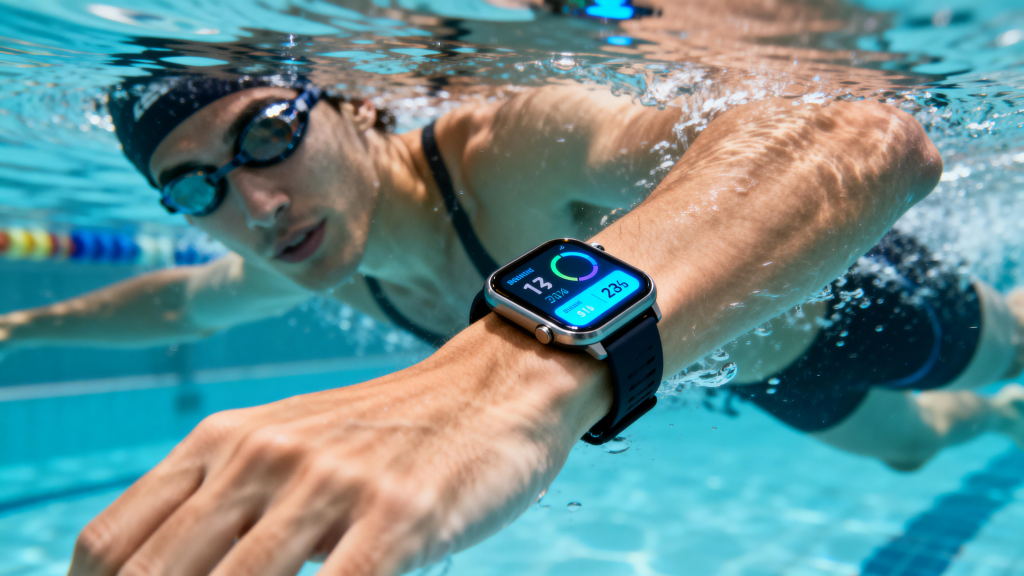
Smart watches have become everyday essentials for tracking swims, runs in the rain, sweaty gym sessions, and even quick showers after a long day. In 2026, top models handle water far better than ever—Apple Watch Ultra 3 pushes to 100 meters with dive certification, Garmin Fenix 8 and Quatix series offer 10 ATM for serious water sports, Samsung Galaxy Watch Ultra combines 10 ATM with IP68 for salty and chlorinated environments, while Fitbit Charge 6 and Garmin Venu 3 stick to solid 5 ATM ratings perfect for pool laps and daily life.

Water resistance opens up so many possibilities, but it’s not invincible. Ratings like 5 ATM or 10 ATM mean the watch survived controlled lab tests—static freshwater pressure at certain depths for set times. Real life throws curveballs: chlorine eats at seals, soap breaks down adhesives, hot water expands materials unevenly, salt corrodes contacts, sudden impacts crack gaskets, and age wears everything down. Ignore these, and you risk foggy screens, dead speakers, corrosion spots, or full failure that warranty often won’t cover if misuse is suspected.

Water resistance gets labeled in two systems: ATM (atmospheres, roughly meters of static pressure) and IP (Ingress Protection for dust/water).

  • 3 ATM (30m): Fine for rain, handwashing, sweat. Skip swimming or prolonged submersion.
  • 5 ATM (50m): The sweet spot for most people—pool swimming, open-water surface swims, showers (carefully), heavy rain. Fitbit Charge 6, Garmin Venu 3S, Samsung Galaxy Watch 8, Apple Watch Series 11 all land here.
  • 10 ATM (100m): Handles faster surface swims, shallow snorkeling, some high-speed water activities, and recreational diving on certified models. Apple Watch Ultra 3 hits this with EN13319 dive rating up to 40m; Garmin Quatix 7 Pro and some Fenix variants match it.

IP ratings add dust protection—IP68 means dust-tight and submersion beyond 1m (manufacturer specs, often 1.5m for 30 minutes on Samsung). Many combine both: Samsung Galaxy Watch Ultra lists 10 ATM + IP68, tested in salt and chlorine.

Key caveat: These are lab numbers. Dynamic motion (strokes, jumps), temperature swings, chemicals, pressure jets (power washing), or drops change everything. Seals degrade over 1-2 years of regular use, especially if exposed to the wrong stuff. No smartwatch is truly waterproof—only water-resistant, and that fades.

Before Getting Wet: Habits That Extend Seal Life

Build these routines from day one.

  1. Know Your Exact Model Specs — Check the official support page or manual. Apple warns non-Ultra Series against soapy showers; Samsung stresses rinsing after salt/chlorine; Garmin advises against hot tubs. Ratings can vary even within series (Ultra vs standard).
  2. Inspect Regularly — Every few weeks, look at the crown/buttons, speaker grille, charging port, and case edges for cracks, scratches, or wear. Fog inside the screen after moisture or tinny/muffled sound means seals are compromised—stop water exposure and service it.
  3. Swap Bands for Water Activities — Leather, metal mesh, or fabric bands hate submersion. Switch to silicone, fluoroelastomer, or quick-dry nylon before pools, showers, or sweat-heavy workouts.
  4. Avoid Temperature Extremes — Hot showers (above 40°C/104°F), saunas, steam rooms, hot tubs, or cold plunges right after heat stress gaskets differently. Materials expand/contract unevenly, letting water sneak in over time. Stick to lukewarm or cool water.

Daily Water Exposure: Showers, Rain, Sweat

Most people never take theirs off, so handle these carefully.

  • Showers — 5 ATM+ models usually survive freshwater showers if cool-to-warm and soap-free. Soap, shampoo, conditioner, body wash—the surfactants degrade seals faster than plain water. Apple explicitly says no soap for Series models; Ultra tolerates it better but still rinse off residue. After, rinse with fresh water and dry fully.
  • Rain and Splashes — Zero worry. Light rain, handwashing, or accidental spills are what lower ratings handle easily.
  • Sweat — Salty, acidic sweat is sneaky corrosive. Post-gym or run, rinse under fresh water, wipe dry. Neglect this, and ports/sensors build up residue leading to corrosion or HR glitches.

Swimming Smart: Pool, Ocean, and Tracking Tips

Swim mode is a favorite feature, but protect the hardware too.

  1. Turn On Water Lock — Apple auto-activates for swim workouts (locks touchscreen); Samsung/Garmin have equivalents or auto-detect. Prevents water from triggering random inputs.
  2. Rinse Before and After — Pre-swim: quick fresh rinse removes sweat/oils that react with pool chemicals. Post-swim: gentle warm fresh water rinse clears chlorine (eats seals), salt (corrodes), or debris. Dry immediately.
  3. Speaker Ejection — Apple: hold Digital Crown for the water-expel tone. Some Garmin/Samsung models have similar functions or auto-eject. Clears droplets so sound stays crisp.
  4. Pool vs Saltwater — Chlorinated pools need thorough rinsing—chlorine is harsh. Ocean swims: immediate fresh rinse to stop salt corrosion. Avoid if rating is borderline.
  5. Tracking Best Practices — Wear snug (but not cutting circulation) for stroke detection. Set accurate pool length in app. Don’t press buttons underwater—Water Lock blocks it.

Pushing Limits: Diving, Surfing, High-Impact Water

Only higher-rated models qualify.

  • Recreational Diving — Apple Watch Ultra 3 certified to 40m per EN13319. Garmin Descent/Fenix dive variants go deeper. Standard 5 ATM stops at surface.
  • High-Velocity Sports — Water skiing, wakeboarding, jet skis—need 10 ATM+ and explicit manufacturer okay for pressure jets.
  • General Rules — No cliff jumps or sudden depth changes. Rinse after salt. If seals feel iffy (from age or prior damage), skip.

Maintenance to Keep It Swimming Strong

Longevity comes from consistent care.

  • Weekly Clean — Rinse fresh water, soft cloth wipe. Remove band, wash separately with mild soap if needed (not on watch body).
  • No Harsh Stuff — Lotions, sunscreen, perfumes, insect repellent—keep away. They seep into gaskets.
  • Dry Charging — Always charge dry. Moisture in port risks shorts.
  • Storage — Dry, cool place. Avoid humid bathrooms long-term.
  • Service When Needed — Fog, corrosion, odd behavior—get checked. Water damage often isn’t warrantied if from misuse.

Mistakes That Wreck Water Resistance Fast

  • Daily soapy showers — top seal destroyer.
  • Skipping rinse after pool/ocean.
  • Hot tub/sauna sessions.
  • Charging while wet.
  • Ignoring early fog or muffled speakers.
  • Thinking “waterproof” means no limits.

User Stories from the Pool and Beyond

Swimmers on Apple Ultra rave about dive tracking but learn quick to rinse chlorine or face foggy displays after months. Garmin users on ocean triathlons emphasize fresh rinses to avoid salt pitting. Samsung Galaxy owners enjoy pool sessions with IP68 but note speakers get quiet without proper ejection. Fitbit Charge users find 5 ATM plenty for casual laps when dried right—no major issues after years.

Care Makes It Last

Water resistance turns your smartwatch into a true multi-sport tool—pool splits, ocean swims, rainy runs, post-gym showers. Respect the ratings, rinse religiously, skip soaps and heat extremes, inspect often, and maintain diligently. Your watch will track more reliably, sound clearer, and survive longer.

Before your next dip or shower, give it that quick prep. A minute of care beats a costly repair or replacement any day.

Finding the Perfect Smart watch for Your Athletic Journey

There is a moment in every athlete’s training when the data starts to matter more than the miles. It might come during a marathon taper, when you’re obsessing over heart rate variability and recovery scores instead of just logging distance. It might arrive in the middle of a triathlon build, when you need a single device that can track your swim, your bike, and your run without missing a stroke or a stride. Or it might simply creep up on you as you realize that the basic step counter you’ve been wearing isn’t telling you enough anymore. You want to know more. You need to know more.

This is the moment when a smart watch stops being an accessory and starts being a coach. The right device, chosen carefully and used intentionally, can transform how you train, how you recover, and how you understand your own body. It can warn you before you overtrain, guide you through unfamiliar routes, and give you the confidence to push harder when it matters most. But the wrong watch, chosen for the wrong reasons, can just as easily become an expensive distraction, cluttering your wrist with metrics you don’t need and battery anxiety you don’t deserve.

The market for athletic smart watches in 2026 is more crowded and more capable than ever before. Brands like Garmin, Coros, Polar, Suunto, Apple, and Amazfit are all competing for a spot on your wrist, each with their own philosophy about what matters most. Some prioritize battery life above all else, knowing that an athlete in the middle of a multi-day adventure can’t afford to stop and charge. Others focus on accuracy, packing in multi-band GPS and advanced heart rate sensors that rival medical equipment. Still others lean into the smartwatch lifestyle, offering vibrant displays and voice assistants while still delivering credible fitness tracking.

Navigating this landscape requires honesty about who you are as an athlete and what you actually need. Not what the marketing says you need, but what will genuinely make a difference in your training. This guide is designed to help you find that answer.

Let’s start with the gold standard, the brand that serious athletes have trusted for years. Garmin’s dominance in the athletic watch space is not accidental. They have spent decades refining their algorithms, building out their ecosystem, and listening to the feedback of everyone from weekend joggers to Olympic medalists. The Garmin Forerunner 970, released in late 2025, represents the culmination of this work. It has been named the best fitness watch overall by multiple reviewers, and for good reason .

The Forerunner 970 features a stunning AMOLED touchscreen that makes navigation a dream and displays your metrics with crystal clarity, even in direct sunlight. The GPS accuracy is exceptional, thanks to Garmin’s continued investment in multi-band satellite tracking. But the real magic lies in the metrics. The 970 introduces new running form insights that can help you identify inefficiencies in your stride and reduce your risk of injury . It tracks your training load, your recovery time, and your VO2 max with a sophistication that genuinely enhances how you plan your workouts. For triathletes, the multisport modes are seamless, allowing you to transition from swim to bike to run with a single button press. The addition of a surprisingly useful LED flashlight is one of those features you never knew you needed until you have it . The only real trade-off is battery life, which takes a slight dip from its predecessor to accommodate the brighter display and new sensors, but you’re still looking at a week of heavy use or several days of continuous GPS tracking .

If you’re a runner who values value above all else, the Coros Pace 4 demands your attention. Coros has built a reputation for delivering exceptional performance at accessible prices, and the Pace 4 continues that tradition. It was recently named the “Best Overall Running Watch” by The New York Times Wirecutter, a testament to its balance of features, accuracy, and affordability .

The Pace 4 weighs an astonishingly light 32 grams, which means you’ll barely notice it on your wrist during long runs or even while sleeping . Despite its light weight, it packs in a vibrant AMOLED display with 1,500 nits of brightness, ensuring readability in all conditions. The dual-frequency GPS is accurate enough for serious training, and the battery life is genuinely impressive: up to 41 hours of continuous GPS use and 19 days of daily wear . One of the most innovative features is the built-in microphone that allows you to record voice notes during your run. You can capture thoughts about how a workout felt, note a route you want to remember, or simply dictate a training log entry without pulling out your phone. For runners who want a watch that does exactly what they need and nothing they don’t, the Pace 4 is an unbeatable choice .

Polar has long been respected for its expertise in heart rate monitoring and sports science, and the Polar Vantage V3 brings that heritage into the modern era. It features a bright AMOLED display and Polar’s new Gen 4 heart rate sensor, which delivers some of the most reliable wrist-based optical heart rate measurements available today . During testing, the Vantage V3 consistently provided accurate data even during high-intensity intervals where many other watches struggle . The multiband GPS is reliable, and the inclusion of free Komoot and Strava subscriptions adds genuine value for athletes who love to explore new routes and share their achievements . The interface is intuitive, and the training load and recovery insights are backed by Polar’s decades of sports science research. The main drawbacks are occasional bugginess with phone pairing and the lack of offline music playback, but if your priority is accurate heart data and deep training analytics, the Vantage V3 is Polar’s best ever .

For athletes who are deeply invested in the Apple ecosystem, the choice is clear. The Apple Watch Ultra 3 sets the benchmark for what a smartwatch with fitness credentials can be . It boasts an even wider screen than its already impressive predecessor, making it easier to view multiple metrics at once . The health sensor array has reached medical-adjacent territory, with blood oxygen monitoring, ECG capabilities, temperature sensing, and fall and crash detection that provide safety benefits beyond fitness tracking . The integration with iPhone is seamless, and the watchOS ecosystem offers thousands of third-party apps that can extend its functionality in almost any direction.

However, there is a catch that dedicated athletes need to understand. The Apple Watch Ultra 3, for all its sophistication, is still a smartwatch first and a fitness watch second. If you want a running experience that matches the depth of Garmin, Polar, or Coros, you may need to supplement it with third-party apps like WorkOutDoors or HealthFit . The battery life, while improved, still requires daily charging, which means you can’t wear it for multi-day adventures or continuous sleep tracking without careful planning . For athletes who are already living in the Apple world and want a device that does everything well, the Ultra 3 is unmatched. But if your primary identity is athlete rather than Apple user, you may find more satisfaction in a dedicated sports watch.

For Android users who want a premium fitness-focused smartwatch, the Samsung Galaxy Watch 7 represents the best of what Wear OS has to offer . Samsung’s BioActive sensor cluster has been refined to deliver more accurate continuous heart rate and blood oxygen monitoring, areas where previous Galaxy Watches sometimes fell short. The new Energy Score, powered by Galaxy AI, analyzes your sleep patterns, physical activity, and heart rate variability to give you a daily readiness assessment that helps you decide whether to push hard or take it easy. The integration with Google services is excellent, with Maps navigation on your wrist, Google Assistant voice control, and access to the Play Store for third-party fitness apps. Battery life maxes out at around two days, which is respectable for a full-featured smartwatch but falls far short of the multi-week performance you’ll get from Garmin or Coros . If you carry a Samsung phone, the integration is particularly deep, but even on other Android devices, the Galaxy Watch 7 is a compelling option for athletes who want both fitness tracking and smartwatch functionality.

If your training takes you into the backcountry, away from cell service and civilization, the Garmin Fenix 8 Pro is the watch you want on your wrist. It has been named the best sports watch overall by experts who have tested dozens of devices, and for good reason . The Fenix 8 Pro is built for the extremes. It features a brilliant AMOLED display, a built-in LED flashlight that has become indispensable for anyone who spends time outdoors, and satellite connectivity options that allow you to send messages and trigger emergency SOS even when you’re completely off the grid . The mapping and navigation features are the best in the business, with detailed topo maps, ski maps for the slopes, and golf course maps for the links. You can customize the watch for virtually any sport imaginable, from fly fishing to indoor rowing to pickleball, and the battery life is measured in weeks rather than days . The Fenix 8 Pro is expensive, and its 51mm case is undeniably chunky, but for the athlete who demands the absolute best and needs a tool that can survive anything, it is worth every penny .

For those who prioritize battery life above all else, the Garmin Enduro 3 is the champion. It is designed for ultra-endurance athletes who spend days or even weeks in the field. With solar charging, the Enduro 3 can deliver up to 320 hours of GPS tracking, which means you can run a hundred-mile race without worrying about your watch dying before you cross the finish line . It features the same excellent LED flashlight as the Fenix series, a lightweight design thanks to its titanium construction and nylon band, and Garmin’s latest Elevate heart rate sensor . The display is a memory-in-pixel screen rather than AMOLED, which trades vibrancy for efficiency, but in bright outdoor light, it’s perfectly readable. If you’re the kind of athlete who thinks in terms of days on trail rather than hours in the gym, the Enduro 3 is your ideal companion .

Amazfit has been steadily improving its offerings, and the Active 3 Premium, launched in early 2026, is a compelling option for entry-level runners and hybrid athletes . It features a compact design with four tactile buttons that make it easy to operate even when you’re sweaty or wearing gloves. The 1.32-inch AMOLED display is protected by scratch-resistant sapphire glass and boasts an incredible 3,000 nits of peak brightness, making it one of the most readable watches in direct sunlight . The battery life is solid, with up to 12 days of typical use and 7 days under heavy activity. What sets the Active 3 Premium apart is its integration with third-party training platforms like TrainingPeaks, Strava, and Runna. For athletes who already use these tools to structure their training, having seamless syncing directly from the watch is a huge advantage . The Zepp Coach adaptive running plans provide science-backed guidance that can help beginners build consistency and avoid burnout . For the price of £169.90 or $169.99, the Active 3 Premium delivers an impressive package that doesn’t overwhelm with unnecessary complexity .

Huawei has returned to the professional running watch segment with the Watch GT Runner 2, unveiled at a global launch event in early 2026 . The device features a new 3D floating antenna architecture that delivers superior positioning accuracy, even in challenging urban environments where tall buildings can confuse signals. It includes a smart marathon mode that provides real-time metrics throughout a race, helping you pace yourself effectively. The partnership with two-time Olympic marathon champion Eliud Kipchoge as global ambassador signals Huawei’s serious intent in this category . For runners who want a dedicated device without the complexity of a full smartwatch, the GT Runner 2 is worth considering.

Titan Smart has introduced the Celestor 2.0, a dual-band GPS smartwatch designed for the Indian athlete but available more broadly . It features L1 and L5 satellite locking for ultra-precise location tracking, even in dense environments, and includes ABC sensors for real-time outdoor insights. The training metrics are comprehensive, with heart rate zone-based training, training load and readiness scores, VO2 Max, and advanced swimming metrics like SWOLF score and stroke detection . The addition of Titan Q, an active intelligence feature, helps transform health data into meaningful insights, and offline music storage supports phone-free workouts. For athletes who train across multiple disciplines, the dedicated triathlon mode seamlessly tracks swimming, cycling, and running in a single session .

For those who want serious athletic features in a lighter, more affordable package, the QCY Track S10 is an intriguing new entrant . It features a 1.43-inch HD AMOLED display with 1,000-nit brightness, dual-frequency six-system GNSS for accurate positioning, and an impressive 19 days of battery life. The lactate threshold monitoring and training navigation system provide in-depth insights for swim, bike, and run activities, and the watch supports over 150 sport modes. At just 37 grams, it’s comfortable enough for all-day wear, and its 5ATM water resistance ensures reliable performance in the pool .

For athletes who want the versatility of a smartwatch with deep Fitbit integration, the Google Pixel Watch 4 has set a new standard for personalized coaching . With the beta version of Fitbit Premium, the watch provides a level of personal guidance that other brands are only beginning to approach. It analyzes your sleep, activity, and readiness and offers daily recommendations tailored specifically to you. For athletes who value holistic wellness as much as workout performance, the Pixel Watch 4 is a compelling choice.

The Suunto Race 2 offers excellent value for athletes who want a bright AMOLED display and solid accuracy without breaking the bank . It packs more than 100 sport modes with comprehensive coverage of running, cycling, swimming, and triathlon. The suite of training, recovery, health, and daily activity tools is fairly comprehensive, though not quite as deep as Garmin’s. The battery life in GPS mode is competitive, and the dual-frequency GPS delivers reliable tracking. The main drawbacks are the lack of offline music and a user interface that can sometimes feel overly complicated .

For those who prefer a smaller, more discreet device, the Fitbit Charge 6 remains the best fitness band on the market . It offers built-in GPS, Google Maps navigation, Google Wallet for contactless payments, and Fitbit’s industry-leading sleep tracking. The seven-day battery life means you can wear it continuously without constantly searching for a charger, and its compact form factor is comfortable for all-day and all-night wear. The ECG app and EDA sensor for stress tracking add health depth beyond basic activity tracking. The main drawback is the $9.99 monthly subscription required for more detailed insights, but even without the subscription, the Charge 6 delivers solid value .

So how do you choose among all these options? The answer lies in honest self-assessment. Ask yourself what kind of athlete you are. Are you a competitive runner chasing personal bests, or a recreational athlete who wants to stay healthy and motivated? Do you train in a single sport, or do you bounce between swimming, cycling, running, and strength work? How important is battery life to your lifestyle? Can you charge daily, or do you need a device that can last through multi-day adventures? Are you deeply embedded in a smartphone ecosystem like Apple or Samsung, or are you platform-agnostic?

For the competitive runner who wants every possible metric and doesn’t mind paying for precision, the Garmin Forerunner 970 is the gold standard . For the value-conscious athlete who wants excellent performance without the premium price tag, the Coros Pace 4 is nearly impossible to beat . For the triathlete who needs a device that can handle swim, bike, and run with equal sophistication, the Garmin Forerunner 970 or the Titan Celestor 2.0 are both excellent choices . For the ultra-endurance adventurer who spends days in the backcountry, the Garmin Fenix 8 Pro or Enduro 3 are the only realistic options . For the iPhone user who wants a seamless experience and values integration above all else, the Apple Watch Ultra 3 is unmatched . For the Android user who wants both fitness tracking and smartwatch functionality, the Samsung Galaxy Watch 7 delivers .

The watch you choose will sit on your wrist through thousands of miles, countless workouts, and endless early mornings. It will track your progress, celebrate your achievements, and sometimes gently suggest that you need a rest day. It is not just a piece of technology. It is a training partner, a silent coach, and a witness to your athletic journey. Choose wisely, and it will serve you well for years to come.

Why Your Smart watch Screen Won’t Stay Perfect Forever

There is a moment that every smart watch owner dreads. It usually happens in the least dramatic way possible. You glance down at your wrist, and the light catches the screen just right, illuminating something you hadn’t noticed before. A scratch. Maybe it’s a hairline micro-scratch, barely visible unless you tilt the watch at a specific angle. Maybe it’s a deeper gouge, one you can actually feel with your fingernail. Your heart sinks just a little. That pristine, glossy display that looked so perfect on day one now has a permanent blemish. And the worst part? You have no idea when it happened.

This moment is almost a rite of passage for smartwatch owners. It happens to nearly everyone, and it happens because we fundamentally misunderstand what we’re dealing with. We look at our smartwatch screens and assume they’re built like the screens on our phones, or perhaps even tougher because they’re designed for the outdoors. The reality is far more complicated, and far more vulnerable. Your smartwatch screen is engaged in a constant, invisible war with the world around it. It battles keys in your pocket, desk surfaces at work, metal railings on your morning commute, and the surprisingly abrasive dust particles that settle on everything. And unlike your phone, which spends much of its life safely in a pocket or bag, your watch is exposed, all day, every day, right there on the front lines attached to your wrist.

The science behind this vulnerability is straightforward but rarely explained. Different screens use different materials, and each material has a specific hardness rating measured on something called the Mohs scale. This scale, ranging from one to ten, ranks minerals based on their ability to scratch one another. Talc sits at one, diamond at ten. Most standard glass sits around five or six. The Gorilla Glass found on many premium smartwatches reaches six or seven. Sapphire crystal, used in luxury models and some high-end variants, ranks at nine, second only to diamond. Here is the uncomfortable truth that manufacturers don’t advertise: sand, which contains quartz, ranks at seven on that same scale. This means that a microscopic grain of sand, something so small you’d never notice it, is harder than Gorilla Glass. Every time you wipe your screen with a cloth that has picked up a single grain of dust, you are essentially dragging sandpaper across your display. The scratches aren’t a sign of poor quality. They are a sign of physics.

Understanding this changes everything. It shifts the question from “why did this happen” to “what can I do about it.” And the answer starts with accepting that no matter how advanced the materials become, your screen will never be invincible. The goal is not to make it bulletproof. The goal is to make it last.

The most effective defense you can deploy is also the simplest: a screen protector. This tiny piece of glass or film acts as a sacrificial layer, taking the abuse that would otherwise mar your actual display. When you think about the cost of replacing a smartwatch screen, which can often run into hundreds of dollars or a significant percentage of the watch’s original price, spending ten or twenty dollars on a protector feels less like an accessory and more like insurance. And unlike insurance, which only pays out after something bad happens, a screen protector prevents the bad thing from happening in the first place.

But not all protectors are created equal. The market is flooded with options, and choosing the wrong one can be almost as frustrating as having no protection at all. The material matters. Tempered glass protectors, typically rated at 9H on the pencil hardness scale, offer the best scratch resistance and maintain the smooth, responsive feel of the original screen. They are slightly thicker than other options, but modern versions are so slim that they become nearly invisible once applied. For users with curved screens, TPU or hydrogel films offer a different advantage. These flexible protectors conform to the curves perfectly and even have a self-healing property, where minor scratches disappear over time. They are less resistant to sharp impacts than glass, but for certain screen shapes, they are the only option that covers edge to edge without lifting.

The installation process is where most people abandon their good intentions. They buy a protector, try to apply it in a dusty room, end up with bubbles and trapped lint, and either live with the mess or throw the protector away in frustration. The truth is that installation is not difficult, but it requires a method that most people skip. The environment matters more than you think. A bathroom after a hot shower, when the steam has settled the dust in the air, is actually an ideal workspace. Turn off the watch so the black screen makes dust easier to see. Clean the screen thoroughly with the alcohol wipe provided in your kit, then dry it with the microfiber cloth. Then comes the step that separates success from failure: the dust removal. Use the sticky dust sticker to gently tap the entire screen surface, picking up any microscopic particles the cloth missed. When you look at the screen from an angle under good light, it should look absolutely pristine. If you see even one speck of dust, remove it before proceeding.

When you’re ready to apply, do not just peel the entire backing off and drop the protector onto the screen. That is a recipe for misalignment and trapped bubbles. Instead, peel only part of the backing, align the protector carefully using the edges of the watch as a guide, and then slowly lower it while pressing gently from the center outward. If you see a bubble forming, do not panic. Use your fingernail or a soft card wrapped in the microfiber cloth to push the bubble toward the nearest edge. Bubbles that contain no dust will usually disappear within a day or two as the adhesive settles. Bubbles with dust are more stubborn, but even those can sometimes be fixed by lifting the nearest corner of the protector with a piece of tape, using the dust sticker to remove the particle, and then lowering the protector again.

Once the protector is on, your relationship with your watch changes. You no longer have to flinch every time your wrist brushes against a door frame. You can wear it with confidence, knowing that the thing taking the damage is replaceable. But the protector itself needs care. The oleophobic coating that repels fingerprints will wear down over time, especially if you clean the screen with harsh chemicals. Stick to a microfiber cloth for daily cleaning. If you need to disinfect, a 70% isopropyl alcohol wipe is safe for glass protectors, but avoid getting it on the edges where the adhesive might be exposed.

Beyond the protector, your habits matter just as much. Think about what your wrist touches during the day. That desk you rest your hand on while typing? It collects microscopic debris. The gym equipment you grab during a workout? Metal and grit. The simple act of being aware of these contact points can prevent a lot of damage. When you’re not wearing the watch, store it somewhere safe. A soft pouch, a dedicated watch stand, or even a clean pocket in your bag is better than tossing it into a drawer with keys and coins. If you wear your watch while gardening, working on a car, or doing any activity that involves sand or abrasive materials, consider taking it off. These environments are the enemy of glass.

The band you choose also plays a role in screen protection that most people never consider. Metal bands, especially those with loose links, can actually slap against the screen during movement, causing micro-abrasions over time. Silicone and fabric bands are generally safer, but they can trap grit against the case. The solution is not to avoid certain bands, but to clean regularly. Remove the band occasionally and wipe down the area where it attaches to the watch. Debris loves to hide in those small spaces.

There is also a persistent myth that needs to be put to rest: the idea that you can fix scratches with toothpaste. This is one of those internet tips that sounds plausible but causes more harm than good. Toothpaste contains mild abrasives designed to polish teeth. When applied to glass, it does not fill scratches. It grinds down the surrounding surface, effectively creating more scratches in an attempt to make the existing ones less visible. It also strips away any oleophobic coating, leaving your screen more vulnerable to fingerprints and smudges. The same applies to baking soda and other DIY remedies. Once a scratch is in glass, it is there to stay. The only real solutions are prevention or replacement.

For those who already have scratches and are living with them, there is still hope, though it comes with caveats. Some liquid glass screen protectors claim to fill in microscopic scratches by bonding with the surface at a molecular level. These products can improve the appearance of very fine scratches, but they are not a magic fix for deeper damage. They also add a layer that changes the surface feel slightly. If the scratches are deep enough to catch your fingernail, no liquid will fix them. At that point, you have to decide whether to live with them, replace the screen, or simply cover them with a new protector that might hide the damage from view.

The economics of screen protection are worth considering honestly. A high-quality screen protector costs somewhere between ten and thirty dollars. A decent protective case that wraps around the watch bezel adds another ten to twenty. For less than fifty dollars, you can outfit your watch with a level of protection that will last for years, replacing only the protector when it eventually cracks or wears out. Compare that to the cost of a screen replacement, which on many watches exceeds two hundred dollars, and the math becomes obvious. Protection is not an expense. It is a savings.

But there is another dimension to this that goes beyond money. Your smartwatch is a personal device. It tracks your heart rate, your sleep, your steps. It buzzes with messages from people you love. It sits on your wrist through workouts and meetings and quiet evenings at home. Over time, it becomes part of your daily rhythm. Keeping it in good condition is not about vanity. It is about respect for the tool that serves you. A pristine screen feels better to use. It is easier to read, more responsive to touch, and simply more pleasant to look at. Every time you glance down and see a clear, unblemished display, you are reminded that you are taking care of something that matters.

The technology in your wrist is remarkable. It can detect irregular heart rhythms, guide you through unfamiliar cities, and connect you to the world with a glance. But it is also fragile, not because it is poorly made, but because the very clarity that makes it beautiful is also what makes it vulnerable. The trade-off between visibility and durability is one that no manufacturer has fully solved. Glass will always be glass. It will always be susceptible to the physics of hardness and the abrasive nature of the world.

This is not a reason to be paranoid. It is a reason to be smart. Apply a protector. Be mindful of where you put your wrist. Clean your watch regularly with the right materials. Store it properly when it is not on your arm. These are not burdensome tasks. They are small habits that take seconds but pay dividends in years of continued use. The scratch you prevent today is one you will never have to look at tomorrow.

The next time you catch the light hitting your screen at just the right angle, and you see nothing but a perfect, clear surface, remember that this did not happen by accident. It happened because you made a choice. You chose to protect something that matters. And in a world where we are surrounded by things that break, wear out, and degrade, that small act of preservation feels quietly powerful. Your watch will eventually be replaced by something newer, faster, shinier. But until that day comes, it deserves to look its best. So does the wrist it sits on. Take the ten minutes. Apply the protector. And never flinch at a door frame again.

Proven Tips to Dramatically Extend Your Smart watch Battery Life

Smart watches in 2026 are more capable than ever—multi-band GPS that locks in seconds, always-on Retina or AMOLED displays showing vibrant complications, continuous heart-rate and SpO2 monitoring, sleep-stage analysis with respiratory insights, AI-powered readiness scores, and even satellite messaging on premium models. All that intelligence comes at a cost: battery drain is the single biggest complaint users still have, even as capacities creep up to 500–600 mAh on flagships and solar assists add effective runtime on rugged pieces.

The reality is that most people get noticeably less than the advertised figures because of how they use (and misuse) the device. A few intentional tweaks, however, can add 30–70% more real-world runtime on the same hardware. Serious athletes routinely stretch a Garmin Fenix 8 or Apple Watch Ultra 3 to 4–7 days between charges; casual users often push a Galaxy Watch 8 or Pixel Watch 3 from one overnight top-up to three or four days.

  1. Turn Off or Heavily Restrict Always-On Display

The always-on screen is beautiful and convenient, but it’s usually the #1 battery killer.

  • On Apple Watch Series 11 / Ultra 3: Settings → Display & Brightness → Always On → turn off. You lose the glanceable time + complications, but gain 30–50% more runtime in daily use.
  • Samsung Galaxy Watch 8 / Ultra: Settings → Display → Always On Display → off, or set to “Tap to Show” (shows full face on wrist raise).
  • Garmin (Fenix 8, Venu 3, Enduro 3): Gesture mode instead of always-on. Many models default to gesture; if yours is set to always-on, switch to “During Activity” or “Gesture Only”.
  • Google Pixel Watch 3 / Fitbit Sense 2 / Versa 4: Always-on is usually off by default or easy to disable in Display settings.
  • Huawei GT 5 Pro / Xiaomi Watch S4: “Raise to Wake” or “AOD Off” gives the biggest single-day gain.

Pro tip: If you can’t live without always-on, at least dim it to the lowest comfortable level and shorten the timeout to 5–10 seconds on wrist raise.

  1. Reduce Screen Brightness & Shorten Wake Duration

After always-on, brightness is the next biggest drain.

  • Manually lower to 20–40% in most lighting (auto-brightness often overshoots).
  • Set wake duration to 5–8 seconds instead of 15–20 (Apple: Settings → General → Wake Screen; Samsung/Garmin similar in Display).
  • Disable “Wake on Wrist Raise” during sleep or long sedentary periods if the watch supports scheduling (many 2026 models do via Focus/Do Not Disturb modes).

Combined with shorter wake, this can add 20–40% runtime on AMOLED-heavy watches.

  1. Disable or Limit Background Features You Don’t Need

Modern watches run dozens of background sensors and connections.

High-impact toggles:

  • Continuous SpO2 / Blood Oxygen — Turn to “During Sleep Only” or “Manual”. All-day tracking eats 15–30% daily battery on most models.
  • Always-On Heart Rate — Switch to “Every 10 Minutes” or “Smart” (Garmin excels here). Continuous HR is useful, but interval sampling is usually enough for trends.
  • Auto GPS During Activities — Use “Battery Saver GPS” or “Connected GPS” (phone provides location) for casual walks/runs.
  • Wi-Fi & LTE Auto-Connect — Turn Wi-Fi off when phone is nearby; disable LTE except when needed (huge drain on cellular models).
  • Background App Refresh → Notifications from non-essential apps (news, social) → limit to essentials.
  • Auto-Sync & Cloud Backup — Set to manual or less frequent.
  1. Optimize Location & GPS Usage (Biggest Outdoor Drain)

GPS is power-hungry, especially multi-band.

  • Use single-band GPS or “Battery Saver” mode for road runs/city rides.
  • Enable “SatIQ” on Garmin (auto-switches to multi-band only when needed).
  • Turn off GPS completely for indoor workouts (treadmill, gym strength).
  • Pre-acquire satellite lock outdoors before starting activity (saves 10–30 seconds of high-power searching).
  • For long hikes/ultras: carry phone for connected GPS when possible.
  1. Leverage Software Battery-Saving Modes & Profiles

Most 2026 watches have dedicated power-saving states.

  • Apple — Low Power Mode (disables always-on, background heart rate, etc.; adds 30–50% runtime).
  • Samsung — Power Saving Mode or “Max Battery Life” (greys screen, limits features).
  • Garmin — Battery Saver widget (turns off most sensors except time + basic steps/HR).
  • Fitbit / Google — “Battery Saver” in quick settings.
  • Huawei / Xiaomi — Ultra-long Battery Life mode (keeps only time, steps, basic HR).

Create custom profiles: “Gym” (no GPS, minimal sensors), “Sleep” (screen off, basic HR), “Weekend Hike” (GPS on, always-on off).

  1. Manage Notifications & Vibration

Constant buzzing and screen wakes add up.

  • Limit notifications to high-priority (calls, messages, calendar).
  • Use “Do Not Disturb” or Focus modes aggressively.
  • Reduce haptic strength or switch to visual-only alerts.
  • Disable “Smart Wake” or complication updates on non-essential watch faces.
  1. Choose Battery-Friendly Watch Faces & Complications

Dynamic or heavily animated faces drain more.

  • Pick simple analog/digital faces with minimal complications.
  • Avoid weather animations, live photos, or constantly updating stock/crypto tickers.
  • On AMOLED watches, dark/black-heavy faces save power (pixels turn off).
  1. Keep Software Updated & Restart Weekly

Firmware updates frequently include battery optimizations.

  • Install every update promptly.
  • Restart the watch weekly (clears memory leaks, stuck processes).
  1. Temperature Management

Heat is the silent battery killer.

  • Never charge or use heavily in >35 °C environments.
  • Avoid direct sun on the wrist during summer activities.
  • Let cool after intense workouts before charging.
  1. Charging Discipline for Longevity (Indirect Runtime Boost)

Healthy battery = more usable capacity over time.

  • Charge to 80–90% daily instead of 100%.
  • Enable optimized/smart charging features.
  • Avoid overnight full charges.
  • Don’t let it drop below 10–15% regularly.

Bonus Tips from Heavy Users in 2026

  • Triathletes on Garmin: Solar exposure during outdoor sessions adds 20–40% effective runtime on sunny days—position wrist up when possible.
  • Runners with Apple Ultra: Low Power Mode + cellular off + always-on disabled = 60–70 hours of mixed use.
  • Office workers with Galaxy Watch: AOD off + raise-to-wake only + notifications limited = easy 4–5 days.
  • Hikers: Pre-download offline maps so GPS doesn’t need constant phone sync.

Quick Wins Summary (Do These Today)

  1. Disable always-on display.
  2. Lower brightness & shorten wake time.
  3. Turn SpO2/HR to interval or sleep-only.
  4. Use battery-saver GPS modes outdoors.
  5. Enable optimized charging & cap at 80–90%.
  6. Kill unnecessary notifications & background refresh.
  7. Restart weekly & update firmware.

Implement just the top three and you’ll likely see an immediate 40–60% jump in daily runtime. Add the rest and you’re in territory where a once-per-3–5-days charge becomes normal even with heavy feature use.

Your smart watch isn’t disposable tech—treat the battery with the same care you give your training data, sleep scores, and workout streaks. Small daily choices compound into years of reliable performance.

Plug in smarter tonight. Your wrist will thank you tomorrow.

Smart watch GPS Workouts: Must-Know Precautions to Avoid Inaccurate Tracks, Dead Batteries, and Getting Lost

Smart watches have turned everyday exercise into data-rich adventures. Strap on a Garmin Fenix 8, Apple Watch Ultra 3, Coros Vertix 2S, Samsung Galaxy Watch Ultra, or Suunto Vertical, and suddenly your run, bike ride, or hike comes with precise pace, distance, elevation profiles, and route maps right on your wrist. In 2026, multi-band GNSS, faster satellite locks, and offline topo maps make these devices feel almost magical for outdoor training.

Yet GPS isn’t magic—it’s physics. Signals bounce off skyscrapers in urban canyons, get swallowed by dense forest canopies, drift in deep valleys, and drain batteries faster than a long hill climb. Small errors add up: a 5% distance undercount on a 20 km trail run means you’re short a kilometer, pace readings jump wildly, and that “shortcut” the watch suggests might lead you off-trail. Worse, over-trusting the device in remote areas can leave you stranded if the battery dies or the track glitches.

How GPS Works on Smartwatches During Exercise—and Why It Fails Sometimes

Your watch pulls signals from multiple satellite constellations: GPS (US), GLONASS (Russia), Galileo (EU), BeiDou (China), and QZSS (Japan). Premium models use dual-frequency (multi-band) reception on L1 and L5 bands, cutting multipath errors (reflections) by up to 60% compared to single-band. All-systems mode grabs more satellites for better coverage.

In running, cycling, or hiking mode, the watch logs position roughly every second, computes speed/distance from changes in coordinates, estimates elevation (often aided by a barometric altimeter), and draws your route. It blends this with heart rate, cadence, or power data for splits, zones, and recovery advice.

Real-world killers include:

  • Multipath interference — Signals bounce off buildings, trees, or cliffs, confusing the receiver and creating zigzag tracks or jumps of 20-100 meters.
  • Signal blockage — Thick canopy, tall structures, tunnels, or valleys hide satellites, dropping visible count below 6-8 and spiking errors.
  • Cold start delays — First fix can take 30-90 seconds indoors or under cover; weak initial lock leads to bad starting points.
  • Atmospheric distortion — Ionosphere/troposphere delays, worse in certain weather or latitudes.
  • Antenna position — Wrist orientation, body blocking, or loose fit subtly affects reception.

Knowing these helps you set expectations and take countermeasures.

Pre-Workout Checklist: Setup Steps That Make or Break Accuracy

Don’t hit start until these are done.

  1. Update Everything — Firmware patches often fix lock speed, multipath handling, and map data. Garmin pushes updates via Connect app; Apple through iPhone; Coros/Suunto via their apps. Download fresh offline maps—topo for trails, city for urban runs—to avoid blank screens in no-service zones.
  2. Pick the Smart GNSS Setting — Options usually include:
    • All-systems + multi-band: Highest accuracy, fastest in tough spots, but hungriest on battery.
    • GPS-only: Decent balance for open roads.
    • Battery-saver/single-system: Longer life, more drift. Garmin’s SatIQ auto-switches based on environment; enable it. Coros “Accurate” mode prioritizes precision. Use multi-band for forests, trails, or races; saver for easy neighborhood loops.
  3. Get a Solid Lock Before Starting — Step outside to clear sky at least 1-2 minutes early. Watch the satellite icon strengthen. Garmin shows “GPS ready”; Apple fills the indicator. Never start inside a building, car, or under heavy tree cover—the first fix locks onto junk data, skewing the whole activity.
  4. Wear It Snug and High — Position about a finger-width above the wrist bone. Tight fit keeps the antenna steady and optical HR sensor flush (though HR is separate from GPS). Loose watches shift, slightly worsening multipath.
  5. Calibrate Sensors — Many models auto-calibrate altimeter with weather data or known elevation. Garmin users: do an outdoor walk/run for compass/accelerometer tweaks. Apple: calibrate by outdoor GPS activity.
  6. Turn On Safety Nets — Enable live location sharing (Garmin Messenger, Apple Find My), incident/crash detection, and SOS. Apple Ultra offers satellite texting in zero-coverage spots; pair Garmin with inReach for remote two-way messaging.

Navigating Tricky Environments: Urban Canyons, Forests, Valleys, and More

Your location dictates 70% of GPS performance.

  • Urban Canyons (Skyscraper Streets) — Reflections off glass/metal cause 30-65m drift. Stick to wider avenues; avoid narrow alleys or under overpasses. Multi-band helps (Apple Ultra 3, Garmin Epix Pro cut errors ~25-40%). If tracking a city run, trust average pace over instant; use HR zones for effort.
  • Dense Forests/Trail Running — Canopy blocks overhead view, dropping satellites and under-reporting distance 5-10%. Choose routes with clearings; accept minor errors and run by feel. Multi-band + all-systems shines here (Coros Vertix, Garmin Fenix reduce drift noticeably). Focus on time-on-feet or perceived exertion rather than exact km splits.
  • Deep Valleys/Mountains — Limited sky view = weak signals. Rely on barometric altimeter for climb/descent (standard on Garmin, Coros, Suunto). GPS elevation can jump wildly—disable it in stats if available.
  • Near Water or Reflective Surfaces — Lakes, wet pavement bounce signals. Keep arm away from body/water during strokes or rides.
  • Tunnels/Indoor — No signal. Switch to indoor run mode (accelerometer-based) or pause tracking.

Quick rule: Scout routes for open sky. Apps like GPS Status show real-time satellite count/strength before heading out.

Battery-Saving Tactics for Long GPS Sessions

GPS chews power—expect 40-60% faster drain in full tracking.

  • Charge to 100% before ultras, multi-day hikes, or 4+ hour rides.
  • Kill extras: Turn off always-on display, wrist gestures, notifications, music streaming during activity.
  • Use low-power GPS or SatIQ/auto mode for non-race days.
  • Garmin solar models (Instinct 3, Enduro) sip sunlight for extra hours; Apple Ultra hits 36-60 hours GPS with tweaks.
  • Carry a slim power bank or solar charger for adventures over 10 hours.
  • Mid-session check: If below 20%, save battery by ending track early—preserve SOS capability.

Boosting Accuracy: Extra Steps for Cleaner Data

Even top watches see 1-5% error on tough days.

  • Set 1-second recording interval (Garmin high-accuracy default).
  • Pair external sensors: Foot pod for running (bypasses GPS distance), wheel/cadence for cycling—cross-checks drift.
  • Ignore wild instant pace in bad areas; use rolling average or lap pace.
  • Post-activity: Edit obvious glitches in Strava, Garmin Connect, or Apple Fitness (move points, crop bad starts).
  • Benchmark your watch: Run a known 400m track or measured trail repeatedly—note consistent over/under bias and adjust mentally.
  • For races/events: Trust course markers and official distance over watch readout.

Safety Precautions: GPS Should Help, Not Replace Judgment

The device aids, never overrides common sense.

  • Carry physical backup: Paper map, compass, or fully charged phone with offline maps (Gaia GPS, AllTrails).
  • Share route/live location with a trusted contact; set expected return time.
  • Test SOS/satellite features in safe areas first.
  • Use breadcrumb trail recording (Garmin’s trackback, Apple’s waypoints) to retrace steps.
  • In true backcountry, treat low battery, frozen screen, or bizarre route as red flags—switch to landmarks, sun position, or intuition.
  • Don’t chase perfect data: Obsessing over numbers mid-hike adds stress and distraction.

Brand-Specific Tips from 2026 Models

  • Garmin (Fenix 8, Forerunner 970, Enduro 3): SatIQ auto-optimizes; all-systems + multi-band crushes forests/cities. Barometer rules elevation. Long battery + inReach pairing = remote king.
  • Apple Watch Ultra 3 / Series 11: Dual-frequency excels in urban/tricky spots. Satellite SOS for emergencies. Low-power mode stretches GPS. Avoid poor-signal forcing—use connected iPhone GPS backup.
  • Coros (Vertix 2S, Pace 4, APEX 4): 50-100+ hour GPS battery legends. Dual-frequency standard. “Accurate” mode for precision; offline maps strong.
  • Suunto (Vertical, Race S): FusedTrack blends GPS + motion for weak-signal accuracy. Multi-band on top models. Great altimeter for mountains.
  • Samsung Galaxy Watch Ultra / Fitbit: Solid urban/casual. Often better with phone-connected GPS. Enable high-accuracy location in phone settings.

Common Problems and Instant Fixes

  • Zigzag/squirrelly track: Multipath—edit in app or shrug off small error.
  • Slow/no lock: Wait outdoors longer; restart watch; move to open area.
  • Battery dies mid-activity: Data loss—always start full, use saver mode.
  • Elevation nonsense: Trust barometer, not GPS height.
  • Pace jumps 2 min/km: Signal issue—rely on effort/HR.

Lessons from Real Users in 2026

Trail runners in thick woods report 5-12% short distances on single-band watches—multi-band models cut that in half. City cyclists praise Garmin/Apple dual-frequency for straighter lines through high-rises. Hikers love Coros battery for all-day tracks without shutdown fears. One ultra runner switched to solar Garmin after mid-race blackout on older models. Urban 5Kers learn to mentally add 200-400m in downtown loops.

Treat GPS as a Smart Tool, Not a Magic One

In 2026, wrist GPS delivers incredible insights—motivating you with accurate splits, guiding navigation, and adding safety layers. But ignore the physics at your peril: prep setups, respect environment limits, manage power aggressively, verify data, and keep backups. Do that, and your outdoor sessions become more enjoyable, trustworthy, and secure.

A Family’s Guide to Choosing and Using Smart watches for Aging Parents

There comes a moment in every adult child’s life when the roles begin to shift. It happens gradually, almost imperceptibly, until one day you realize that you’re the one making sure your parents are safe, just as they once did for you. You notice the way your father grips the railing a little tighter when walking down stairs. You hear your mother mention that she feels a bit dizzy sometimes, but she’s sure it’s nothing. You live in a different city now, and the distance between visits feels like more than just miles.

In that moment, you start looking for solutions. You want something that can watch over them when you can’t, something that doesn’t feel like surveillance, something that gives them independence while giving you peace of mind. For more and more families, that something is a smartwatch.

The idea of putting a high-tech device on an aging parent’s wrist can feel counterintuitive at first. If they struggle with a smartphone, how will they manage something even smaller? If they’ve never worn a watch, will they remember to put it on? These are valid concerns, and they deserve honest answers. The truth is that smartwatches, when chosen carefully and set up thoughtfully, can be transformative for seniors. They’re not just gadgets. They’re lifelines.

Research has shown that smartwatches provide significant health benefits for seniors, including monitoring vital signs and promoting physical activity. A study involving seniors aged sixty to sixty-nine who used smartwatches for six to twelve months found that participants reported improved health outcomes, increased motivation for physical activity, and better communication with healthcare providers . The devices became more than technology. They became partners in health.

But the same research highlighted persistent challenges. Small text, complex interfaces, and confusing navigation can turn a helpful tool into a frustrating obstacle . Without proper setup and support, a smartwatch can end up in a drawer, unused and forgotten. The goal of this guide is to make sure that doesn’t happen. Whether you’re shopping for a parent or helping them use a watch they already own, these guidelines will help you navigate the process with patience, clarity, and love.

Let’s start with the most important question: what should you look for when choosing a smartwatch for a senior? The answer depends on their specific needs, their lifestyle, and their comfort with technology, but there are certain features that rise to the top for almost everyone.

Fall detection is arguably the most critical safety feature available in modern smartwatches. According to the Centers for Disease Control and Prevention, there are around three million emergency room visits each year due to seniors falling . A watch with automatic fall detection can make the difference between a minor incident and a major crisis. When the watch detects a sudden change in speed and altitude consistent with a fall, it triggers an alert asking if the person needs assistance. If there’s no response within a set time, usually about sixty seconds, the watch automatically calls for help . Some models, like those from Samsung, require registration of emergency contacts and that location services be enabled to share the wearer’s position . For seniors living alone or spending time alone during the day, this feature is not a luxury. It’s a necessity.

The SOS button works hand in hand with fall detection. This is a physical button or on-screen option that the wearer can press to immediately alert emergency contacts or a professional monitoring service. Some watches, like the Tunstall Gem5, require holding the button for about three seconds to connect to a twenty-four-hour care centre with two-way communication . Others, like the Apple Watch, allow users to press and hold the side button to activate SOS . The key is that the button must be easy to find and easy to press, even in moments of stress or confusion.

GPS tracking adds another layer of security, particularly for seniors with dementia or Alzheimer’s who may be at risk of wandering. Real-time GPS allows caregivers to see the wearer’s location at any moment, and some watches allow you to set “safe zones” around the home or other familiar places. If the wearer leaves that zone, you receive an immediate notification . This isn’t about surveillance. It’s about the reality that cognitive decline can lead to disorientation, and a watch that helps you find a loved one quickly can prevent hours of agonizing uncertainty.

Health monitoring features have become remarkably sophisticated. Modern smartwatches can track heart rate, alert users to irregular rhythms, monitor blood oxygen levels, and even take electrocardiograms. Samsung’s Galaxy Watch series, for example, offers blood pressure monitoring and ECG features, though these require regular calibration and are intended for fitness and wellness purposes rather than medical diagnosis . The Apple Watch includes similar features, and some newer models may offer hypertension alerts . For seniors managing chronic conditions, having this data readily available can help them stay on top of their health and have more informed conversations with their doctors.

But here’s the catch that many adult children overlook: all these features mean nothing if the watch is too complicated to use. Usability is the foundation upon which everything else rests. A study on smartwatch adoption among older adults identified that sensory, motor, and cognitive challenges, combined with limited familiarity with digital interfaces, often hinder seniors from using new technologies effectively . The researchers proposed specific design guidelines for smartwatches aimed at older users, emphasizing simplicity, clear visual presentation, and intuitive interaction . When you’re choosing a watch, look for models with large, easy-to-read screens and straightforward interfaces. The Apple Watch, for instance, offers watch faces with big numbers that are clearly visible, and features like wrist gestures can make interaction simpler . Some watches designed specifically for seniors, like the Medical Guardian MGMove, include only essential apps to avoid a cluttered interface . Less is truly more when it comes to senior usability.

The physical design matters just as much as the software. Look for watches with comfortable, breathable bands made from materials that won’t irritate sensitive skin. Soft silicone or fabric bands are often good choices. The clasp should be secure but easy for arthritic fingers to manage. Water resistance is important too. An IP67 or IP68 rating means the watch can handle splashes, rain, and even immersion in shallow water, so it doesn’t have to be removed for showering or handwashing .

Battery life is another practical consideration. If a watch needs to be charged every night, it might not be worn consistently, which defeats the purpose of continuous health monitoring and safety coverage. Some models, like the Apple Watch Series 11 and Ultra 3, offer longer battery life that can last through both day and night for comprehensive tracking . Others may need daily charging. Consider your parent’s routine and whether they’ll remember to charge the watch regularly. A watch with a low battery alarm can help, but it’s better to choose a model whose battery life aligns with their habits .

Once you’ve chosen the right watch, the real work begins: helping your parent learn to use it. This process requires patience, empathy, and a willingness to go at their pace. Remember that technology can be intimidating, especially for those who didn’t grow up with it. The goal is to build confidence, not to overwhelm.

Start with the basics. Show them how to put the watch on and take it off. Demonstrate how to charge it, and explain why regular charging matters. Then move to the core functions that matter most for their safety and communication. Teach them how to make a call, how to send a message, and most importantly, how to use the SOS feature. Practice this together until it feels natural. Samsung recommends helping grandparents stay connected through features that make communication easier, like large displays for video calls . The more they practice in a calm, supportive environment, the more likely they’ll remember when they need it.

Customize the watch to suit their needs and preferences. Set up the watch face with large, clear numbers and add complications that show information they care about. The “大文字” watch face on Apple Watch, for example, is designed specifically for visibility, with bold numerals and the option to add useful data like air quality index or step count . You can add apps that support their daily routines. Medisafe, for instance, sends medication reminders directly to the watch, helping seniors remember to take their pills on time . Pedometer++ turns step counting into a simple, motivating activity that encourages movement without complexity . Each customization should serve a purpose. If an app or feature isn’t useful, remove it. Clutter is the enemy of confidence.

The social support piece cannot be overstated. Research consistently shows that family involvement is crucial for seniors to adopt and effectively use smartwatches . This doesn’t mean you have to be available twenty-four hours a day, but it does mean checking in regularly, answering questions, and celebrating small victories. When your parent successfully makes their first call from the watch, acknowledge that achievement. When they remember to charge it without being reminded, let them know you noticed. Positive reinforcement builds momentum.

There are also practical considerations around privacy and data that need to be addressed. Smartwatches collect a tremendous amount of personal information: location, heart rate, activity patterns, and more. Seniors in the aforementioned study expressed concerns about privacy and security, wanting assurance that their data would be protected . Before setting up the watch, review the privacy settings together. Understand what data is being collected, who has access to it, and how it’s stored. Opt out of anything that feels excessive. Make sure your parent understands that you can see their location if that feature is enabled, and explain why it’s there. Transparency builds trust, and trust makes the watch feel like an ally rather than an intrusion.

The question of monitoring services adds another layer of decision-making. Some watches, like the Apple Watch, can be used with optional professional monitoring through services like Lively, which starts at about twenty-five dollars a month . Others, like those from Medical Guardian or LifeFone, include monthly fees that cover twenty-four-seven monitoring and emergency response . These services can provide an extra layer of security, especially for seniors who live alone or have complex health needs. But they also add ongoing cost and require the user to understand how to interact with a monitoring center. Weigh the benefits against the expense and complexity based on your parent’s specific situation.

For seniors who are still highly active, fitness tracking features can be a genuine motivator. The Fitbit Versa 4, for example, tracks steps, calories burned, sleep quality, and heart rate during activities like running, cycling, and swimming, making it a good choice for active older adults . It includes a built-in smart assistant for setting alarms and reminders, though it lacks fall detection and SOS capabilities. The trade-off between fitness features and safety features is one you’ll need to consider based on your parent’s priorities.

Some families opt for dedicated medical alert watches rather than general-purpose smartwatches. The Tunstall Gem5 is designed specifically for seniors, with features like automatic fall detection, two-way calling to a care centre, GPS location, and even voice prompts that confirm when an alert has been sent . These devices often have simpler interfaces and are built around the single purpose of safety. They may lack the broader functionality of an Apple Watch or Samsung Galaxy Watch, but for some seniors, that simplicity is exactly what makes them usable.

The decision between a mainstream smartwatch and a dedicated medical alert device comes down to your parent’s personality and needs. A tech-savvy senior who enjoys gadgets might embrace the full capabilities of an Apple Watch, using it to stay connected, track health, and even read the news. A senior who is hesitant about technology might do better with a simpler device focused purely on safety. There’s no right answer, only the right fit for your family.

Once the watch is in use, your role shifts from teacher to supporter. Check in periodically to see how things are going. Is the battery lasting long enough? Are there features they’re struggling with? Have any new questions come up? These conversations don’t have to be formal. A quick call to say hello can also include a gentle reminder to charge the watch or a question about whether they’ve used any new features. Stay engaged without being overbearing.

It’s also important to keep the watch updated. Software updates can bring new features, improve performance, and patch security vulnerabilities. Help your parent understand that updating is part of keeping the watch working well. If possible, schedule updates during a time when you can be available in case something goes wrong or if they have questions afterward.

The emotional dimension of this journey matters just as much as the practical one. For many seniors, accepting a smart watch can feel like admitting they’re becoming frail or dependent. They might resist at first, insisting they don’t need anyone watching over them. This is where sensitivity and respect are essential. Frame the conversation around your own needs, not their limitations. Tell them that the watch would give you peace of mind, that you’d worry less knowing they have a way to reach help. Let them know that this is about your anxiety as much as their safety. Often, seniors are more willing to accept help when they see it as a gift they’re giving to their loved ones rather than a concession to their own aging.

When the watch is on their wrist and the features are working, something remarkable happens. The device that started as a safety measure becomes something more. It becomes a connection. They see your name when you call, and they answer with a smile. They get a notification that you’ve checked in, and they feel cared for across the miles. They glance at their step count and decide to take an extra lap around the block. The watch that watches over them also reminds them that they’re still living, still moving, still part of a world that loves them.

This is the true promise of smartwatches for seniors. Yes, they detect falls and call for help. Yes, they track hearts and monitor sleep. But more than that, they weave their wearers back into the fabric of connection. They turn a wrist into a lifeline, and a lifeline into a reminder that no one walks alone.

The technology will keep evolving. Watches will get smarter, batteries will last longer, sensors will become more precise. But the fundamental need they serve, the need to stay safe and connected while aging with dignity, will never change. And for the families navigating that journey, a well-chosen, thoughtfully introduced smartwatch can be one of the most valuable tools they’ll ever find.

So take your time. Ask the questions. Do the research. Involve your parent in the decisions. Set the watch up together, practice together, and celebrate together. The wrist that remembers is also the wrist that reaches out. And in the end, that’s what matters most.

Why Your Smart watch Case Is Dirtier(And How to Fix It)

Let’s play a quick mental game. Think about everything your hands have touched today. The door handle at your office. Your phone screen. The subway pole. The bathroom faucet. Now think about your smartwatch. It has been on your wrist all day, every day, collecting the combined residue of every single thing you’ve touched, plus your own sweat, dead skin cells, and that tiny drip of lotion you applied this morning.

Here’s the part that might make you queasy: A study found that 95% of tested smartwatch wristbands harbored bacteria such as Staphylococcus and E. coli . That’s not just a “little bit dirty.” That’s “potentially hazardous to your health” territory.

We obsess over cleaning our phone screens. We wipe down our keyboards. But the device that is literally strapped to our bodies 24 hours a day, the one that presses against our skin while we sleep and while we sweat, gets ignored. The case—the very body of your watch—becomes a petri dish wrapped around your wrist.

This isn’t just about aesthetics. A dirty watch case can cause skin irritation, interfere with sensor accuracy, and even degrade the materials over time . But here’s the good news: fixing it is simple, cheap, and takes about ten minutes.

What’s Actually Living on Your Wrist

Before we dive into cleaning methods, let’s talk about why this matters. Your smartwatch case is not like your phone. Your phone sits in your pocket or on your desk. Your watch is pressed against your skin, often tightly, for hours on end. This creates a warm, moist environment—the perfect breeding ground for bacteria .

Dr. Deepa Parbhoo, a dermatologist, explains that the constant skin contact can lead to a disrupted skin barrier function, making the skin more susceptible to bacterial and fungal overgrowth . This isn’t just theoretical. A 2019 study published in the Journal of Clinical and Aesthetic Dermatology found that 12.5% of smartwatch users reported skin irritation or rashes .

The culprits aren’t just bacteria. They include:

  • Sweat salts that crystallize and abrade coatings 
  • Skin oils that break down adhesives and sealants
  • Sunscreen and lotions that create a film on sensors, blocking light and causing inaccurate readings 
  • Dead skin cells that accumulate in crevices around buttons and the crown

That seemingly harmless buildup around the edge of your screen? It’s a bacterial hotel, and check-out time is never.

The Golden Rules of Smartwatch Cleaning

Before you grab the nearest cleaning spray and a paper towel, stop. They have seals, gaskets, and coatings that can be destroyed by the wrong cleaning method. Here are the rules that apply to every single smartwatch on the market.

Rule #1: Power Down and Detach First

Always turn off your watch and remove it from the charger before cleaning . This prevents accidental button presses, short circuits, and allows you to access the entire surface without interference. If your band is removable, take it off. This lets you clean the lugs and the area where the band attaches—prime real estate for grime accumulation .

Rule #2: Never Use Harsh Chemicals

Bleach, hydrogen peroxide, acetone, and household cleaners are absolutely forbidden . These chemicals will strip the oleophobic coating from your screen, degrade the seals that keep water out, and discolor the case materials. Samsung explicitly warns against exposure to hair dye, insect repellents, moisturizing creams, and perfumes, as these can degrade water resistance and materials .

Rule #3: Avoid Abrasives

Steel wool, scrub pads, toothpaste (yes, toothpaste is abrasive), and even rough paper towels can micro-scratch your screen and case . Once those scratches are there, they’re permanent. Always use a soft, lint-free microfiber cloth .

Rule #4: Keep Water Out of Openings

Even if your watch is rated IP68 or 5 ATM, you should never deliberately spray water into speaker grilles, microphone holes, or button seams . These openings have fine mesh screens to keep water out, but high-pressure water can force past them. Gentle, low-pressure water is acceptable for rinsing, but never jets.

Rule #5: Dry Thoroughly Before Charging

Moisture on the charging contacts or the back crystal can cause connection issues or even short circuits . After cleaning, wait until the watch is completely dry before placing it on the charger. This usually takes 30-60 minutes at room temperature .

The Tools of the Trade: What You Actually Need

You don’t need fancy cleaning kits. Here’s what the experts recommend:

ToolPurposeNotes
Microfiber clothGeneral wiping, dryingThe single most important tool. Use it dry for smudges, damp for grime 
Cotton swabsCrevices, crown, buttonsIdeal for getting into tight spaces 
Soft-bristled brushSpeaker grilles, band crevicesA clean, soft toothbrush works perfectly 
70% isopropyl alcohol wipesDisinfecting (glass/ceramic only)Safe for screens and metal cases, not for leather or fabric 
Mild, fragrance-free soapSilicone bands onlyUse sparingly, rinse thoroughly 
Distilled waterFinal rinse (hard water areas)Prevents limescale spots 

The Step-by-Step Case Cleaning Protocol

Now that you’re armed with the right tools and knowledge, let’s get to work. This is the definitive method for cleaning your smartwatch case, approved by manufacturers and repair experts.

Step 1: Preparation

Power off your watch completely. On most watches, you can do this by holding the side button and sliding the power off icon, or going into Settings > General > Shut Down . Remove the watch from its charger and place it on a clean, soft towel to work on .

If your watch has a removable band, take it off now . This exposes the lugs and the back of the case for thorough cleaning.

Step 2: The Dry Wipe

Take a dry microfiber cloth and wipe the entire case—screen, back sensors, and sides. This removes loose dust, lint, and dry particles. You’ll be surprised how much comes off with just this step.

Step 3: The Damp Wipe (For General Grime)

Lightly dampen a corner of your microfiber cloth with fresh water. It should be damp, not dripping wet. Wring it out until barely moist .

Wipe the case in straight lines with gentle pressure. Focus on areas where grime accumulates: around the screen edge, the back crystal where the sensors sit, and the flat surfaces of the case. For Apple Watch users, pay special attention to the Digital Crown area. If you see visible debris around the crown, you can rinse it under gently running warm water while turning and pressing the crown to dislodge particles .

Important: Do not use soap on the watch case itself. Apple explicitly states not to use soap on the screen or case . Soap can leave residue that irritates skin and can seep into seals over time .

Step 4: The Detail Work (Crevices and Buttons)

Dip a cotton swab in fresh water and squeeze out the excess. Use it to gently clean around the edges of the screen, the button crevices, and the microphone or speaker openings . Do not poke the swab into the openings—just wipe around them.

If you have stubborn grime in the crevices, a soft-bristled brush (like a clean toothbrush) can be used with gentle, circular motions . This is particularly effective for dislodging dried sweat and skin cells from the gaps between the case and the buttons.

Step 5: Sensor Cleaning (For Accuracy)

The optical heart rate sensors on the back of your watch are precision instruments. They work by shining light into your skin and measuring the reflection. If there’s a film of oil, sunscreen, or dried sweat on the sensor window, the light gets scattered, and your readings become inaccurate .

Use a fresh, slightly damp section of your microfiber cloth to gently polish the sensor lenses. Wipe in a circular motion until the surface is completely clear and streak-free. If you’ve been wearing sunscreen, you may need to repeat this step twice.

Step 6: Disinfecting (Optional, When Needed)

If you need to disinfect your watch—after being sick, after using it in a healthcare setting, or just for peace of mind—you can use a 70% isopropyl alcohol wipe .

Critical: Use alcohol only on glass and ceramic surfaces. For Apple Watch, this means the screen and the back crystal . For other watches, check manufacturer guidance. Never use alcohol on leather, fabric, or coated rubber bands, as it can dry them out and cause cracking .

Gently wipe the surfaces for 15-30 seconds, then allow the alcohol to evaporate completely. Do not saturate the watch or let alcohol run into seams .

Step 7: Drying

This step is just as important as the cleaning itself. Use a dry section of your microfiber cloth to thoroughly dry the entire case. Pay special attention to:

  • The charging contacts (if exposed)
  • The speaker and microphone grilles
  • The area around the crown and buttons
  • The sensor windows

Then, let the watch air dry at room temperature for at least 30-60 minutes before putting it back on the charger . If you rinsed the watch under water, give it a full hour.

Never use a hairdryer, radiator, or compressed air to speed up drying . Heat can warp seals and adhesives, and compressed air can force moisture deeper into the device.

Material Matters: Case-Specific Care

Not all watch cases are created equal. The material of your watch case determines how you should clean it and what precautions to take.

Aluminum Cases

Aluminum is lightweight but prone to scratching and corrosion if handled harshly. Clean with a damp microfiber cloth only. Avoid alcohol on the aluminum itself (though it’s safe on the glass screen). Dry immediately to prevent water spots .

Stainless Steel and Titanium

These premium materials are more durable but can show fingerprints and smudges. A damp microfiber cloth works well. For stubborn marks, you can use a 70% isopropyl alcohol wipe on the metal . Dry and buff with a clean cloth to restore shine. Titanium may develop a natural patina over time; this is normal and not a sign of dirt.

Ceramic

Ceramic is highly scratch-resistant and easy to clean. Damp cloth or 70% alcohol wipes are both safe . Ceramic cases often retain their luster for years with minimal care.

Plastic/Resin (Common in fitness trackers)

Plastic cases are more susceptible to chemical damage. Stick to water only. Avoid alcohol and solvents, which can cause discoloration or make the plastic brittle over time .

The Band Factor: Why It Matters for the Case

Your band and your case are partners in grime. When you sweat, moisture runs down the band and collects in the lugs—the attachment points on the case . This area is often overlooked during cleaning.

If your band is removable, clean the lugs with a cotton swab dampened with water. Dry them thoroughly before reattaching the band. This prevents corrosion of the spring bars and ensures the band attaches securely.

Different band materials also require different care:

  • Silicone/Fluoroelastomer: Wash with mild soap and water, rinse thoroughly, dry completely . These are the easiest to clean.
  • Leather: Never soak. Wipe with a barely damp cloth and air dry away from heat . Condition occasionally with leather conditioner designed for watches.
  • Metal: Wipe with a damp cloth and dry immediately to prevent water spots. For stainless steel, 70% alcohol is safe .
  • Fabric/Nylon: Hand wash with mild soap and water, rinse thoroughly, and air dry completely before reattaching .

The Maintenance Schedule: How Often Should You Clean?

Cleaning isn’t a one-and-done task. It’s a habit. Here’s a simple schedule to keep your watch case in optimal condition.

Daily (30 seconds)

After workouts or heavy sweating, wipe down the case and sensors with a dry microfiber cloth . This removes sweat before it has a chance to crystallize and abrade coatings.

Weekly (5 minutes)

Perform a full damp wipe-down as described in Steps 2-5 above. Clean the crevices with a cotton swab. This prevents buildup from becoming stubborn grime .

Monthly (10 minutes)

Do a deep clean. This includes removing the band (if possible) and cleaning the lugs thoroughly. If you wear your watch in the pool or ocean, do a deep clean immediately afterward, not monthly .

After Specific Exposures

  • Seawater or pool water: Rinse immediately with fresh water, dry thoroughly . Salt and chlorine are corrosive.
  • Sunscreen or insect repellent: Clean as soon as possible. These chemicals can degrade coatings and seals .
  • Sickness: Disinfect the glass surfaces with a 70% alcohol wipe.

What About UV Sanitizers?

You may have seen UV-C sanitizer boxes designed for phones and watches. These devices claim to kill 99.99% of germs using ultraviolet light .

Are they safe? Generally, yes. UV-C light doesn’t use moisture or chemicals, so it won’t damage seals or coatings. However, ensure the device is designed for watches and that you follow the manufacturer’s instructions. Some users pop their watches into UV sanitizers daily, especially after workouts .

That said, UV sanitizers should supplement, not replace, physical cleaning. They kill germs but don’t remove the dirt, sweat, and grime that can interfere with sensors and irritate skin.

Common Mistakes That Destroy Watch Cases

Let’s end with a warning. These are the most common cleaning errors that send people to repair shops.

Mistake #1: Using Paper Towels

Paper towels are made from wood pulp and can be abrasive. Over time, they’ll create micro-scratches on your screen and case that dull the finish. Always use microfiber .

Mistake #2: Submerging Non-Waterproof Watches

Just because your watch is “water resistant” doesn’t mean it’s safe for immersion. Water resistance degrades over time. Seals dry out. If you’re unsure about your watch’s current water resistance, don’t submerge it. Stick to a damp cloth .

Mistake #3: Cleaning with Soap on the Case

Soap residue can get into the seals and cause irritation when it contacts your skin later. It can also strip the oleophobic coating that repels fingerprints. Water only for the case .

Mistake #4: Using Compressed Air

It’s tempting to blast dust out of speaker grilles with canned air. Don’t. The pressure can force dust deeper into the device or damage delicate membranes .

Mistake #5: Charging Too Soon

Putting a damp watch on the charger is a recipe for corrosion. The charging contacts are metal; moisture + electricity = oxidation. Wait until everything is bone dry .

A Clean Watch Is a Happy Watch

Your smart watch asks very little of you. It tracks your heart through thousands of beats, guides you through unfamiliar cities, and wakes you gently each morning. In return, it asks for a few minutes of your time each week to stay clean.

That ten-minute investment pays dividends. You’ll get more accurate heart rate readings. You’ll reduce your risk of skin irritation. Your watch will look better on your wrist. And perhaps most importantly, you won’t be wearing a device that shares space with E. coli.

Back to Top
Product has been added to your cart
Compare (0)