
There it is again. That tiny, infuriating pause.
You raise your wrist to check a notification. The screen lights up. You swipe. And then… nothing. For one full second, your watch stares back at you, unresponsive, as if it’s contemplating the meaning of digital existence before deigning to acknowledge your finger.
We accept this behavior as normal. We’ve been conditioned to believe that lag is simply the price we pay for having a mini-computer on our wrists. But here’s the truth that device manufacturers don’t advertise: That lag is almost always curable. In many cases, it’s self-inflicted.
Your smart watch is not supposed to feel like it’s wading through digital molasses. Whether you’re wearing an Apple Watch, a Samsung Galaxy Watch, a Pixel Watch, or a Garmin, the principles of performance are the same. The device has finite resources, and when those resources are mismanaged—by you, by apps, or by the system itself—the stuttering begins.
This comprehensive guide isn’t just a list of tips. It’s a complete philosophy shift in how you treat your wearable. We’re going to dissect the anatomy of lag, hunt down the culprits hiding in your settings, and implement a maintenance routine that keeps your wrist experience as fluid as the day you unboxed it.
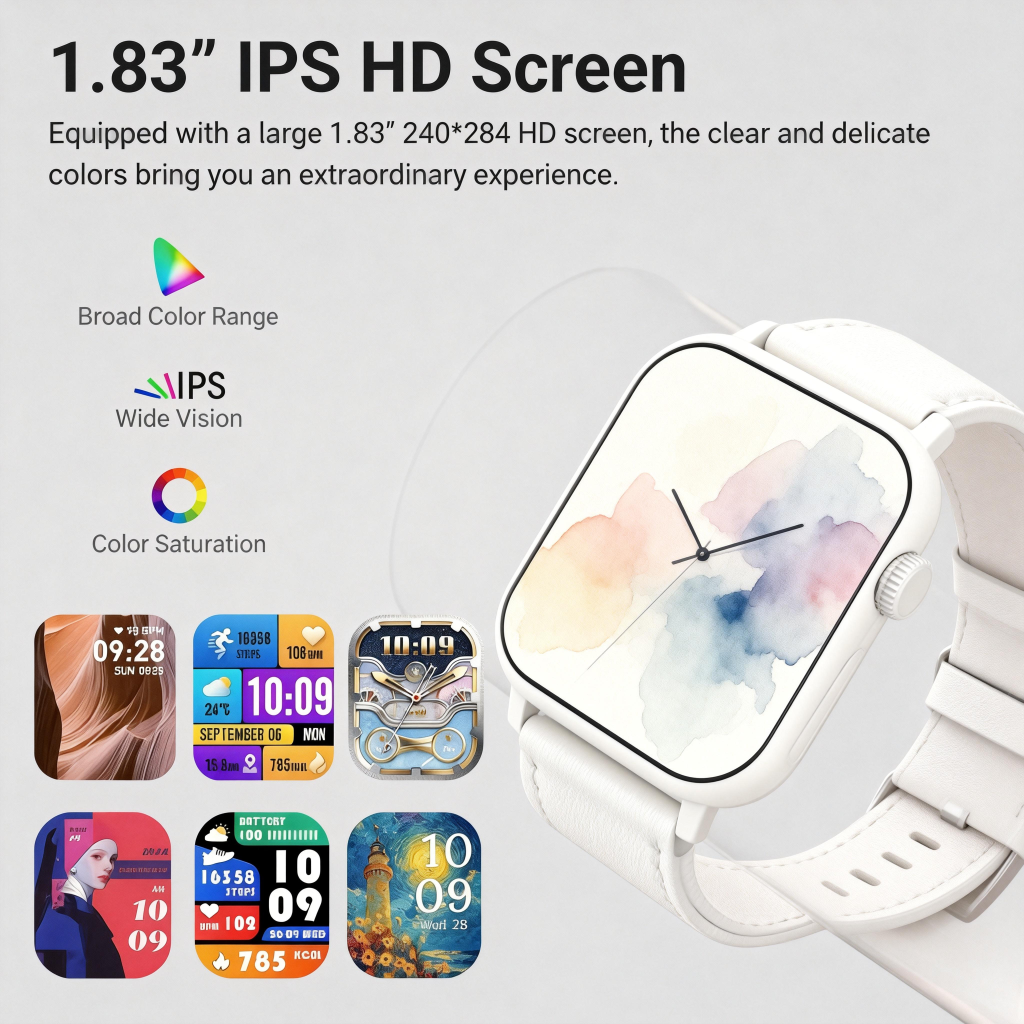
The Anatomy of Annoyance: Why Smartwatches Slow Down
Before we can fix the problem, we need to understand why it happens. A smartwatch is a miracle of miniaturization, but that miracle comes with brutal compromises.
Your phone has a battery the size of a candy bar, a processor that can cool itself through a metal chassis, and several gigabytes of RAM. Your watch has a battery the size of a fingernail, a processor that must generate almost no heat, and RAM that would make a 2010 smartphone blush. It is, fundamentally, an underpowered device trying to do powerful things.
The lag you feel is the sound of the system struggling to catch up with your demands. It happens for three primary reasons:
The Resource Starvation Cascade
Every animation, every app launch, every heart rate read requires CPU cycles and memory. When you have too many processes running—background syncing, an active workout, music streaming, and notification handling all at once—the watch’s tiny brain gets overwhelmed. It has to prioritize, and often, your touch input gets put at the back of the line .
The Cache Catastrophe
Think of cache as your watch’s short-term memory. It stores bits of data from apps and processes so they can load faster next time. But over weeks and months, this cache fills up with digital junk. Like a closet stuffed with old newspapers, the watch has to dig through piles of irrelevant data to find what it needs. This digging takes time, and time is lag .
The Update Hangover
Software updates are supposed to make things better. But anyone who has updated a computer knows that new features often come with new bugs. When Samsung rolled out One UI 8 Watch for the Galaxy Watch 6, users flooded forums with complaints about lag. The fix wasn’t a new watch; it was adjusting settings that the update had changed, like transparency effects that were suddenly taxing the GPU too heavily .
The Visual Bloat
Modern watch faces are beautiful. They are also performance killers. Every “complication” that pulls live data—weather, stock tickers, step counts—is an app running in the background, constantly updating. Every animation, every gradient, every second hand that moves smoothly rather than ticking, consumes processing power. The greater the complexity of the watch face, the higher the chance of lag .
When You Just Need It to Work Now
Sometimes you don’t want a lecture; you want your watch to stop freezing mid-workout. Here is the emergency room protocol for a lagging or frozen smartwatch.
The Force Restart (No Data Lost)
This is the digital equivalent of pounding on the side of an old TV. It doesn’t fix the root cause, but it clears the immediate glitch.
- For Apple Watch: Press and hold both the side button and the Digital Crown simultaneously for at least 10 seconds, until you see the Apple logo. Release and let it boot .
- For Samsung Galaxy Watch: Press and hold the upper (Home) button and the lower (Back) button simultaneously for about 10 seconds until the Samsung logo appears .
- For Pixel Watch / Wear OS: Press and hold the crown for about 30 seconds, or until the device restarts. If that fails, try the crown and side button combo .
- For Fitbit: Connect to the charger (this is often required), then press and hold the side button for 15-20 seconds until the Fitbit logo appears .
This should be your first move. It clears the system memory and stops any hung processes. If your watch feels sluggish but isn’t frozen, skip the forced reboot and try a standard restart through the settings menu.
The App Purge
If the watch is running but stuttering, close the background apps. On most watches, you press the side button once to see your recent apps, then swipe them away . On a Galaxy Watch, you can swipe up from the watch face, tap the Recent apps icon, and select “Close all” . This frees up RAM instantly.
Clearing the Digital Clutter
If a restart helps for a day and then the lag returns, you have a buildup problem. The most effective, underrated fix for smartwatch lag is clearing the cache.
A Samsung spokesperson confirmed that while Galaxy Watch memory management operates automatically, manual steps can significantly improve performance . Clearing the cache removes temporary files that are corrupted or simply no longer needed.
How to Clear Cache on a Samsung Galaxy Watch (The Recovery Mode Method)
This is the “nuclear option” of cleaning, and it works wonders after major updates .
- Press and hold both the Home and Back buttons to force shut down the watch.
- Once the screen goes black, keep pressing the Home button. You’ll see the bootloader menu after a few seconds.
- Use the top button to scroll to “Recovery mode.” Press and hold the top button to enter it.
- In Recovery mode, use the bottom button (Back) to scroll to “Wipe cache partition.”
- Press the top button to select it.
- Use the bottom button to highlight “Yes” and press the top button to confirm.
- Once the cache is wiped, the watch will return to the recovery menu with “Reboot system now” highlighted. Press the top button to restart.
This process doesn’t delete your personal data, apps, or settings. It just empties the trash can.
For Apple Watch Users: The “Offload” Trick
Apple doesn’t offer a simple “clear cache” button, but you can achieve a similar effect by offloading apps. Go to the Watch app on your iPhone, then General > iPhone Storage. You’ll see a list of apps. Offloading removes the app but keeps its documents and data. When you reinstall, you get a fresh copy without the accumulated cache junk.
The Visual Diet: How Your Watch Face is Slowing You Down
Let’s talk about the elephant in the room: that gorgeous, data-dense watch face you spent an hour customizing. It might be the reason your battery dies by noon and your swipes stutter.
Every complication is a live data feed. That weather complication is pinging the internet. That heart rate complication is taking readings. That stock ticker is constantly checking the market. All of this happens in the background, even when you’re not looking at it .
Furthermore, visual effects like transparency and blur require GPU power. On a device with a tiny graphics processor, these effects can cause noticeable lag when swiping between menus or notification panels.
The Performance Tune-Up:
- Reduce Transparency and Blur: On a Galaxy Watch, go to Settings > Accessibility > Vision enhancements > and toggle on “Reduce transparency and blur.” Users have reported this single change restores fluidity after laggy updates .
- Simplify Your Face: Try switching to a basic watch face with fewer complications for a day. If the lag disappears, you’ve found your culprit. You don’t have to abandon your favorite face forever, but you might need to choose between aesthetic complexity and performance.
- Limit Live Data: Opt for complications that update less frequently, or use “dummy” complications that just show static data.
The Silent Performance Killers
Third-party apps are the wild west of smartwatch performance. Unlike the core operating system, which is optimized by the manufacturer, many watch apps are poorly coded, bloated, or simply not updated for the latest OS version.
The Rule of Installation: If you don’t use it at least once a week, delete it. Every installed app is a potential background process, a potential notification sender, and a potential drain on system resources.
How to Identify a Problem App:
If your watch started lagging recently, think back. Did you install a new app around the same time? Uninstall it and see if performance improves . On Wear OS devices, you can check which apps are running in the background by going to Settings > Device Care > Memory. This shows you a list of apps currently active and consuming RAM .
The Connection Factor: Bluetooth and Sync Issues
Sometimes, the lag isn’t in the watch itself—it’s in the communication between your watch and your phone. If notifications are delayed, or if the watch feels sluggish when trying to access phone-dependent data, the issue might be the Bluetooth tether.
Troubleshooting the Link:
- Toggle Bluetooth: Turn Bluetooth off on your phone, wait 10 seconds, and turn it back on.
- Forget and Re-pair: This is more drastic but often fixes persistent sync lag. Go to your phone’s Bluetooth settings, “forget” the watch, and then set it up again through the companion app. This forces a clean connection .
- Check for Interference: If you’re in a crowded area with dozens of Bluetooth and Wi-Fi signals (like a gym or an airport), interference can cause lag. There’s not much you can do except move closer to your phone .
When the Well Runs Dry
Smartwatches have limited storage—typically 8GB to 32GB on high-end models, but often much less on fitness-focused devices. A significant portion of that is taken up by the operating system itself.
When storage dips below a certain threshold, performance plummets. The system needs free space to manage temporary files and app data.
Freeing Up Space:
- Music Management: Downloaded playlists are often the biggest storage hogs. If you stream music to Bluetooth headphones from your watch, you might have several gigabytes of songs stored locally. Delete albums you haven’t listened to in months .
- Photo Pruning: Some watches allow you to sync photo albums. Limit this to a single album with a handful of photos.
- App Review: Go through your app list and delete anything unnecessary. On Apple Watch, you can enable “Offload Unused Apps” in the Watch app to automate this process .
The Nuclear Option: Factory Reset
If you’ve tried everything—restarts, cache clearing, app audits, storage cleaning—and the watch still feels like it’s running through sand, it’s time for the factory reset.
This erases everything. It returns the watch to the state it was in when you pulled it out of the box. You will have to set it up again, re-pair it with your phone, and reinstall apps.
When to Reset:
- After a major OS update that introduced persistent bugs .
- If the watch is stuck in a boot loop or crashes immediately after unlocking .
- Before selling or giving away the device.
- As a last resort when all other troubleshooting fails.
How to Factory Reset:
- Apple Watch: On the watch itself, go to Settings > General > Transfer or Reset > Erase All Content and Settings. Alternatively, do it through the Watch app on your iPhone .
- Samsung Galaxy Watch: Settings > General > Reset > Factory data reset. You may need to enter your PIN .
- Pixel Watch / Wear OS: Settings > System > Advanced > Reset options > Erase all data .
- Garmin: Settings > System > Reset > Delete Data and Reset Settings .
Crucial Pre-Reset Step: Ensure your health data is backed up. For Apple Watch, this means having an encrypted iPhone backup or iCloud Health sync enabled. For Samsung, check that Samsung Cloud or your connected phone app has the latest data. Once the reset is done, that local data is gone .
The Hardware Reality: When It’s Not a Software Problem
Sometimes, no amount of software tinkering will fix the lag because the problem is physical. Recognizing the signs of hardware failure can save you hours of frustration.
- Battery Degradation: As lithium-ion batteries age, they can’t deliver consistent voltage. This can cause the processor to throttle (slow down) to prevent crashes, leading to system-wide lag. If your watch is over two years old and the battery drains rapidly, a failing battery might be the root of the slowness .
- Water Damage: Even water-resistant watches have limits. If you’ve worn it in a hot shower (steam gets past seals) or in saltwater, corrosion can slowly eat away at internal connections. This often manifests as erratic behavior, including lag and phantom touches .
- Screen Damage: A cracked screen isn’t just ugly. Hairline fractures can interfere with the digitizer (the layer that detects your touch). This can cause missed touches or delayed responses that feel like software lag but are actually hardware input issues .
- Overheating: If your watch feels hot to the touch and is lagging, it’s likely thermally throttling. Modern processors automatically slow down when they get too hot to prevent damage. This can happen if you’re using GPS and streaming music in direct sunlight .
The Maintenance Protocol: A Schedule for Smoothness
Lag is like dust. It accumulates slowly, and you don’t notice it until suddenly, everything feels dirty. The solution is routine maintenance. Here is a simple schedule to keep your smartwatch feeling new.
Weekly (30 Seconds)
- Restart the watch. Just like your computer, a weekly reboot clears out temporary gremlins. Do it while you’re brushing your teeth on Sunday night .
- Close background apps. Swipe away the app switcher clutter .
Monthly (5 Minutes)
- Clear the cache. On Samsung/Wear OS, go through the recovery mode cache wipe. On Apple, offload a few apps and reinstall them .
- Audit your apps. Uninstall anything you haven’t used in the last month.
- Check for updates. Go to the companion app on your phone and install any pending watch OS or app updates .
Quarterly (10 Minutes)
- Clean the sensors. Use a dry, lint-free cloth to wipe the back of the watch. Gunk on the sensors can interfere with readings and, in extreme cases, cause the sensor to work overtime, draining resources.
- Review watch faces. Try a “performance test” week with a basic face. See if you miss the complications or if the watch feels faster.
- Check battery health. Most watches have a battery health indicator in the settings. If it’s significantly degraded, start planning for a replacement.
Reclaiming Your Wrist
Your smart watch is a tool, not a torture device. It should respond to your input with the same immediacy as a traditional watch—instantaneously. The lag you’ve been tolerating is not an inevitable feature of wearable technology; it’s a symptom of neglect, bloat, or misconfiguration.
By understanding that your watch has limits, and by actively managing the digital clutter that accumulates over time, you can restore the fluid experience you paid for.
Take twenty minutes this weekend. Clear the cache. Audit the apps. Simplify the face. Your wrist will thank you with every swipe, every tap, every instant response. The one-second wait doesn’t have to be your reality. It’s time to make your smartwatch smart again.
Leave a Comment
Your email address will not be published. Required fields are marked *